This integration connects Ashby with imper.ai to secure interviews throughout the hiring process. It enables protection and verification for interviews that are managed and scheduled directly within Ashby, helping prevent impersonation and candidate fraud.
Note
The setup requires Ashby admin access to complete the configuration steps.
To connect and manage the Ashby integration in imper.ai, users must have admin role.
Connecting Ashby
Log in to your Ashby platform as an administrator and follow these steps:
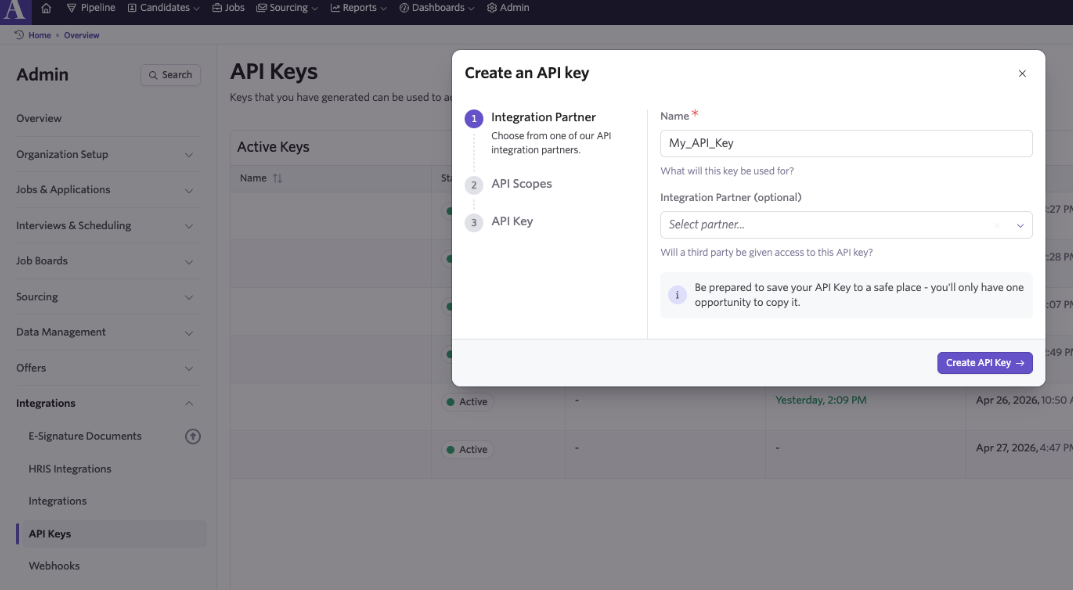
Step 1: Generate an API key in Ashby
Log in to your Ashby account.
Click Admin in the top navigation bar.
Navigate to: Integrations → API Keys
Click New to generate a new API key.
Save the generated API key for the next step.
Step 2: Set API Key Permissions
After clicking Save & Continue when creating the API key, you will be taken to the permissions configuration screen.
Set the following permissions for the API key:
.png)
Click Save and continue to finalize the API key setup.
Copy the presented API key for the following step.
.png)
Copy API key
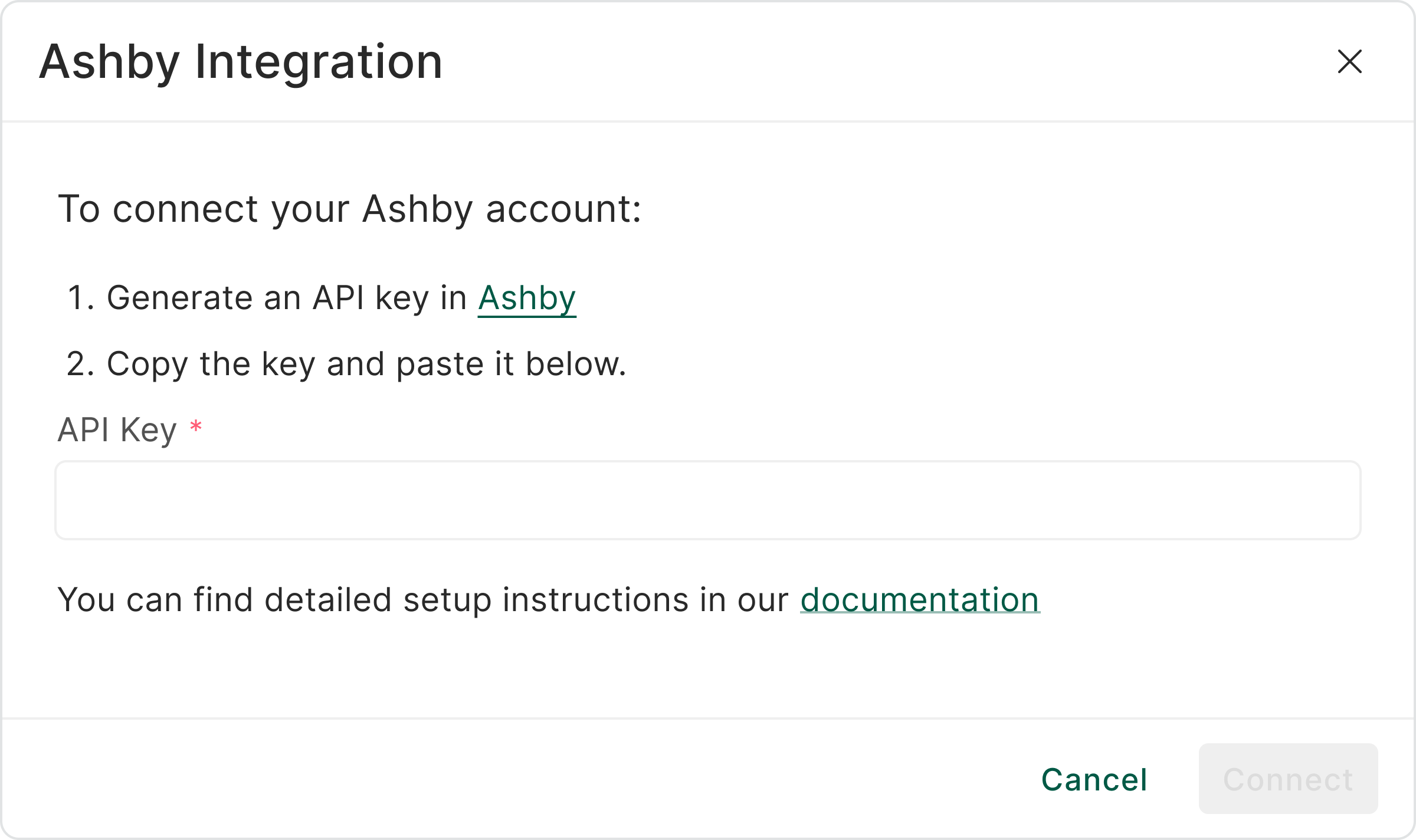
Step 3: Connect Ashby to imper.ai
Go to the imper.ai admin interface.
Paste the API key generated in Ashby into the designated field.
Click connect to complete the process.
Ashby Integration