This integration connects SmartRecruiters with imper.ai to secure interviews throughout the hiring process. It enables protection and verification for interviews that are managed and scheduled directly within SmartRecruiters, helping prevent impersonation and candidate fraud.
Note
The setup requires SmartRecruiters admin access to complete the configuration steps.
To connect and manage the SmartRecruiters integration in imper.ai, users must have admin role.
Connecting SmartRecruiters for SAP SuccessFactors
Log in to your SmartRecruiters platform as an administrator and follow these steps:
Step 1: Generate an OAuth Client ID in SmartRecruiters
Log in to your SmartRecruiters account.
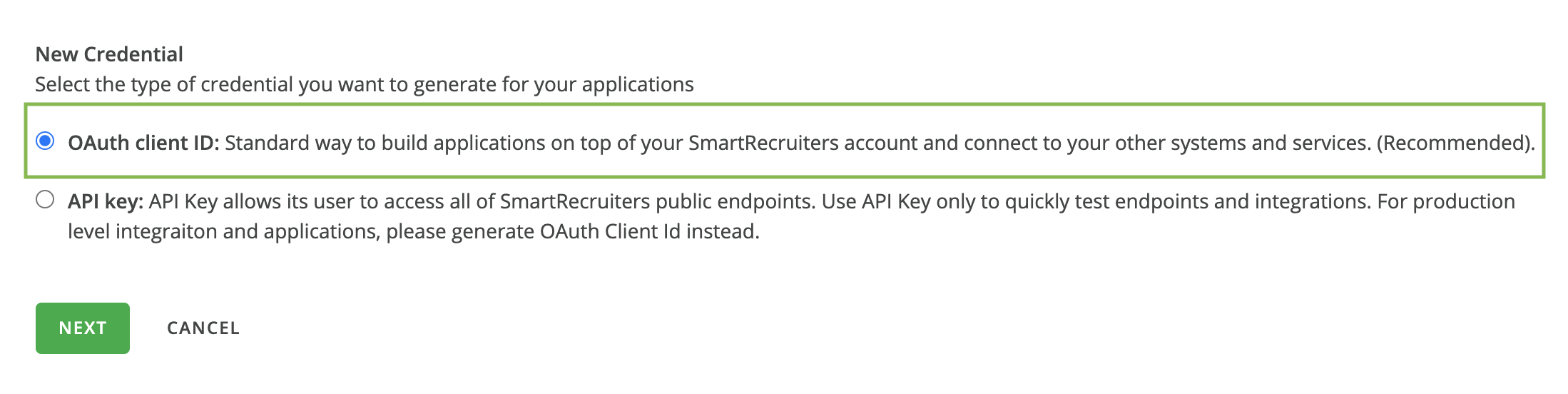
In SmartRecruiters Credential Manager, click the button New Credential and choose the option OAuth client ID
Type the Credential Name, Description, and Scope for your new Client Credential.
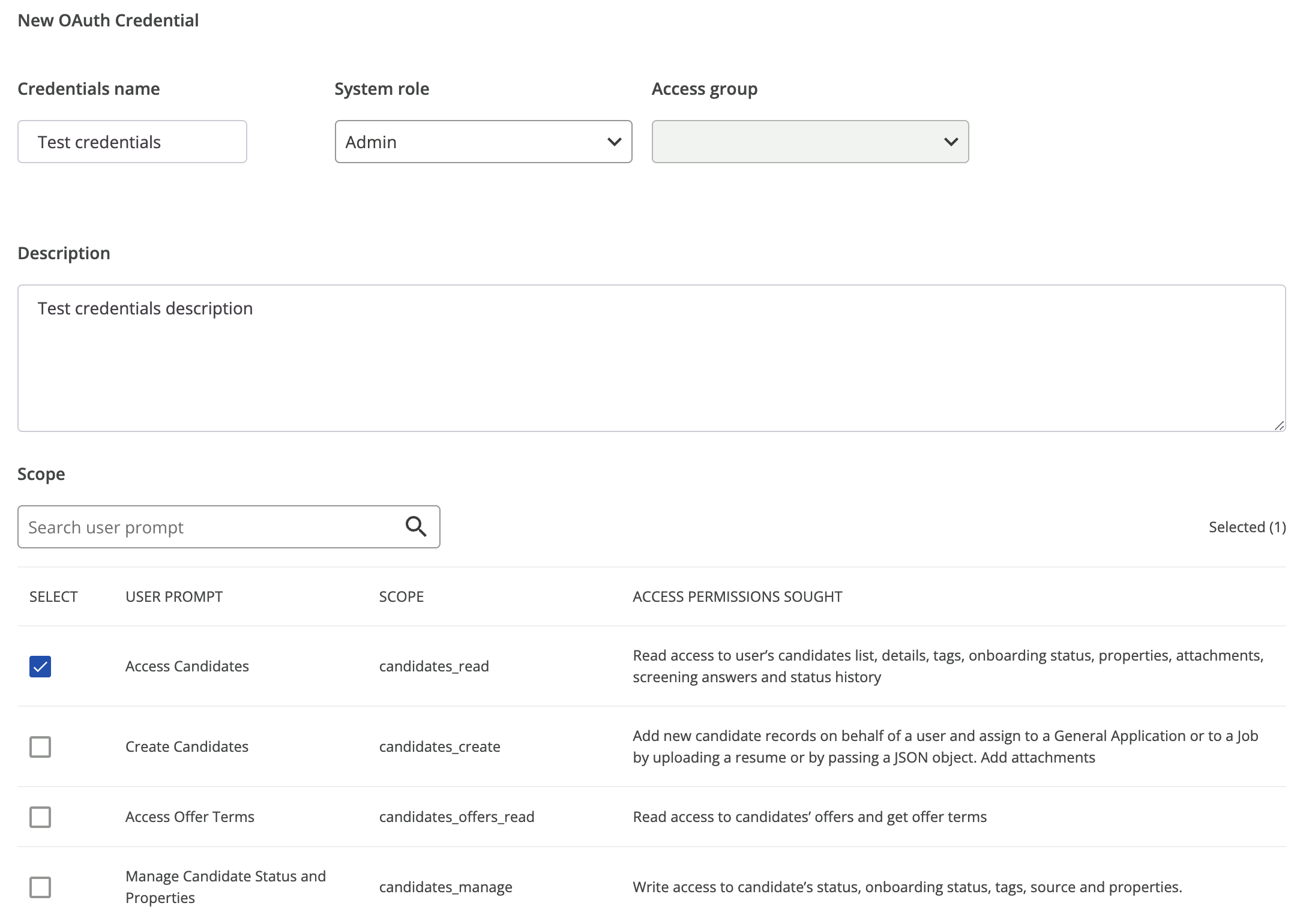
Search and select all of the following scopes by their user prompts (11 in total):
“Access Candidates” (candidates_read), “Manage Candidate Status and Properties” (candidates_manage)
”Access Users” (users_read)
"Access Job Applications" (job_applications_read)
”Access Jobs” (jobs_read)
"Access Interviews and Timeslots" (interviews_read)
"Access Interview Types" (interview_types_read)
“View, create and delete webhook subscriptions" (webhooks_manage)
Click the Generate button on the bottom of the page once you defined the name, the description, and the scopes.
A pair that consists of Client ID and Client secret will be displayed on a pop-up - these are your new credentials: keep the pop-up open before copy and pasting them in imper.ai admin interface.
Step 2: Connect SmartRecruiters to imper.ai
Go to the imper.ai admin interface.
Paste the Client ID and Client Secret generated in SmartRecruiters into the designated fields.
Click Connect to complete the process.
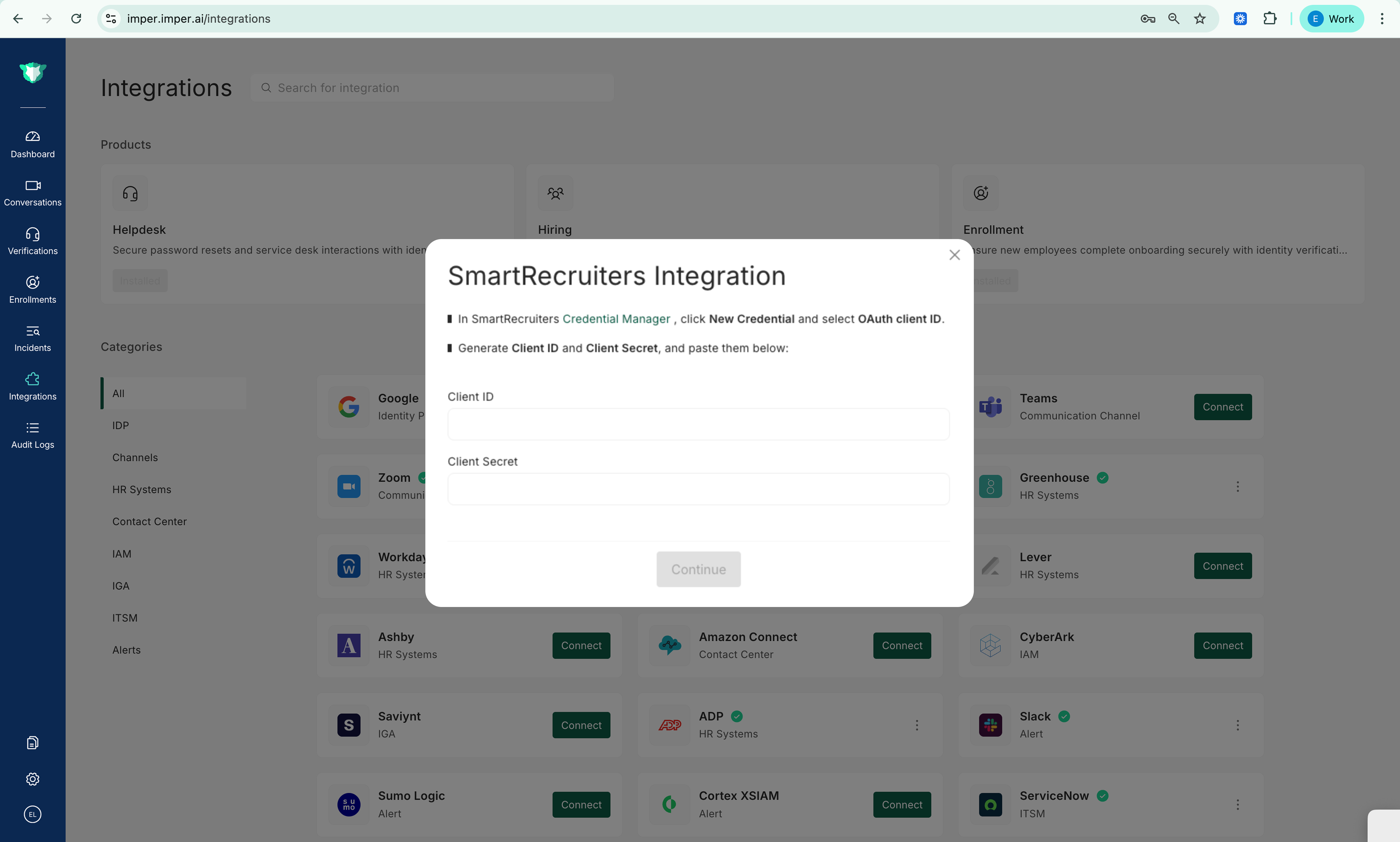
Integrations Page: SAP SmartRecruiters