The Conversations History page provides a consolidated view of all meetings monitored by imper.ai. It allows administrators and analysts to investigate:
Participant verification results
Identity anomalies
Risk scores
Meeting context and timelines
Per-participant verification breakdowns
This page is essential for security investigations, incident response, and reviewing suspicious behavior detected during communications.
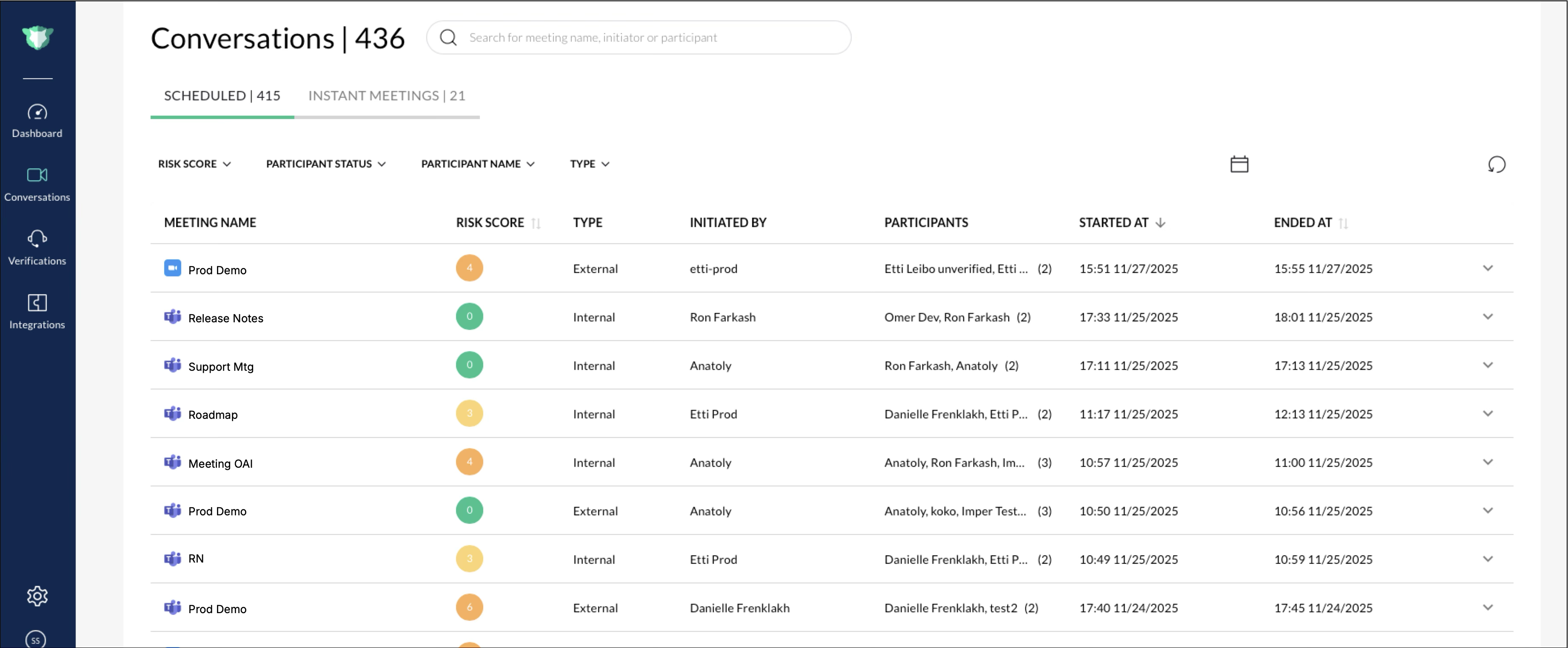
Conversations History displaying meeting names, participant counts, session types, and verification results
Accessing Conversations
To open this page:
Log into the imper.ai console.
Select Conversations from the left navigation pane.
The number beside the page title (e.g., Conversations | 11) shows how many meetings are currently listed.
Conversations Table Columns
Each meeting record includes the following columns:
Column | Description |
|---|---|
Meeting Name | The title or subject of the meeting. |
Risk Score | A numeric score (0–10) that indicates the overall communication risk detected during the meeting. Higher values represent increased risk. |
Type | Identifies whether the meeting was Internal or External. |
Initiated By | The name of the meeting host or organizer. |
Participants | Lists all participants detected in the meeting. |
Started At / Ended At | Displays the start and end times of the meeting session. |
Use the pagination controls at the bottom of the table to move between pages of results.
Filtering and Searching Conversations
The following filters help narrow results:
Search Bar (meeting name, initiator, or participant)
Risk Score slider
Participant Status (e.g., Verification Completed / Bypassed / Timed Out)
Participant Name
Session Type (Internal / External)
Date Range picker
Refresh Table updates the view with the most recent data.
Expanding a Meeting
Click any meeting row to reveal participant-level verification information.
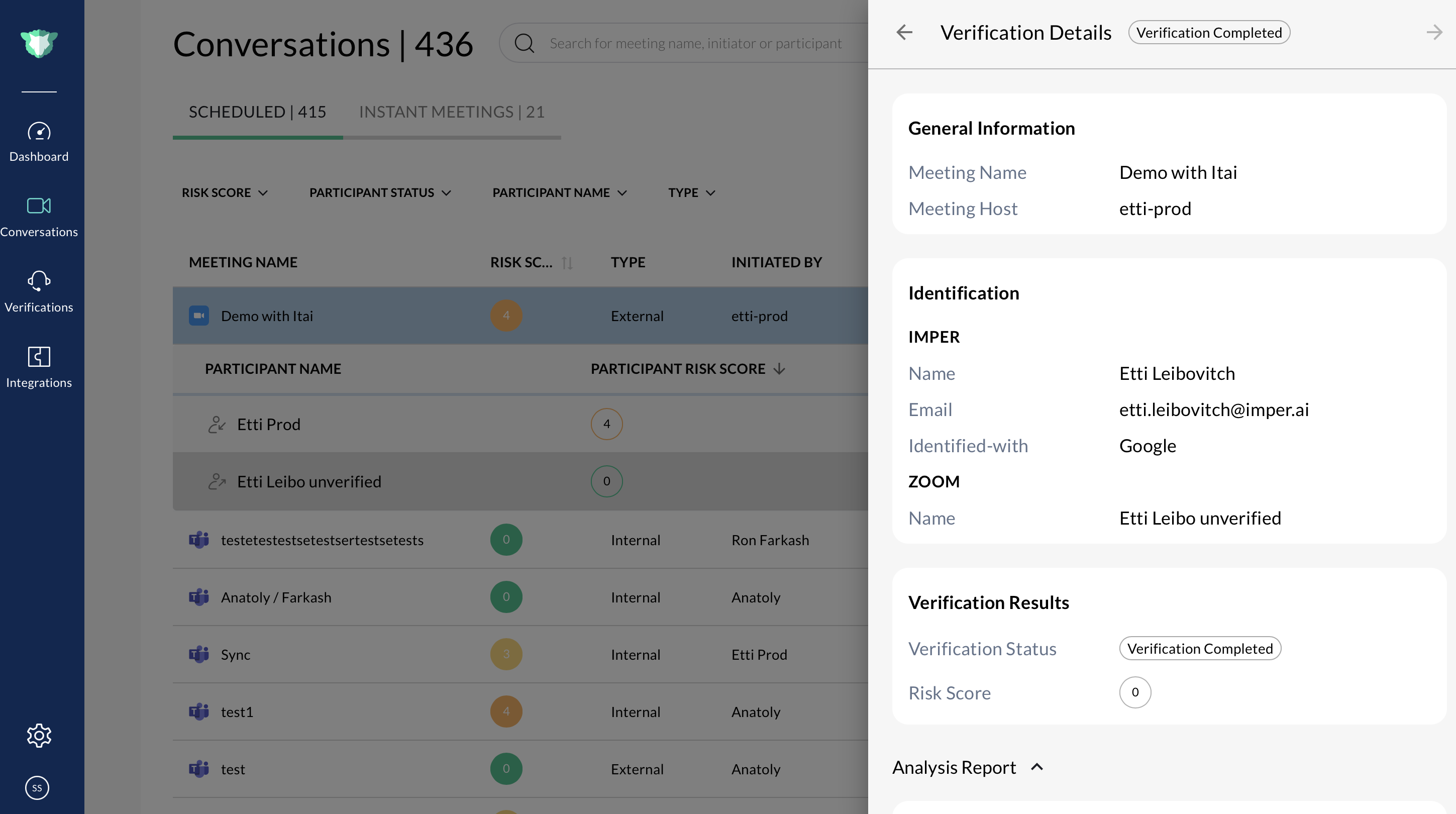
Expanded meeting showing participants, their risk scores, verification statuses, etc
Participant-Level Columns
Each expanded section displays:
Column | Description |
|---|---|
Participant Name | The title or subject of the meeting. |
Participant Risk Score | The risk score calculated for that individual during the session. |
Status | The participant’s verification result (for example, Verification Completed, Verification Bypassed, or Verification Timed Out). |
Verification Time | The timestamp when the participant’s verification process was completed. |
You can collapse or expand meeting details as needed to review multiple sessions efficiently.
Viewing Verification Results for a Participant
Select any participant name within the expanded meeting to open their Verification Summary Panel.
This panel provides a deep-dive into why a user was flagged or verified.
Understanding Verification Statuses
The Conversations page displays both communication-channel verification statuses and helpdesk verification statuses.
Communication Channel Verification Statuses
Incomplete Verification — An issue occurred but the participant still joined.
Unverified — Participant joined without completing verification.
Verification Completed — Full verification completed successfully.
Verification Interrupted — User did not finish verification but still joined.
Verification Not Required — Internal trusted participant.
Verification Timed Out — Verification not completed within time window.
Helpdesk Verification Statuses
Insufficient Questions — User didn’t answer enough challenge questions.
Verification Completed — SSP verification successful.
These status definitions ensure consistent interpretation across the console.
Analysis Report
For each participant, the Analysis Report summarizes key identity signals across:
Network — IP, location mismatch, VPN/proxy anomalies
Endpoint — Device/browser anomalies
Persona — Behavioral or profile inconsistencies
Challenge — Accuracy of user responses
Risk flags appear as Verified, Medium Risk, or High Risk.
Analysis results for a participant, covering network, endpoint, persona, and challenge layers
Investigating Suspicious Participant
Meeting participants flagged with:
High risk scores
Suspicious network or endpoint indicators
Failed or incomplete verification
…should be reviewed further.
Imper.ai allows you to:
Inspect verification transcripts
Compare participants within the same meeting
Review cross-channel behavior