By default, imper.ai generates meeting links using a system-defined domain.
You can optionally configure a custom meeting URL so that all imper.ai–protected Google Meet invitations use your organization’s branded domain.
Using a custom meeting URL helps:
Maintain consistent corporate branding
Increase trust and recognition for meeting participants
Reduce confusion caused by unfamiliar domains
This configuration applies globally to Google Meet meetings protected by imper.ai.
Prerequisites
Before you begin, ensure that:
Google Workspace onboarding is complete
You have Admin access to the imper.ai console
You own and control the domain you plan to use
You can modify DNS records for that domain
Step 1: Open URL Settings
Log in to the imper.ai console.
Navigate to Settings > Organization Settings.
Scroll to the URL Settings section.
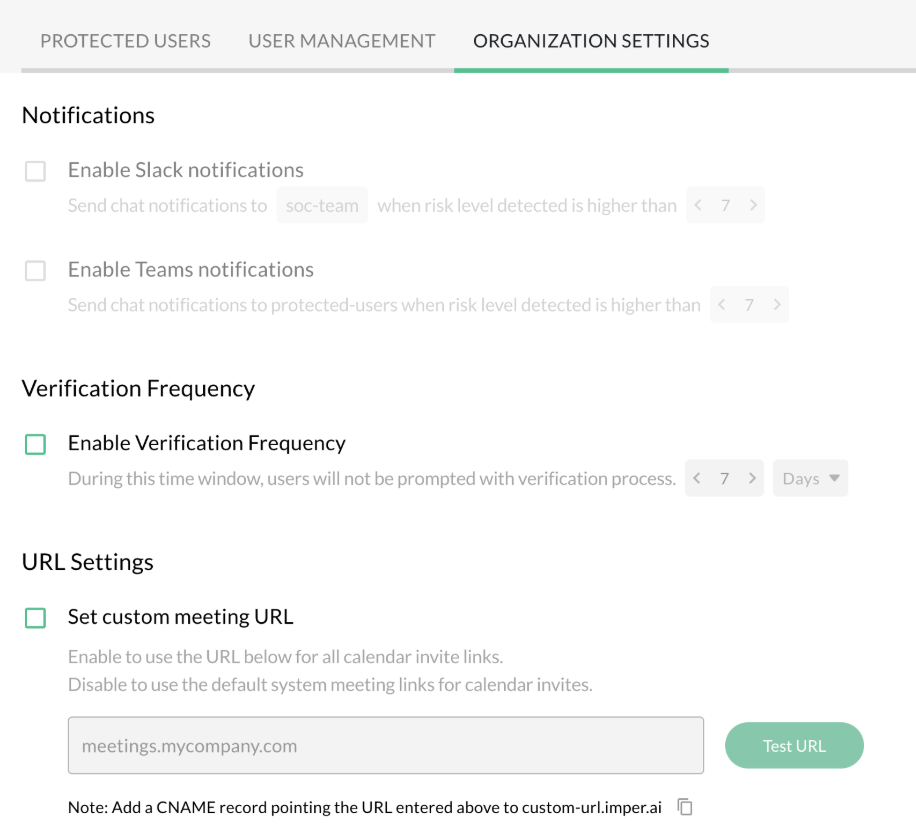
Step 2: Enable Custom Meeting URL
Toggle Set custom meeting URL to ON.
In the Domain field, enter your desired meeting domain.
Example:
meetings.yourcompany.com
Step 3: Configure DNS (CNAME Record)
imper.ai displays a target hostname that your domain must point to.
In your DNS provider, create a CNAME record.
Point your custom domain to the target provided by imper.ai.
Example:
meetings.yourcompany.com → custom-url.imper.ai
Step 4: Test Your Setup
Click Test URL to verify that your configuration is correct.
Domain validation is not instantaneous. It can take several minutes for the DNS configuration to fully propagate and be recognized by the validation system.
How to interpret the result:
Fails almost immediately - This usually means the CNAME record is not configured correctly or is not pointing to the expected target.
Fails after several minutes - This typically indicates that DNS propagation is still in progress. Wait a few minutes and try again.
If the test continues to fail after multiple attempts and sufficient time has passed, re-check your CNAME configuration for accuracy.
Step 5: Save Changes
After the DNS record is created, return to imper.ai.
Click Save Changes.
imper.ai validates the DNS configuration automatically.
If validation fails, double-check:
The domain spelling
The CNAME target
DNS propagation status
Resetting the Configuration
To discard changes:
Click Reset to revert the URL Settings to their previous state.
What Happens After Configuration
Once the custom meeting URL is active:
All imper.ai–protected Google Meet invitations use the custom domain
Existing and new calendar invitations automatically reflect the change
No action is required from end users
This setting affects Google Meet only and does not modify Google’s native meeting URLs.