This article provides step-by-step instructions for deploying imper.ai with Google Workspace.
The deployment enables imper.ai to integrate with Google Workspace as an Identity Provider (IdP) and to protect Google Meet sessions using identity-aware verification.
The process includes:
Connecting Google Workspace as an IdP in imper.ai
Configuring Domain-Wide Delegation in the Google Admin Console
Authorizing required Google API permissions
Completing Google Workspace onboarding in imper.ai
Follow the steps in the order listed. This article assumes that all prerequisites have been met and that the deployment sequence has been reviewed.
Prerequisites
Before you begin, ensure that:
You have Google Workspace Super Admin privileges
You have Admin access to the imper.ai Admin Console
Google Workspace is selected as your Identity Provider (IdP)
You have access to the imper.ai App (Client) ID provided during onboarding
Deployment Procedure
Step 1: Connect Google Identity Provider (IdP)
Log in to the imper.ai Admin Console using administrator credentials or SSO.
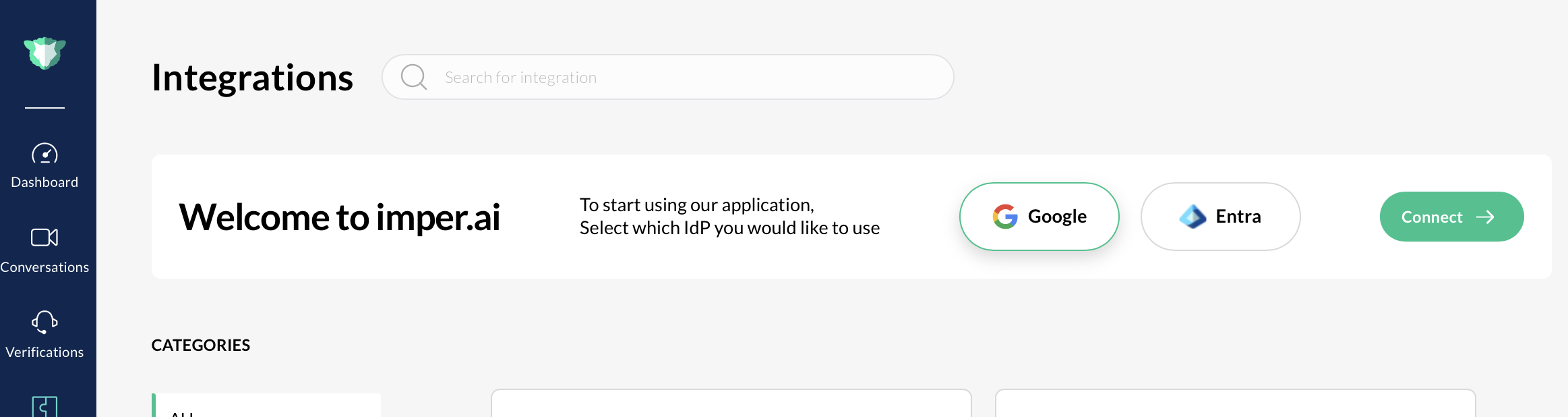
Navigate to Settings > Integrations.
Locate Google Workspace and click Connect. The Google Integration pop-up opens.
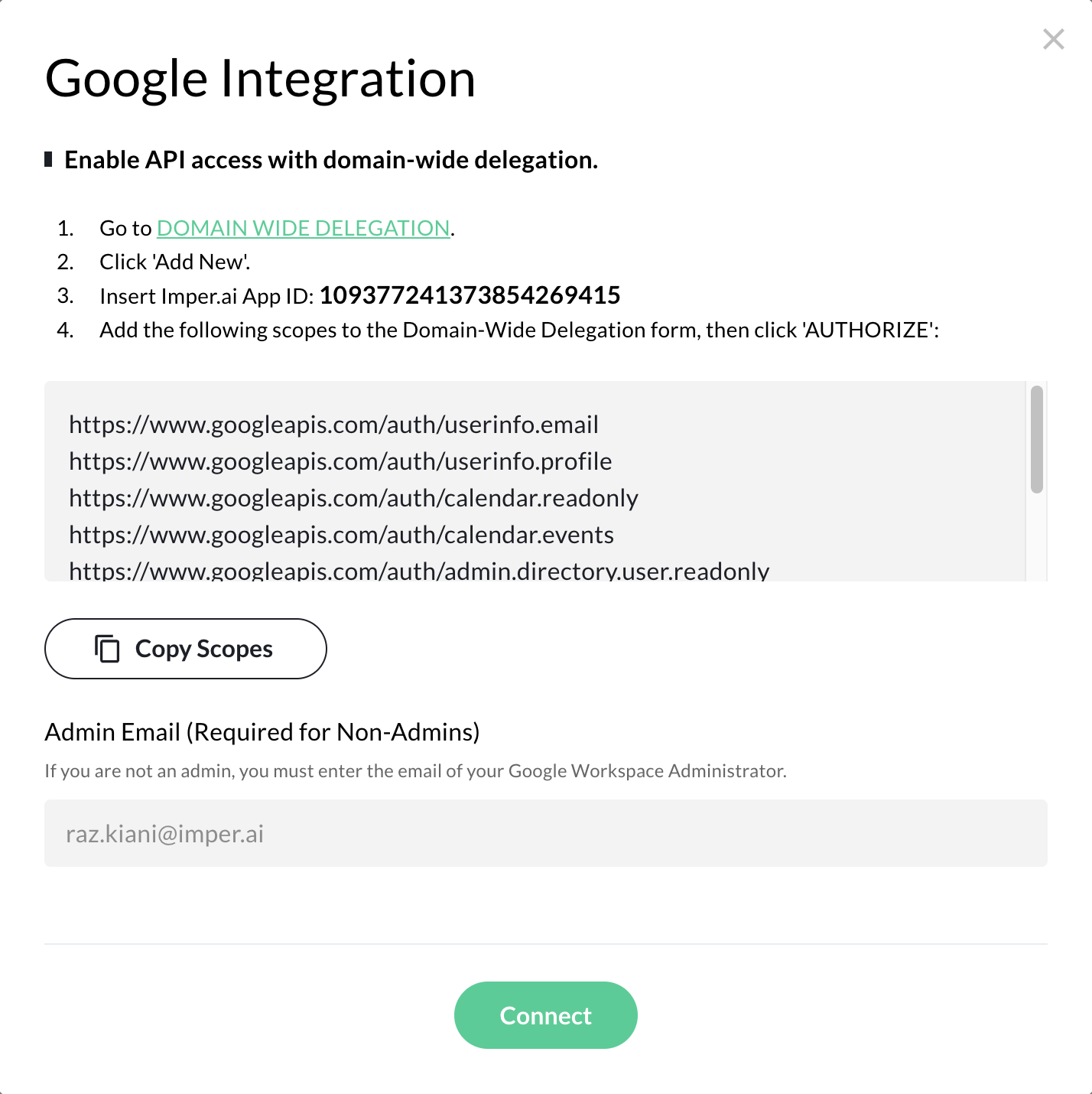
Note: If the user logging in to the Imper.ai console is not an administrator, you must provide the “Admin Email (Required for Non-Admins)” field and enter the email address of your Google Workspace Administrator.
Step 2: Copy Scopes from imper.ai
In the Google Integration pop-up window, click Copy Scopes.
Keep the scopes copied. You will paste them into the Google Admin Console in a later step.
These scopes define the Google APIs imper.ai is authorized to access.
Step 3: Open the Google Admin Console
You can access the Google Admin Console in one of the following ways:
Click the Domain-Wide Delegation link directly from the imper.ai integration pop-up
OR
Manually sign in to the Google Admin Console using a Super Admin account
Step 4: Navigate to Domain-Wide Delegation Settings
In the Google Admin Console:
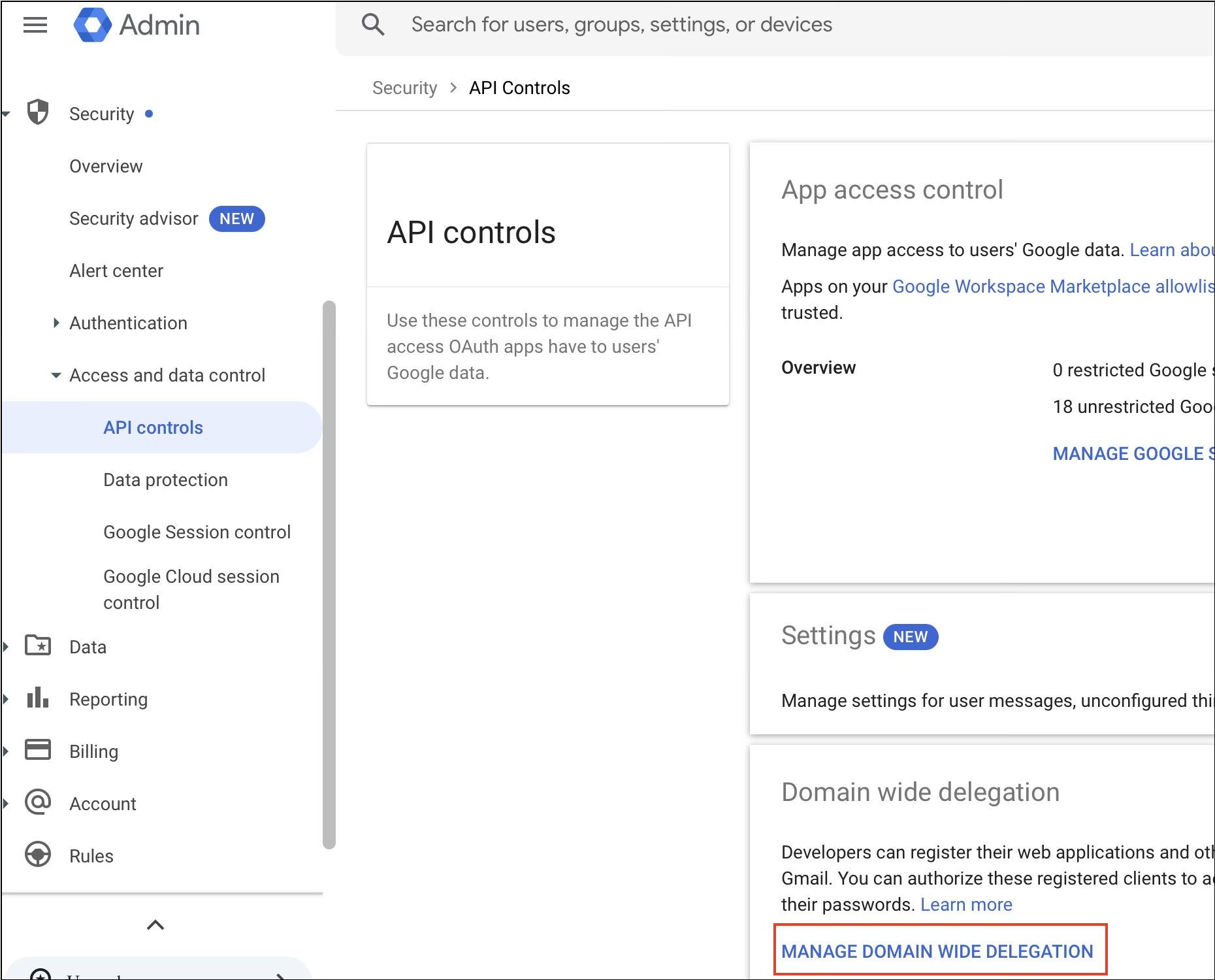
Go to Security.
Select Access and data control.
Click API controls.
Navigate to Domain-wide delegation.
Click Manage Domain-Wide Delegation.
Step 5: Add a New Client ID
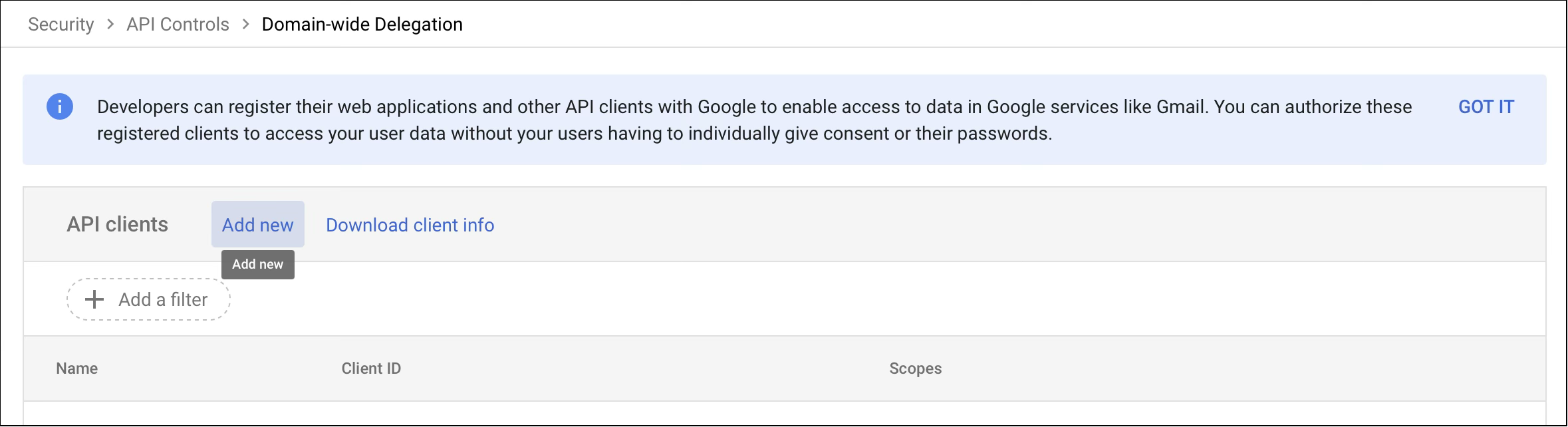
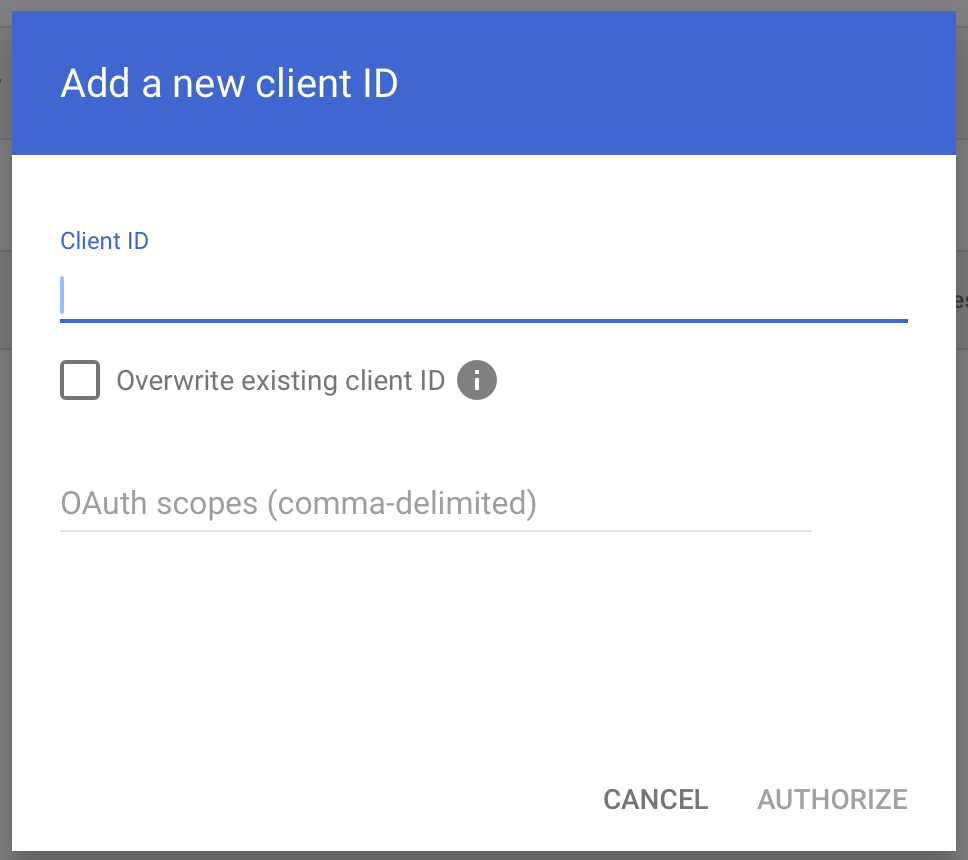
In the Domain-wide delegation page, click Add new.
The Add a new client ID dialog opens.
Step 6: Authorize imper.ai (Domain-Wide Delegation)
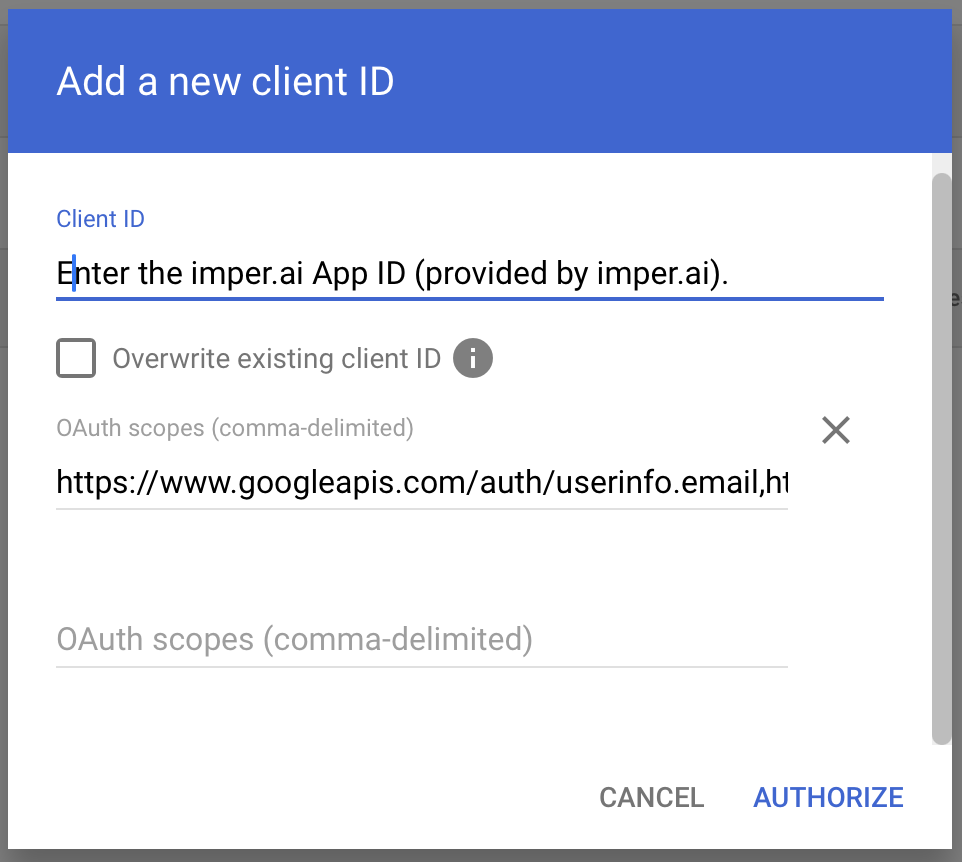
In the Client ID field, enter the imper.ai App (Client) ID provided during onboarding.
In the OAuth scopes field, paste the scopes you copied earlier from imper.ai.
Click Authorize (or Save, depending on your console version).
This completes the Domain-Wide Delegation configuration.
This is a one-time setup performed by a Google Workspace Super Admin.
It authorizes imper.ai to securely access approved Google APIs on behalf of users in your organization.
Google Workspace permissions
When Google Workspace is used as the identity provider, imper.ai requests the following permissions.
Permissions requested from all monitored users (including admins)
googleapis.com/auth/userinfo.email
Description: Allows access to the user’s email address.
Used for: Identifying the user and linking their Google account to imper.ai.
googleapis.com/auth/userinfo.profile
Description: Allows access to basic profile information (name and profile image).
Used for: User identification and improved verification context.
googleapis.com/auth/meetings.space.readonly
Description: Provides read-only access to Google Meet spaces.
Used for: Monitoring active meetings and enabling protective features.
googleapis.com/auth/meetings.space.created
Description: Allows access to Google Meet spaces created by the user.
Used for: Tracking new meetings and associating them with the user context.
googleapis.com/auth/calendar.readonly
Description: Provides read-only access to calendar settings and events.
Used for: Synchronizing calendar data for analysis and verification.
googleapis.com/auth/calendar.events
Description: Allows creating and modifying calendar events.
Used for: Creating or updating meetings so they can be monitored and protected.
Permissions requested from administrators only
googleapis.com/auth/admin.directory.user.readonly
Description: Provides read-only access to users in the Google Workspace directory.
Used for: Reading organizational users to enable monitoring and protection.
googleapis.com/auth/admin.reports.audit.readonly
Description: Provides read-only access to Google Workspace audit logs.
Used for: Monitoring user activity, security events, and compliance signals.