The Help Desk Console provides a centralized workspace for administrators and helpdesk agents to validate user identities, investigate suspicious requests, and securely initiate resolution workflows such as password resets.
imper.ai combines infrastructure-layer checks with dynamic, AI-driven contextual verification identity questions. Verification outcomes—including risk scoring, analysis details, and transcripts—are displayed in a structured format, enabling help desk teams to make fast, confident decisions.
What You Can Do in the Help Desk Console
The Admin Console for help desk supports the following core activities:
View all help desk-initiated verifications
Review verification results, risk scores, and detailed analysis reports
Verification request flows through secure SMS or email links
Investigate unusual or failed verifications
Monitor verification analytics and trends, including success rates and risk patterns
This article provides a high-level overview of how Helpdesk appears and behaves in the imper.ai platform.
Help Desk Dashboard
The Dashboard provides an overview of verification activity, helping admins and agents understand how often verification is completed, how long it takes, and whether verification challenges are being passed.
.png)
Dashboard and Reports
Help Desk Verifications Table
The Verifications page lists every verification initiated by the helpdesk. Each record includes user email, verification outcome, risk score, timestamp, and the referrer (the help desk agent who initiated the process).
Typical use cases include password reset, account recovery, identity checks following suspicious user behavior, or manual verification steps before granting access.
.png)
Verification results with risk scores, statuses and user feedback.
Learn more: verifications page overview
Initiating Verification Flows
Help desk agents can initiate verification by sending a secure Verification Portal link to the user. The user completes identity verification in the Self-Service Portal (SSP), after which the agent reviews the verification outcome and proceeds according to policy.
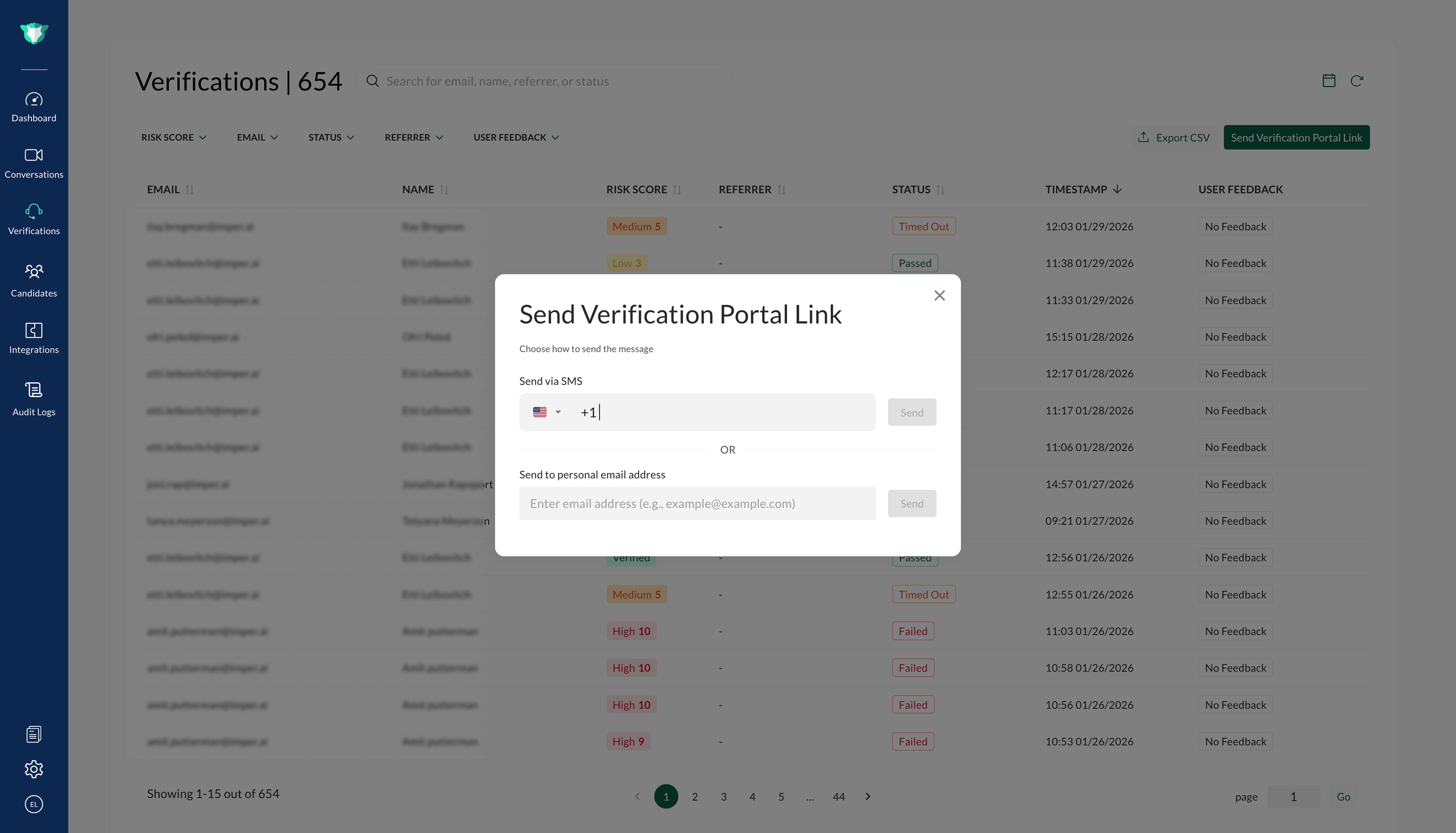
Send verification link to end user with email or SMS
Verification Summary
The verifications summary panel provides a detailed view of each verification, including participant general info, optional actions, analysis report, verification checks, and device/session metadata.
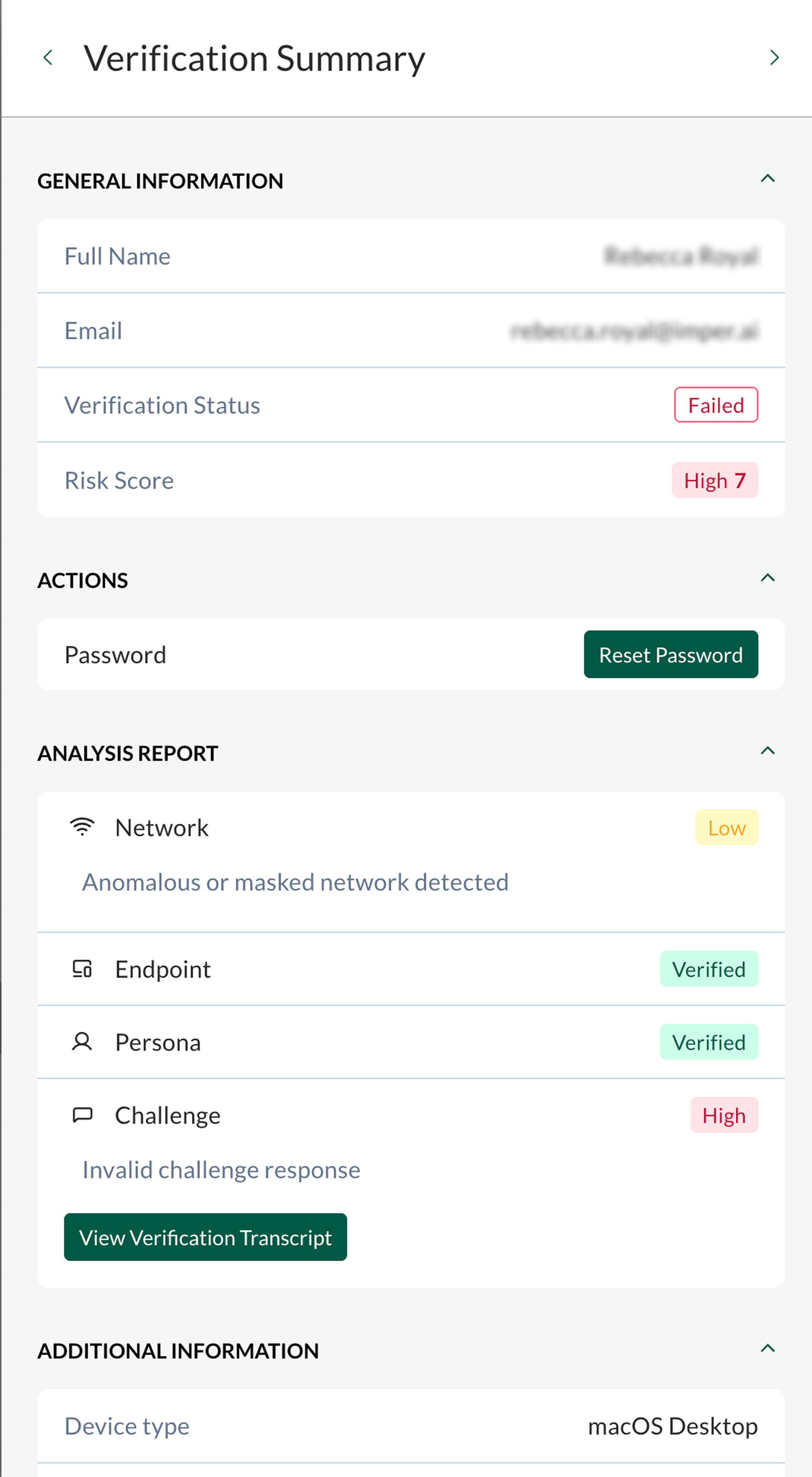
Verification Details
Learn more: Verification Details and Analysis report
Self-Service Portal
Using the Self-Service Portal, end users can perform actions such as resetting their password, provided they are successfully verified as legitimate users and are not deemed privileged users.
.png)
Agent sends link to SSP portal
Learn more: Self-service portal
Password Reset Workflow
The Password Reset Workflow ensures that sensitive account recovery actions are only performed for verified users.
Help desk agents initiate the process by sending a secure Verification Portal Link to the end user, who completes identity verification through the Self-Service Portal (SSP).
Once verification is successful, the results are recorded in the Helpdesk Verifications table, allowing the agent to proceed safely with the organization’s password reset procedure.
This workflow combines infrastructure-layer checks and AI-driven contextual verification questions to reduce risk and prevent unauthorized access.
Learn more: Password reset flow