imper.ai provides both automatic verification of meeting participants before they join Zoom meetings and on-demand verification during the meeting using imper.ai Zoom Add-on.
It gives protected users clear visibility into who has been verified, flags high-risk participants and allows instant verification requests - all directly within the meeting experience.
imper.ai uses multi-layered identity analysis, including device and network signals, to deliver zero-friction protection without disrupting meetings.
Note
imper.ai for Zoom protects only 1:1 meetings.
Protection is applied to meetings that include one protected user from your organization and one additional participant (internal or external).
How imper.ai Protects Zoom Meetings - Scheduled
imper.ai protects Zoom meeting scheduled either via Google Calendar or Outlook Calendar (desktop or web).
When a protected user create a Calendar invite with Zoom selected as the video conferncing tool, imper.ai automatically wraps the meeting with a secure, company-branded verification layer.
Participant are required to complete verification before joining the meeting, depending on organizational policy.
Pre-Meeting Verification Experience
Step 1: Create a meeting invite via Calendar
Create a meeting invite via your Calendar as you normally would (Figure 1).
Within a few seconds, the meeting link in the calendar invite is automatically updated to a company-branded verification link (Figure 2).
.png)
Figure 1: Create calendar invite with Zoom
.png)
Figure 2: Meeting invite was updated with a secure link
Step 2: Verify Before Joining
When you click the meeting link, you are redirected to a company-branded pre-verification page.
This page is required to for us to identify the user. The user is required to use the email address associated in the invitation.
Continue with Microsoft
Continue with Google
Verify Manually by entering your name and email address
Remember My Choice (Optional)
If you select Remember My Choice, imper.ai remembers your verification preference for future meetings.
You will not be redirected to the verification page again for subsequent meetings, unless required by policy.
.png)
Figure 3: Company-branded pre-verification page.
.png)
Figure 4: few seconds of verification process before automatically being redirected to the meeting
.png)
Figure 5: User is automatically redirected to the meeting
Continue as Unverified (If Allowed)
If your organization’s policy permits it, you may choose to join the meeting as an unverified participant.
Step 3: Join the Meeting
After verification is completed, you are automatically redirected into the meeting.
Verification results and risk scores are not shown to external participants.
Only administrators can view detailed risk data in the imper.ai Admin Console.Protected user can see the risk score via imper.ai Zoom Add-on.
Experience for External Participants
External meeting invitees follow the same verification flow when clicking the meeting link.
They are directed through the verification process and then automatically joined to the Zoom meeting once verification is complete.
Using the imper.ai Zoom Add-on During a Meeting - Protected Users Only
Once installed, the plugin allows protected users to:
The imper.ai Zoom add-on provides real-time visibility and protection during meetings initiated by protected users.
View each participant’s verification status
Receive real-time risk alerts
Monitor changes in participant risk during the meeting
Send verification requests to unverified participants
Receive recommendations on whether to continue or terminate the meeting
How to open the imper.ai Zoom add-on
Click the Apps button on the bottom part of the screen to open Apps panel
Click on the imper.ai add-on
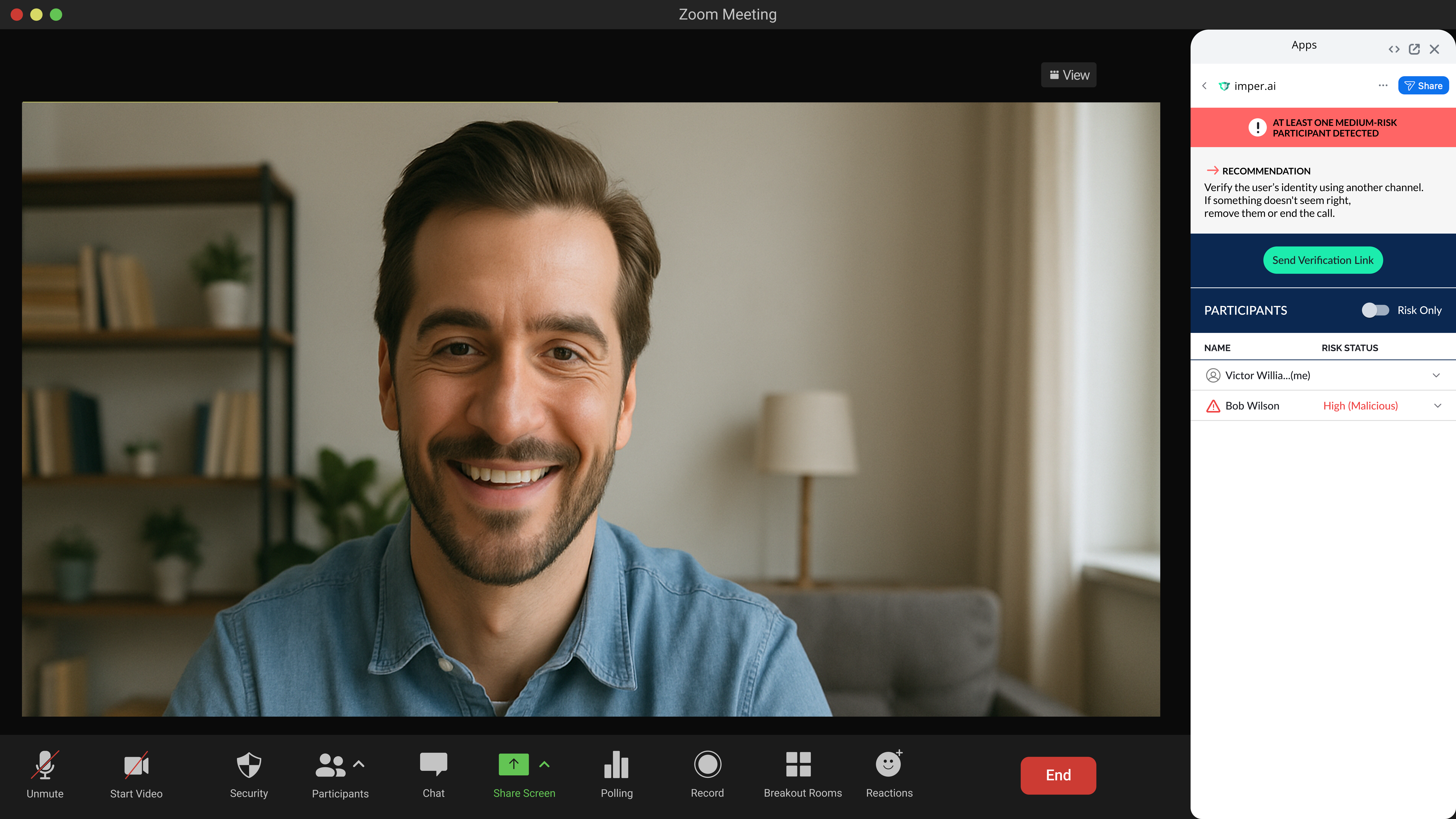
imper.ai will display risk analysis and provide information on existing users in the meeting and their verification status.
Using the imper.ai Zoom add-on
Protected user will be tagged as “Me”
For the invited user in the meeting the following information will be displayed:
Name
Verification Status
Location
Account Type: External Organization / Organization Member
Protected user will be alerted on risks. The following is the high level severity of the possible risks:
There is at least one high/medium risk user in the meeting.
There is at least one unverified user in the meeting.
Note: If multiple risks are detected, the user will be alerted only to the most severe risk.
Alerts and Recommendations
Protected users will get real time alerts and recommendations on how to operate:
Alert | Recommendation |
|---|---|
Unverified user | Click on “Send verification link” to send in the Zoom chat a verification link asking unverified participants to complete verification. |
At least one medium-risk participant detected | Verify the user’s identity using another channel. If something doesn't seem right, remove them or end the call. |
At least one high-risk participant detected | It is recommended to terminate the call |
Sending a Verification Request During a Meeting
If a participant joins unverified or through an unauthorized link, you can request verification directly from the meeting.
How It Works
Identify Unverified Participants
In the imper.ai plugin panel, unverified participants are clearly marked with a Unverified status or elevated risk indicator.
Send Verification Request
Click Send verification link to send verification link in the chat
Participant Completes Verification
The participant completes the verification process.
Automatic Status Update
Once verified, the participant’s status is immediately updated in the plugin—no meeting refresh required.
This ensures that unexpected participants can be validated instantly, keeping meetings secure without interruption.
Key Things to Know
Verification is designed to be fast and not disruptive
Protected users do not see risk scores—only verification status and alerts
All verification activity is logged and available in the Admin UI.
Limitations
imper.ai add-on is not supported for mobile phones.
Incoming calls, scheduled meeting organized by unprotected users, are not supported.
Need Help?
If you experience issues or have questions about meeting verification, contact your organization’s IT or security team, or reach out to support@imper.ai.