Integrating Workday with imper.ai allows the platform to securely ingest key HR attributes, such as employee details, reporting structure, and contact information, and use them as trusted inputs in verification workflows.
By leveraging Workday as a source of truth, imper.ai can generate dynamic, identity-specific challenge questions that reflect accurate, real-time workforce data. This strengthens identity assurance and improves the precision of verification decisions.
Note
Only admin users can integrate Slack with imper.ai.
Prerequisites
To integrate Workday to imper.ai, you must:
Have Workday admin permissions.
Be able to create and manage API Clients for Integrations in your Workday tenant.
Know where to access Workday public web services (WSDL) and OAuth client settings.
Create an API Client in Workday
Log in to Workday.
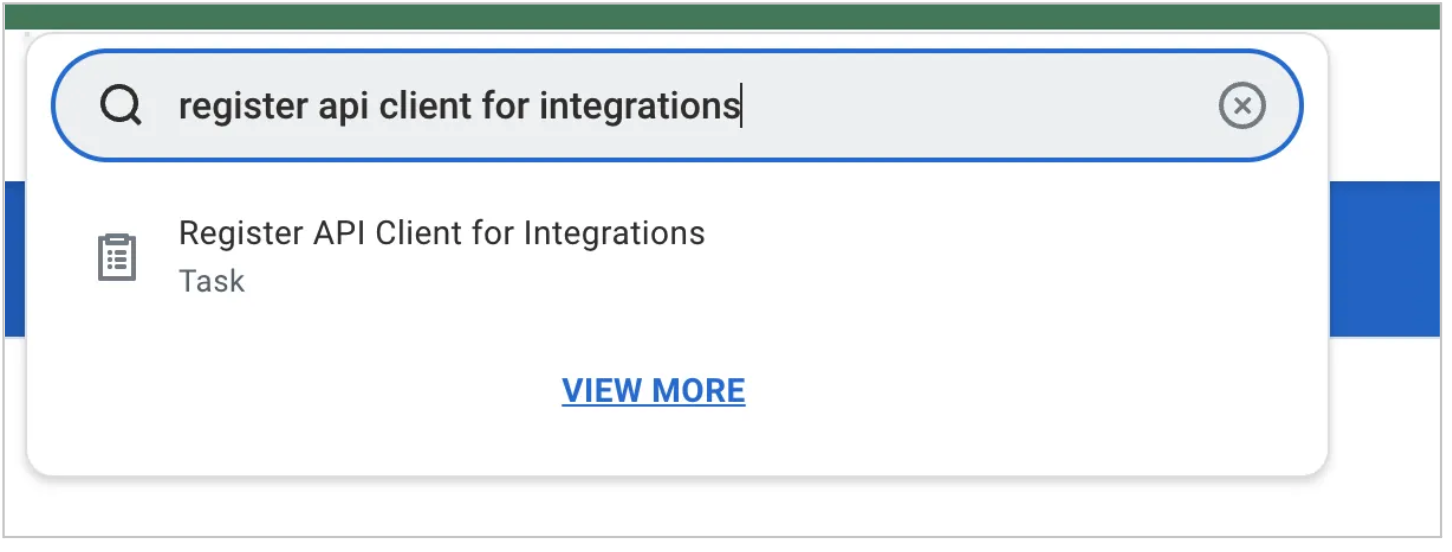
In the search bar, search for:
Register API client for integrations, or
Register a new API client for integrations
(Name varies by Workday version.)
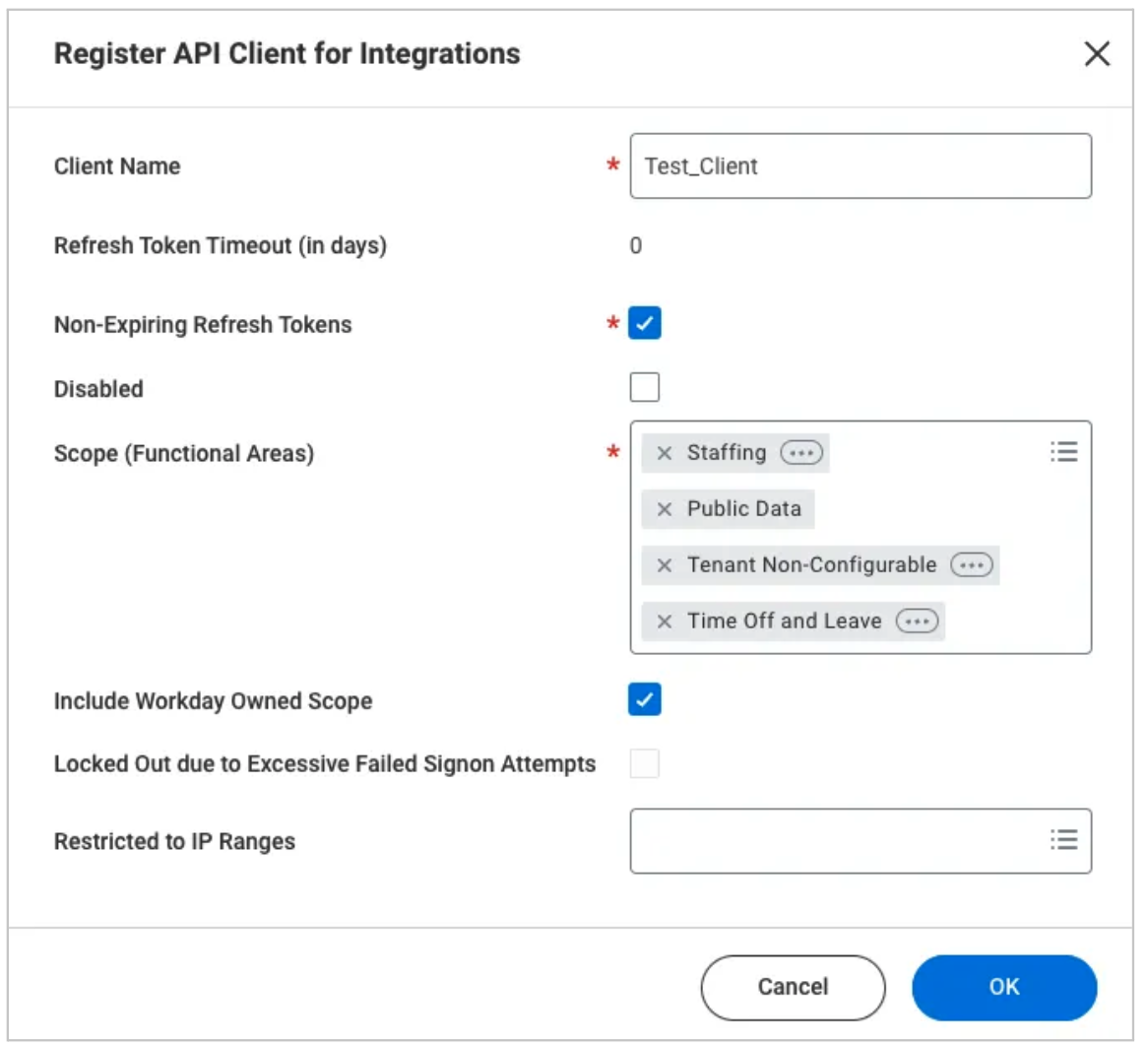
On the Register API Client for Integrations page, add the following scopes.
Staffing (HRIS)
Public Data
Tenant Non-Configurable
Enable Non-Expiring Refresh Tokens.
Enable Include Workday Owned Scope.
(These settings ensure imper.ai can securely fetch employee attributes for verification logic.)
Save your Client ID and Client Secret.
Generate Additional Required Workday Details
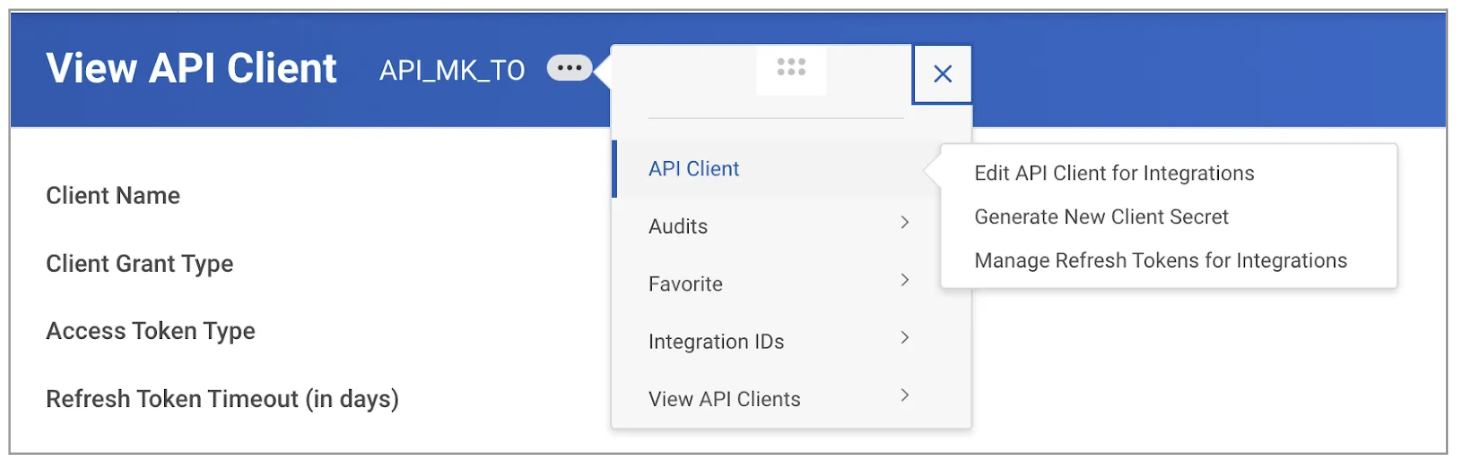
Navigate to View API Client > API Clients > API Clients for Integration.
Open the API Client details created in Step 6.
Generate a Non-Expiring Refresh Token.
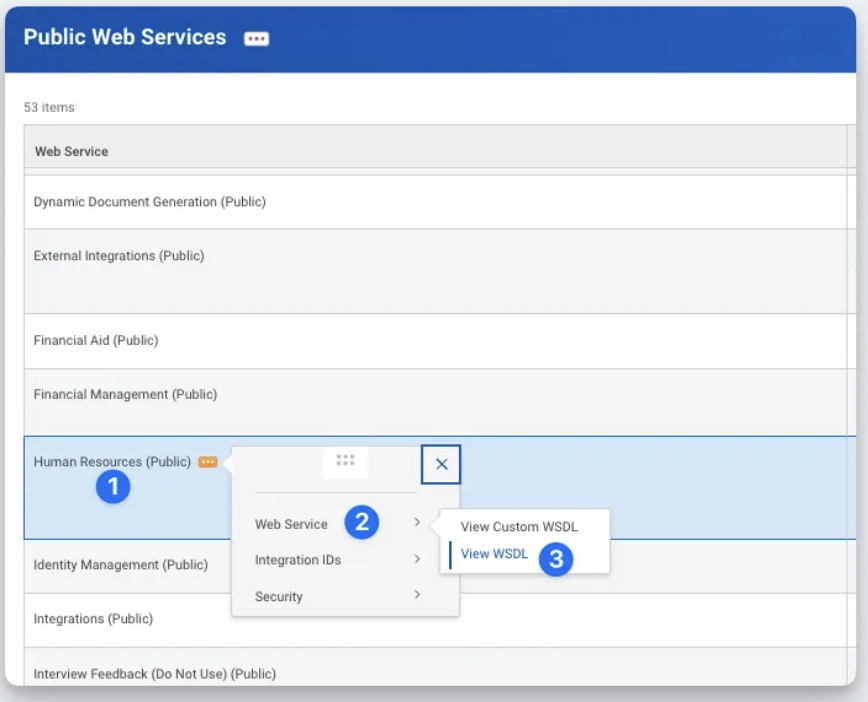
Search for Public Web Services and collect the WSDL URLs required for the integration.
From View API Clients, locate the OAuth Token URL associated with your API client.
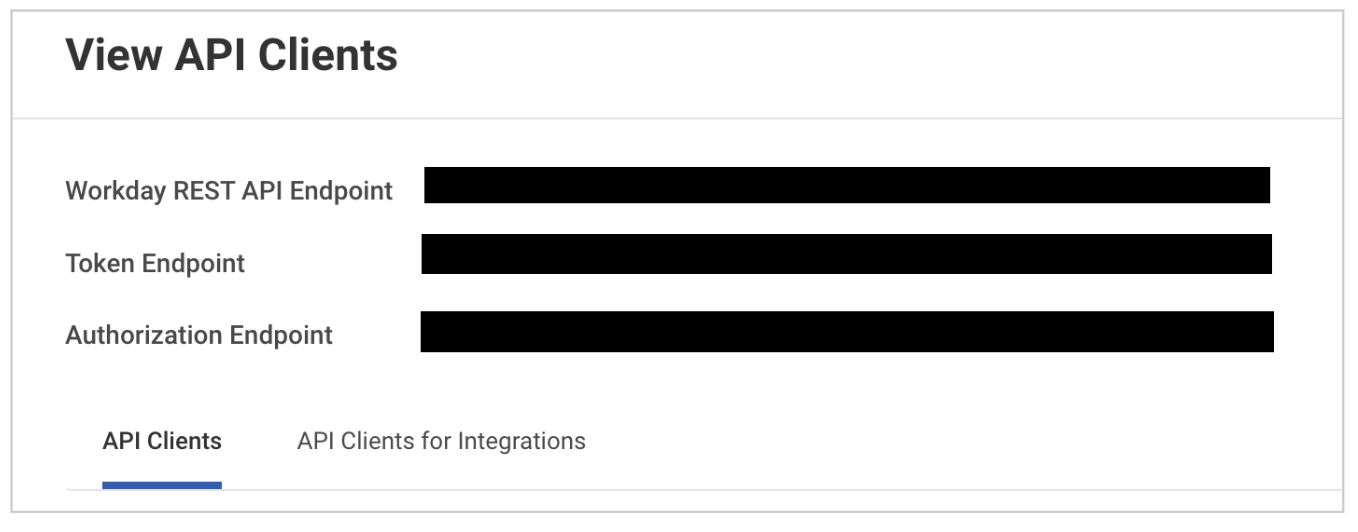
Make sure you have the following Workday details:
WSDL URL(s)
Client ID
Client Secret
OAuth Token URL
Refresh Token
Connect Workday in imper.ai
When your Workday credentials are ready:
Log in to imper.ai console.
Click Integrations in the left navigation panel.
Locate Workday under Internal System Integrations.
Click Connect.
Enter the following:
WSDL
Client ID
Client Secret
OAuth Token URL
Refresh Token
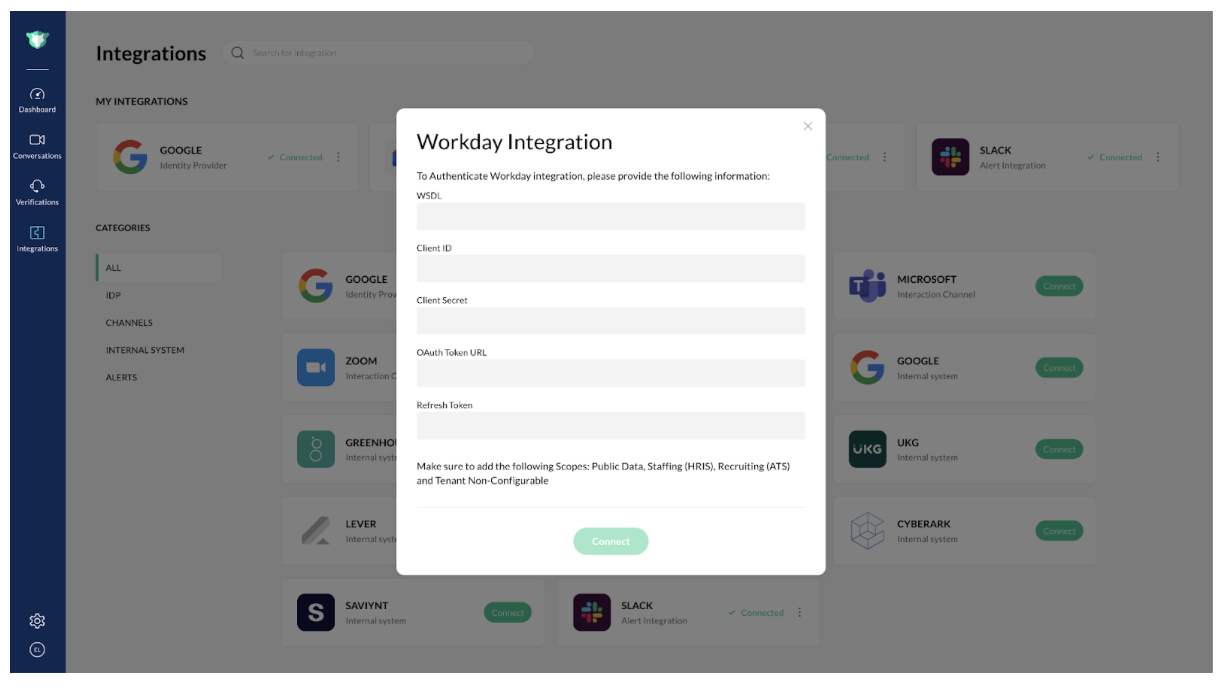
Click Connect to complete the integration.
Once connected, Workday will appear under My Integrations with a Connected status.