The Verifications Page provides administrators and help desk agents with complete visibility into all helpdesk-initiated identity verification attempts. Each record includes participant details, risk scoring, verification outcome, timestamps, and the referrer (the help desk agent who initiated the verification flow).
This is the central operational view for help desk-driven identity validation and is used prior to sensitive actions such as password resets, account recovery, and fraud investigation.
Main Verifications Page View
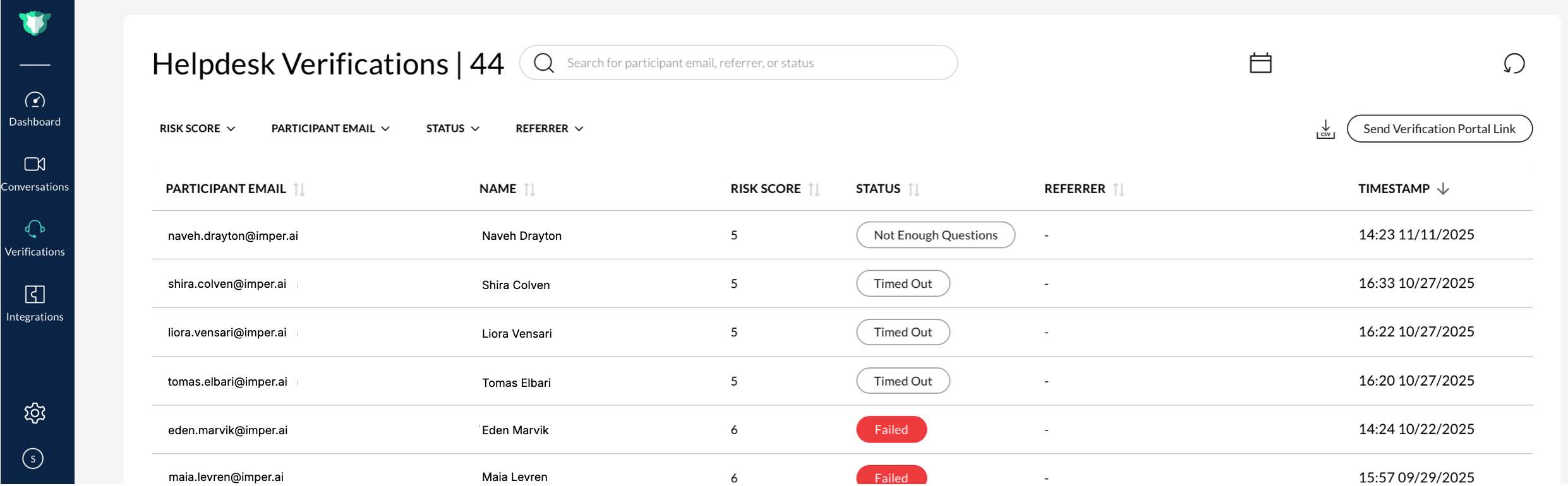
Helpdesk Verifications table showing all verification attempts, including participant details, risk scores, statuses, timestamps, and referrer
Page Header and Controls
At the top of the page, the following elements appear:
Verification Count
Displays the total number of records, e.g., Helpdesk Verifications | 80.
Search Bar
Allows free-text search by:
Participant email
Referrer
Status
Filters
You can refine results using multiple filter controls:
Risk Score slider (e.g., 0–10)
Participant Email
Status (Passed, Failed, Timed Out, Not Enough Questions)
Referrer
Date Range picker (with Apply / Reset)
Quick Actions
Send Verification Portal Link
Export CSV
Refresh Table
These controls enable fast triage, record lookup, and audit reviews.
Verification Table Columns
Each row in the table represents a single verification attempt. Columns include:
Column | Description |
|---|---|
Participant Email | The email address of the individual who completed or attempted a verification. |
Name | The full name of the participant. |
Risk Score | A numeric score (0–10) that indicates the overall verification risk. Higher values represent increased risk. |
Status | The final outcome of the verification: Passed, Failed, Timed Out, or Not Enough Questions. |
Referrer | Identifies who initiated or referred the verification, when applicable. |
Timestamp | The date and time when the verification was completed. |
Filtering and Searching
Users can filter records by:
Participant Email
Name
Risk Score range
Verification Status
Referrer email
Timestamp
Filters allow help desk teams to quickly isolate high-risk events, incomplete verifications, or cases initiated by a specific agent.
Sending a Verification Portal Link
Agents can initiate a verification flow for any user who must prove their identity before a sensitive action (such as a password reset). This action opens the Send Verification Portal Link dialog.
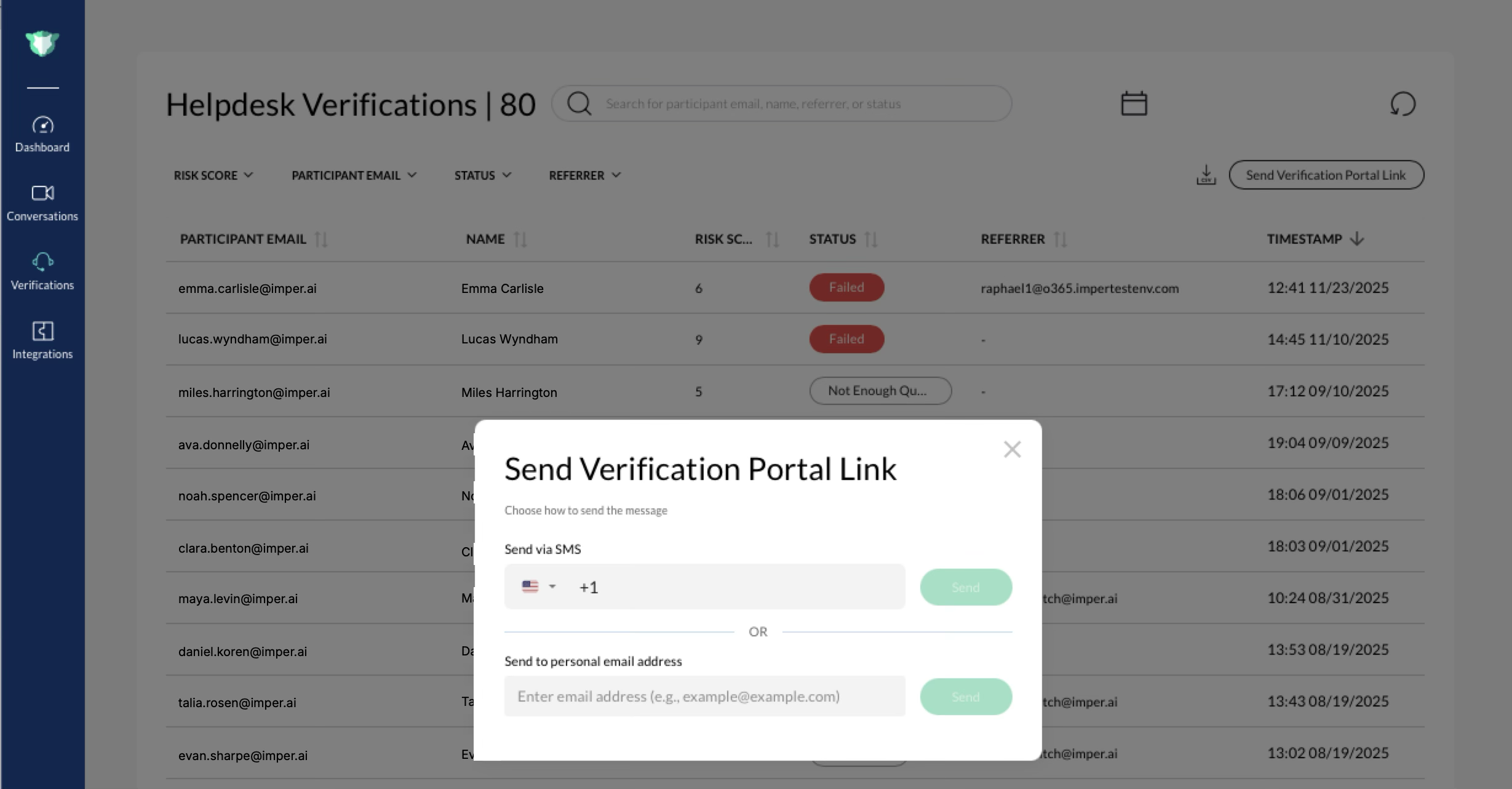
Dialog for sending a secure verification link via SMS or email
Available Delivery Methods
SMS
Select country code
Enter the user’s mobile number
Email
Enter a personal (non-corporate) email address
After sending, users complete a guided verification flow through the Self-Service Portal (SSP).
More details are included in the Password Reset Workflow article.
Exporting Verification Records
Click Export CSV to download the current table view. This allows teams to:
Review high-risk events
Conduct internal audits
Track helpdesk performance
Analyze verification trends
Accessing Verification Details
Selecting a verification record opens the Verification Summary panel, which includes:
General information
Analysis Report across Network, Endpoint, Persona, and Challenge layers
Additional device metadata
Link to full Verification Transcript