Integrating UKG with imper.ai allows the platform to securely ingest essential HR attributes, such as employee profiles, reporting lines, roles, and contact details, and use them as trusted data sources in identity verification workflows.
By leveraging UKG as a source of truth, imper.ai can generate identity-specific challenge questions and validation logic based on accurate, real-time organizational information. This significantly strengthens identity assurance and improves verification accuracy across communication channels.
Prerequisites
To integrate UKG with imper.ai, you must:
Have UKG administrator permissions.
Be able to create and manage API credentials in your UKG Pro environment.
Ensure your UKG instance allows external applications to retrieve employee attributes via API.
Create a UKG Service Account
Log in to your UKG admin environment.
Navigate to Settings > Security > Service Account Administration.
Click Add.
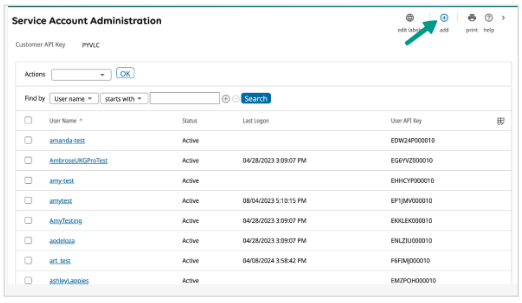
Enter the service account details
Enter a new username for the account
Provide an email address.
In the Web Services table, assign the following permissions by selecting the appropriate checkboxes:
Personnel Integration web service:
Enable the View and Add roles.
Employee Person Details web service:
Enable the View role.
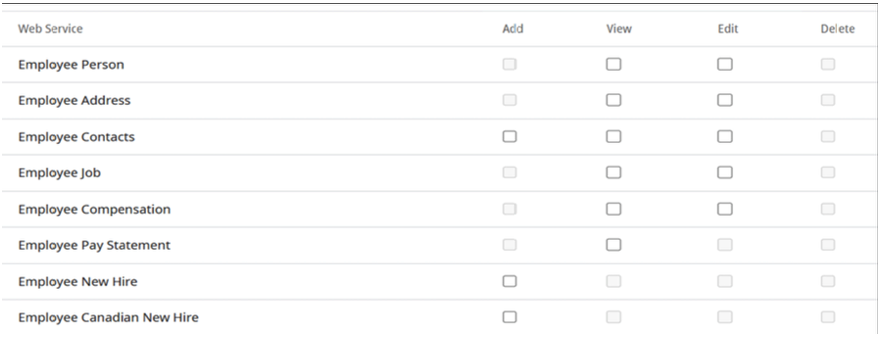
Click Save to apply the permissions. For more information, see the section UKG Permissions Used by imper.ai.
A new password is generated for the account.
Retrieve the UKG API Key and Service URL
Log in to your UKG admin environment.
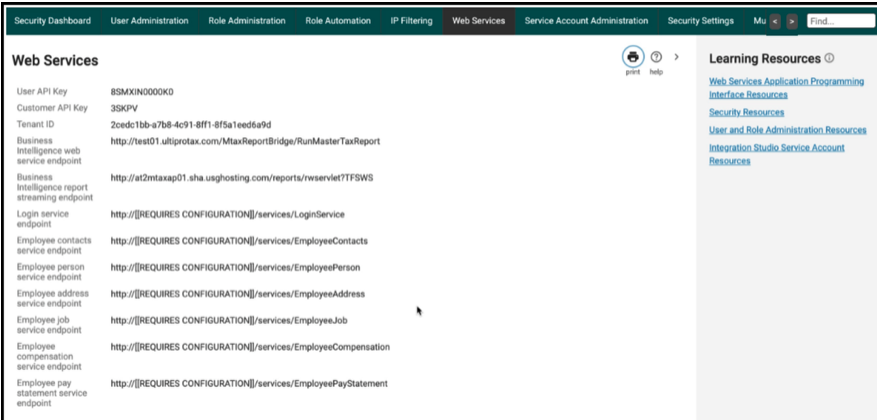
Navigate to System Configuration > Web Services.
Locate the Customer API Key and Base API URL (aka API Host URL).
Connect UKG in imper.ai
After you have collected the required UKG API details (customer API key, base service URL, service account name and password), do the following:
Log in to imper.ai console using admin credentials.
Click Integrations in the left navigation panel.
Locate UKG under Internal System Integrations.
Click Connect.
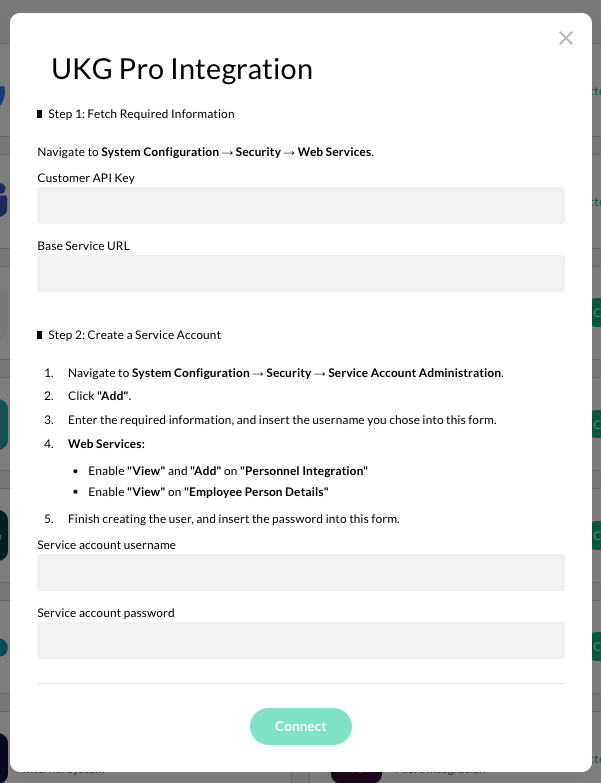
In the UKG Pro Integration form, enter the requested UKG information:
Customer API Key
Base Service URL
Service account username - The username for your UKG Pro service account
Service account password - The password generated for your UKG Pro service account)
Click Connect to complete the setup.
Once connected, UKG will appear under My Integrations with a Connected status.
UKG Permissions Used by imper.ai
The following permissions are required for imper.ai to enrich identity verification workflows using data from UKG.
imper.ai uses these permissions in read-only mode and only during active verification flows.
imper.ai does not modify HR records or perform any administrative actions in UKG.
Personnel Integration Web Service
Description
Grants access to personnel-related identity attributes maintained in UKG.
Used for
Retrieving identity-relevant employment context used during helpdesk verification workflows, such as validating a user’s employment status, role context, reporting relationships, and contact signals required to confirm identity.
Employee Person Details Web Service
Description
Provides access to additional employee profile details from a centralized UKG employee record.
Used for
Accessing supplementary identity attributes when deeper verification context is required, enabling more accurate and automated identity verification during sensitive helpdesk interactions.
Security & Privacy Considerations
imper.ai’s UKG integration:
Uses read-only access to UKG web services
Retrieves identity context only, not full HR records
Does not write data back to UKG
Does not expose raw HR fields to helpdesk agents
Uses retrieved data exclusively for identity verification and security auditing
imper.ai does not:
Modify employee records
Perform HR or personnel actions
Store sensitive HR data outside the scope of verification workflows