
Appearance
The Audit Log provides a centralized, chronological record of security-relevant and administrative actions performed within the imper.ai platform. It is designed to support security monitoring , investigation , governance , and compliance by giving administrators visibility into authentication activity and key administrative changes.
Each entry captures who performed an action, when it occurred, and what was done. This allows teams to reconstruct timelines and identify suspicious or unexpected behavior.
Note: The Audit Log is read-only and cannot be modified or deleted by users.
In this article
What the Audit Log records
Audit Log fields
Event types
Using the Audit Log
Example scenarios
Scope and limitations
What the Audit Log records
The Audit Log records authentication, session, and administrative events generated by activity within the imper.ai platform. These events reflect imper.ai platform activity , not actions performed inside external systems.
Examples include:
Successful and failed login attempts
User logout events
User and protected-user administration events (for example, changes to protected users or roles)
All events are recorded automatically by the system.
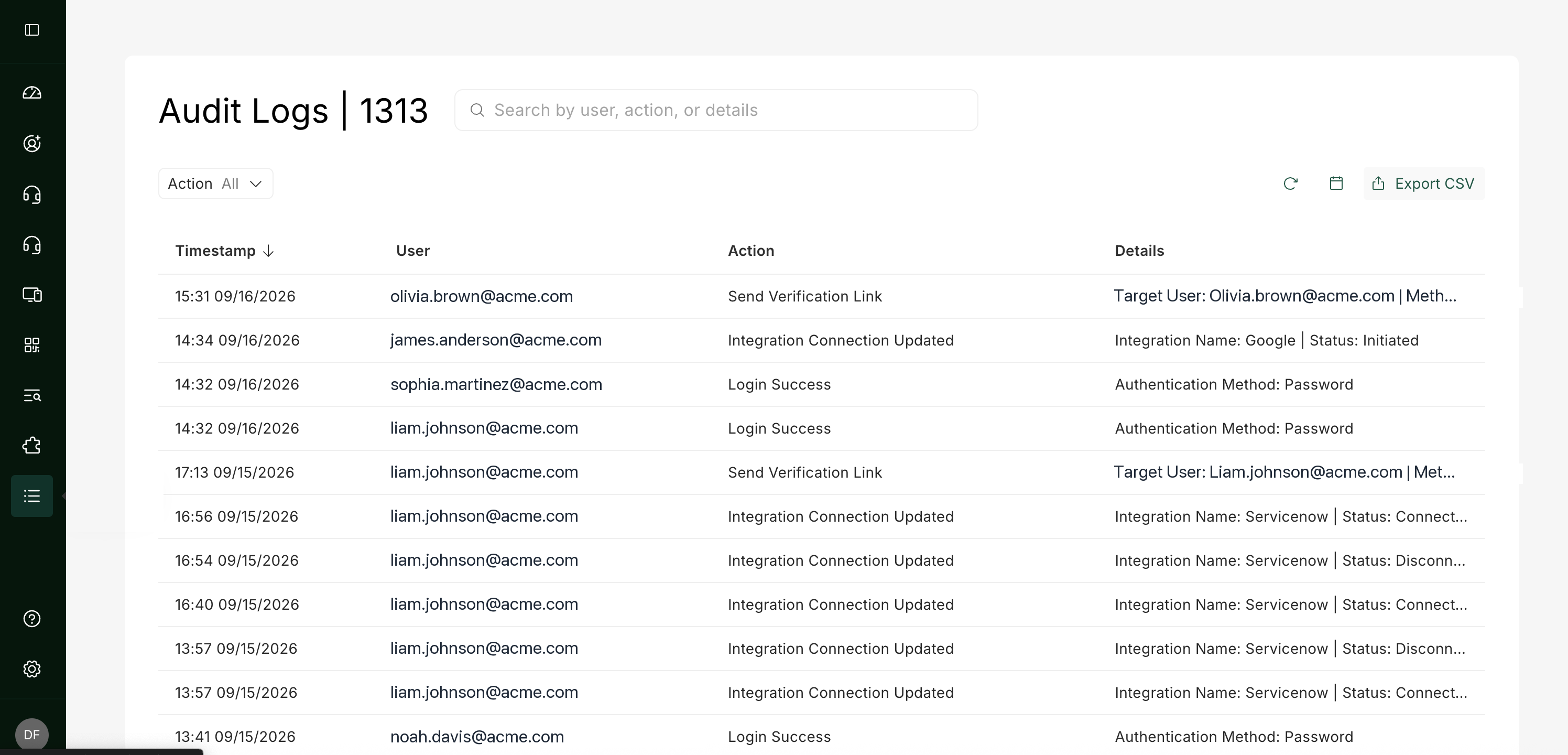
Audit Log fields
Each Audit Log entry includes the following fields:
| Field | Description |
|---|---|
| Timestamp | The date and time when the event occurred, displayed in the platform’s configured time zone. |
| User | The email address (or identifier) of the user associated with the event. |
| Action | A short label describing the event (for example, Login Success or User Role Updated). |
| Details | Additional context about the event (for example, authentication method). |
The log is displayed in reverse chronological order , with the most recent events shown first.
Event types
The Audit Log records the following event types (availability may vary by feature enablement):
| Event | Description |
|---|---|
| Login Success | The user successfully authenticated and gained access to the platform. |
| Login Failed | An authentication attempt failed (for example, invalid credentials or failed verification). |
| Logout | The user explicitly logged out of the platform or their session ended. |
| Protected Users Added | A protected user was added to the protected user scope. |
| Protected Users Removed | A protected user was removed from the protected user scope. |
| User Role Updated | A user’s role was changed (for example, permissions updated). |
| User Invited | A user invitation was created and sent. |
| Management Users Added | A management (admin/management) user was added. |
| Management Users Deleted | A management (admin/management) user was deleted. |
Note: Multiple consecutive Login Failed events may indicate mistyped credentials, user confusion, or attempted unauthorized access.
Using the Audit Log
The Audit Log includes built-in controls to help you quickly locate relevant events and export them for review.
Search
Use the search bar to search across user , action , or details.
Filter by user
Use the User filter to filter the log by a specific user email/identifier.
Filter by action
Use the Action filter to narrow results to specific event types. You can select one or multiple actions, such as Login Failed or Protected Users Added.
Filter by date
Use the date control (calendar icon) to limit results to a specific time range.
Export
Click CSV (download icon) to export the currently visible results for offline review or compliance evidence.
Refresh
Click the refresh icon to reload the Audit Log and fetch the latest events.
Pagination
Use the pagination controls at the bottom of the table to navigate between pages of results.
Example scenarios
Investigating repeated login failures
An administrator notices multiple Login Failed entries for the same user within a short time period. This may indicate:
A user entering incorrect credentials
A forgotten password
An attempted brute-force or credential-stuffing attempt
Use the User filter to isolate the account, then filter by Action to review failures only.
Verifying successful access
A Login Success entry confirms that a user successfully authenticated at a specific time. This can be useful when:
Confirming whether a reported access issue actually occurred
Verifying platform usage during a security review
Tracking administrative changes
If protected users or administrative users are updated, filter by action types such as Protected Users Added , Protected Users Removed , or User Role Updated to reconstruct what changed and when.
Scope and limitations
The Audit Log records imper.ai platform events only.
It does not log actions performed inside external integrations or third-party systems.
The Audit Log is read-only and cannot be edited or deleted.
Summary
The Audit Log is a foundational administrative feature that provides transparency into authentication activity and key administrative actions within imper.ai. With search, filtering, date scoping, and CSV export, it supports effective monitoring, investigation, and compliance without relying on external tooling.