
Appearance
The User Management page allows administrators to manage who has access to the imper.ai console. This page does not control who is protected by imper.ai - it controls console access only (Admins, Analysts, Viewers, etc.).
From this page, Admin users can:
Add new users
Invite users to the platform
Modify user roles
Remove user access
View user status and audit details
Manage multi-tenant administrative rights
Only Admin-level users may make changes in this tab.
Accessing User Management
To open User Management:
Log in to the imper.ai console.
Navigate to Settings > User Management.
This page displays all users who can log into the imper.ai console (not the protected users list).
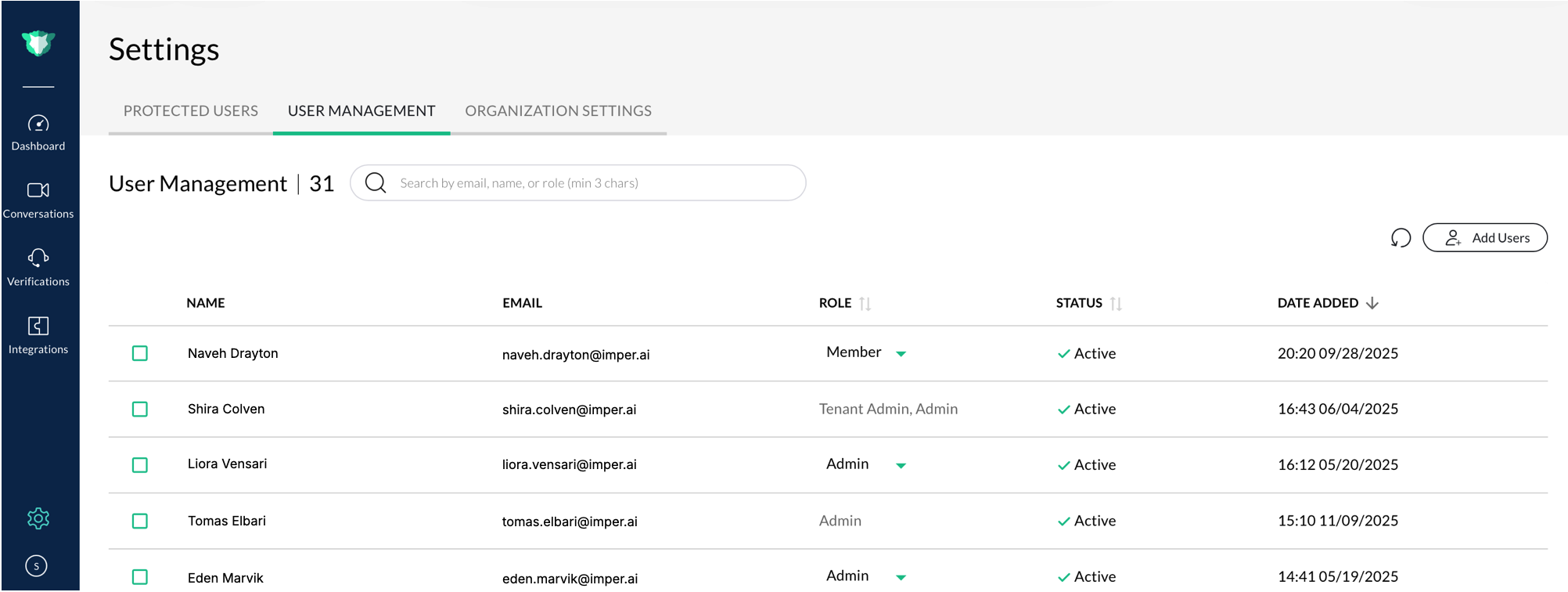
User Management table showing all console users, their roles, and available actions
Adding Users
Click Add Users.
In the Add users dialog, enter the user’s Full Name and Email Address.
Select a Role from the dropdown. See Roles below for what each role can do.
Click Invite.
The user appears in the table with their Status set to Active and a recorded Date Added.
Managing Users
The User Management table provides a complete overview of users and their roles.
| Column | Description |
|---|---|
| Name | Displays the full name of the user. |
| The registered email address used for login. | |
| Role | The user’s access level within the organization. Click the dropdown to modify the role. |
| Status | Shows whether the user is currently Active or Inactive. |
| Date Added | The date and time when the user was first added to the organization. |
Editing or Removing Users
Edit a user’s role
Click the dropdown in the Role column.
Select a new role.
A confirmation banner appears once successfully updated.
NOTE
Users can hold multiple roles depending on organizational needs.
Remove (Delete) a user
Select one or more users in the table.
Click the trash icon.
Confirm by selecting Proceed.
Deleting a user permanently removes their access and cannot be undone.
Resend Invitation
Click the envelope icon to resend a platform invitation email to selected users.
Useful for users who never activated their account.
Refresh List
Click the refresh icon to reload the most up-to-date user list.
Searching, Sorting & Filtering
You can refine the user list using:
Search Bar
Search by name , email , or role
Minimum 3 characters required
Sorting
- Click any column header (Name, Role, Status, Date Added)
Pagination
- Navigate through large user lists at the bottom of the page
Roles
The summaries below describe what each role can see and do. Roles that only apply to a specific use case are noted.
Admin
Full access across every use case. Admins can view and manage verifications, candidates, and enrollments - including detail drawers, risk scores, and actions - along with all dashboards, every settings area (organization settings, user management, helpdesk settings, and verification questions), integrations, and the audit log.
Viewer
Read-only. Viewers can see everything an Admin can - verifications, candidates, enrollments, dashboards, settings, integrations, and the audit log - but cannot perform any actions (such as running verifications, sending links, or resetting passwords) or change any settings.
Member
Operational, day-to-day access. Members can use verifications (including actions and risk score), candidates, and enrollments, and can see all dashboards. They can manage organization settings, helpdesk settings, and verification questions, but cannot manage users, access integrations, or view the audit log.
Agent
Used in Helpdesk. Agents can open the verifications page and verification details, run actions, and see the verifications dashboard. They cannot see the verification risk score and have no access to settings, integrations, or the audit log.
HR
Used in Enrollment and Hiring. HR can review the candidates page and candidate verification details, and the enrollments page. They cannot see candidate risk scores, enrollment verification details, dashboards, settings, integrations, or the audit log.
User Management vs. Protected Users
User Management = console access
Protected Users = identity protection coverage