
Appearance
Overview
This integration connects SmartRecruiters with imper.ai to secure interviews throughout the hiring process. It enables protection and verification for interviews that are managed and scheduled directly within SmartRecruiters, helping prevent impersonation and candidate fraud.
NOTE
The setup requires SmartRecruiters admin access to complete the configuration steps. To connect and manage the SmartRecruiters integration in imper.ai, users must have admin role.
Setup
The setup moves between both platforms: start in imper.ai to open the connection dialog, generate an OAuth credential in SmartRecruiters, then return to imper.ai to complete the connection.
Step 1: Open the SmartRecruiters integration in imper.ai
In the imper.ai admin interface, go to Integrations.
Find SmartRecruiters under HR Systems and click Connect.
The dialog lists the setup steps and the exact scopes you need to select in SmartRecruiters, each with a copy button. Leave it open — you return to it in Step 3.
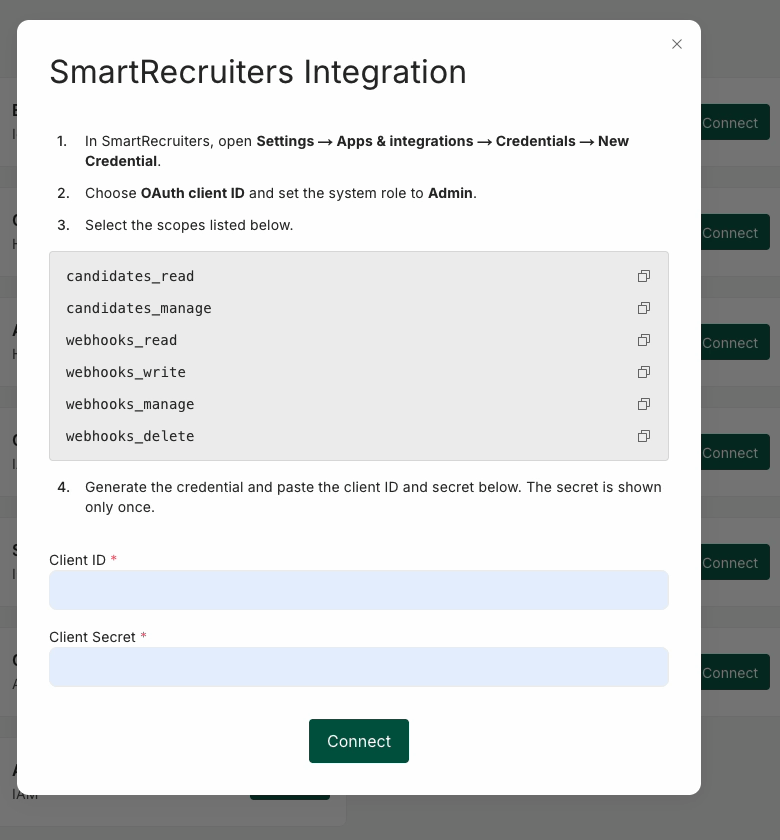
SmartRecruiters Integration dialog in imper.ai
Step 2: Generate an OAuth credential in SmartRecruiters
Log in to your SmartRecruiters account as an administrator.
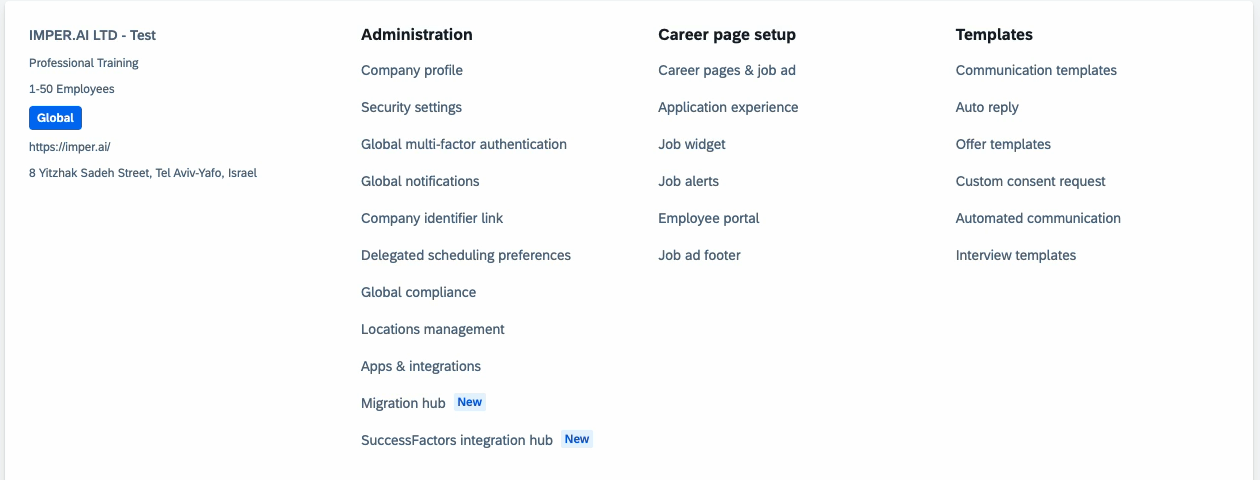
- Open Settings, and under Administration, click Apps & integrations.
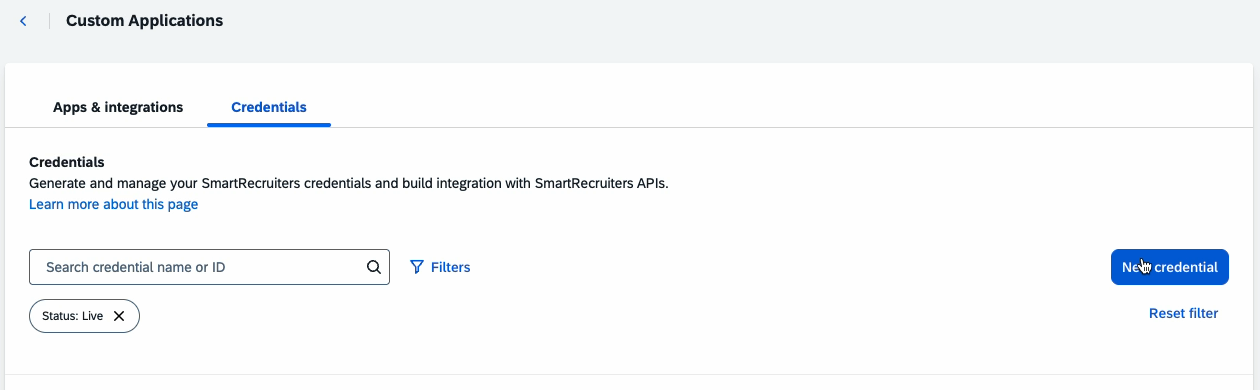
- Select the Credentials tab, then click New credential.
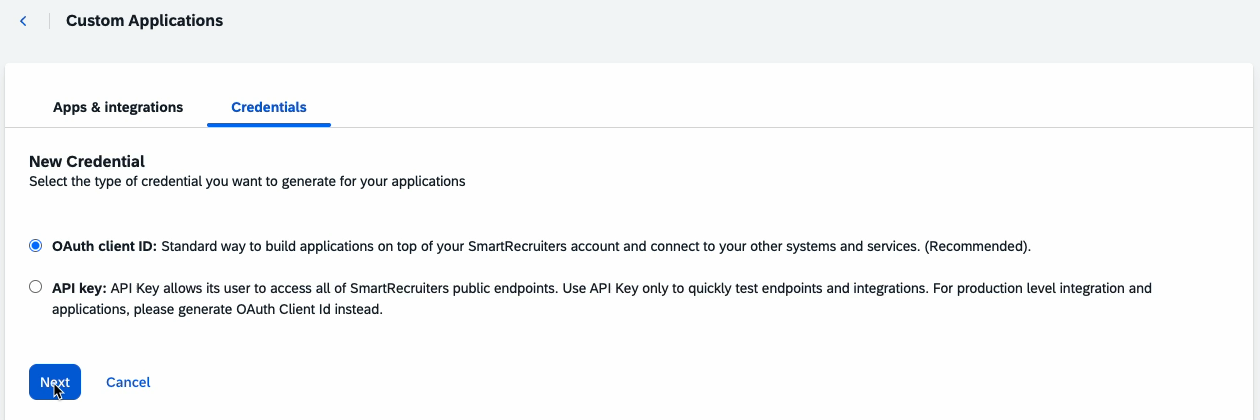
- Select OAuth client ID, then click Next.
Fill in the New OAuth Credential form:
Credentials name — a name that identifies the integration, for example
imper.ai.System role — select Admin.
Description — optional, for example
imper.ai application.
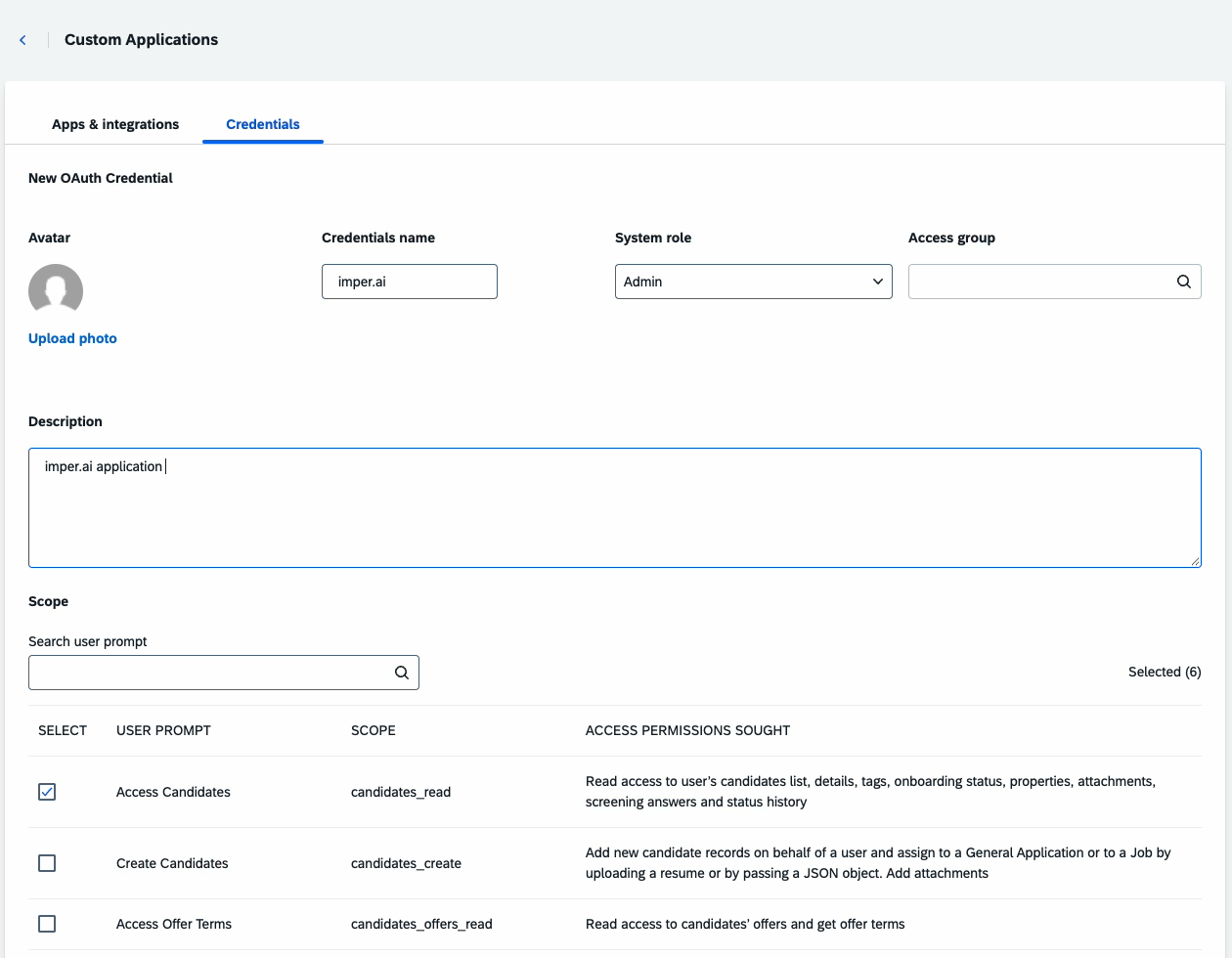
- Under Scope, select the following seven scopes:
| User prompt | Scope |
|---|---|
| Access Candidates | candidates_read |
| Manage Candidate Status and Properties | candidates_manage |
| Access Jobs | jobs_read |
| View webhook subscriptions | webhooks_read |
| Create new webhook subscription | webhooks_write |
| Delete webhook subscription | webhooks_delete |
| View, create and delete webhook subscriptions | webhooks_manage |
Once all seven are selected, the counter above the table reads Selected (7).

The four webhook scopes selected
Click Generate at the bottom of the page.
Copy the Client ID and Client Secret from the pop-up, then click Done.
IMPORTANT
The client secret is shown only once. Copy both values before closing the pop-up. If you lose the secret, generate a new credential.
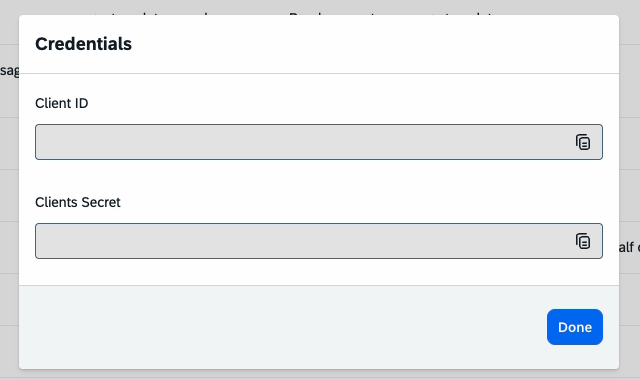
Generated credentials — values redacted
Step 3: Connect SmartRecruiters to imper.ai
Return to the SmartRecruiters Integration dialog in imper.ai.
Paste the Client ID and Client Secret into the matching fields.
Click Connect to complete the process.
imper.ai confirms the connection, and SmartRecruiters is marked as connected on the Integrations page.
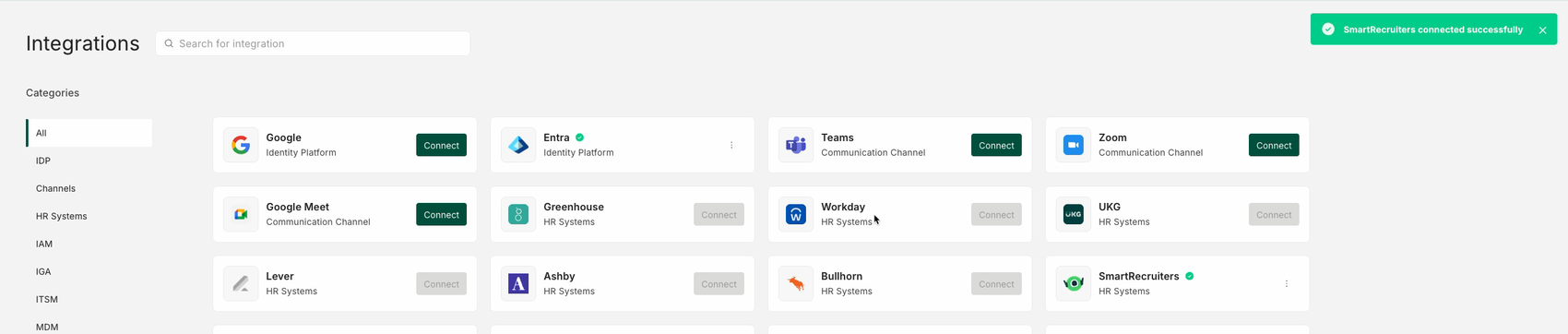
Integrations Page: SmartRecruiters connected