
Appearance
Overview
imper.ai can deliver high-risk alerts straight into a Microsoft Teams channel, so security, helpdesk, and recruiting teams see them where they already work instead of having to watch the console.
Delivery uses a Power Automate channel webhook - a workflow you create once on the destination channel. imper.ai posts an Adaptive Card to that webhook, and Teams renders it as a message in the channel.
NOTE
This requires no Entra application, no admin consent, and no bot installation. Setup is done entirely from the Teams client by someone who can create a workflow on the channel.
Private channels are supported.
Before you start
You need permission to create a workflow on the destination channel, and a Power Automate licence.
Decide which channel should receive alerts. Because the webhook is the only credential, alerts should go to a channel whose membership you are comfortable with.
Note the parent team the channel belongs to - you will need it in step 3, and Teams pre-fills it incorrectly.
Setup
1. Open Workflows on the destination channel
Right-click the channel and choose Workflows.
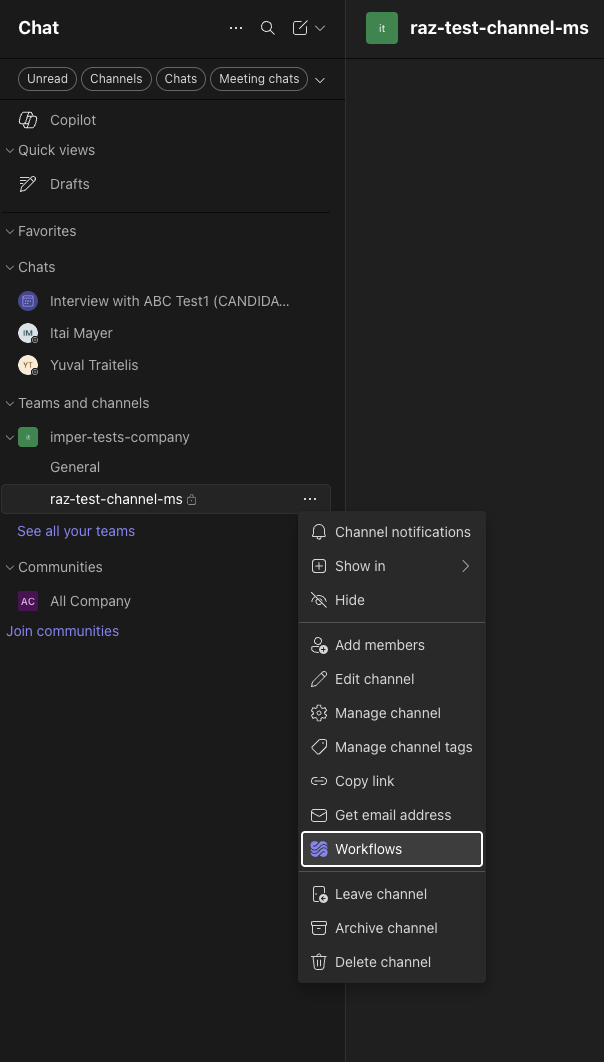
The channel shown here is a private channel - note the lock icon. Private channels work the same way.
2. Choose "Send webhook alerts to a channel"
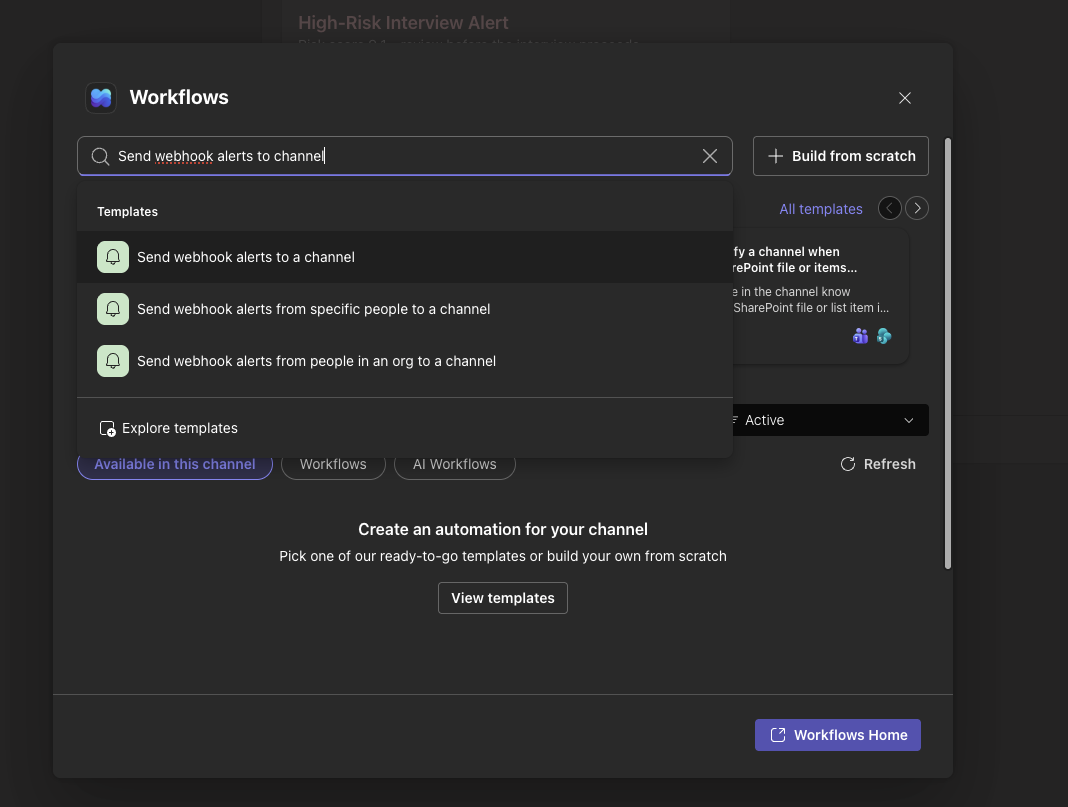
Several near-identical templates appear. Only the plain channel variant is correct.
| Template | Use it? |
|---|---|
| Send webhook alerts to a channel | Yes |
| Send webhook alerts to a chat | No - wrong destination |
| …from specific people to a channel | No - see the warning below |
| …from people in an org to a channel | No - see the warning below |
WARNING
Do not use the "from specific people" or "from people in an org" variants. They change the trigger to require an Entra-authenticated caller, and imper.ai's alert requests will be rejected with a 401 or 403. Naming an allowed sender restricts who may call the webhook, not which alerts are accepted.
3. Correct the pre-filled team, then save
WARNING
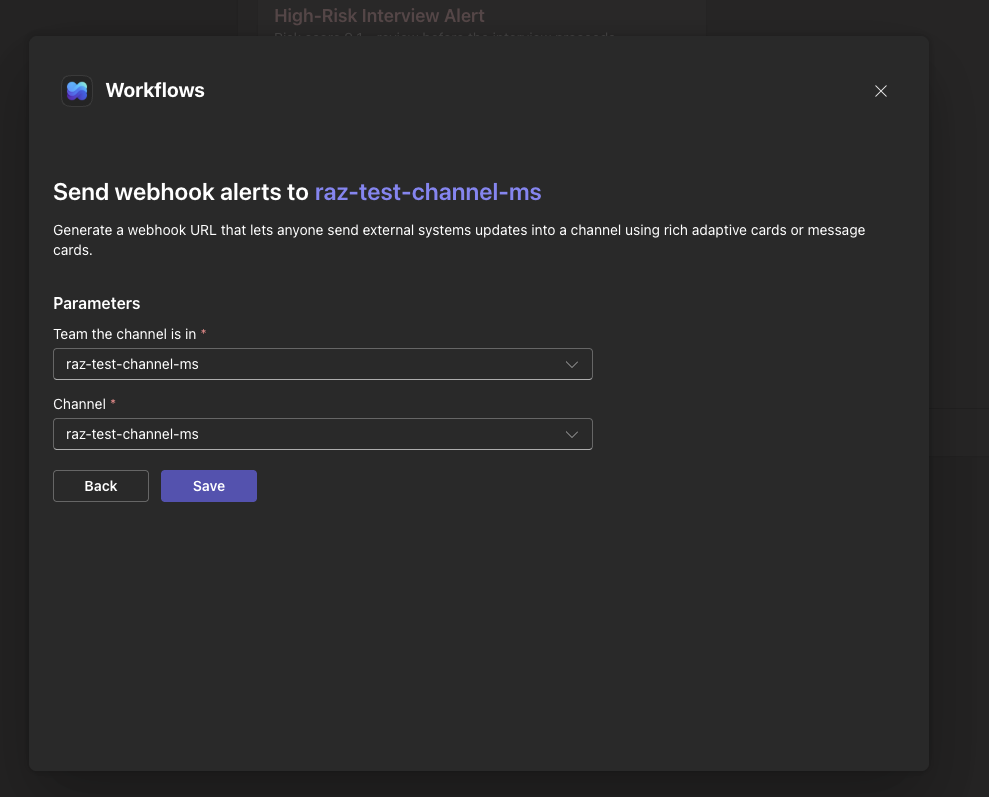
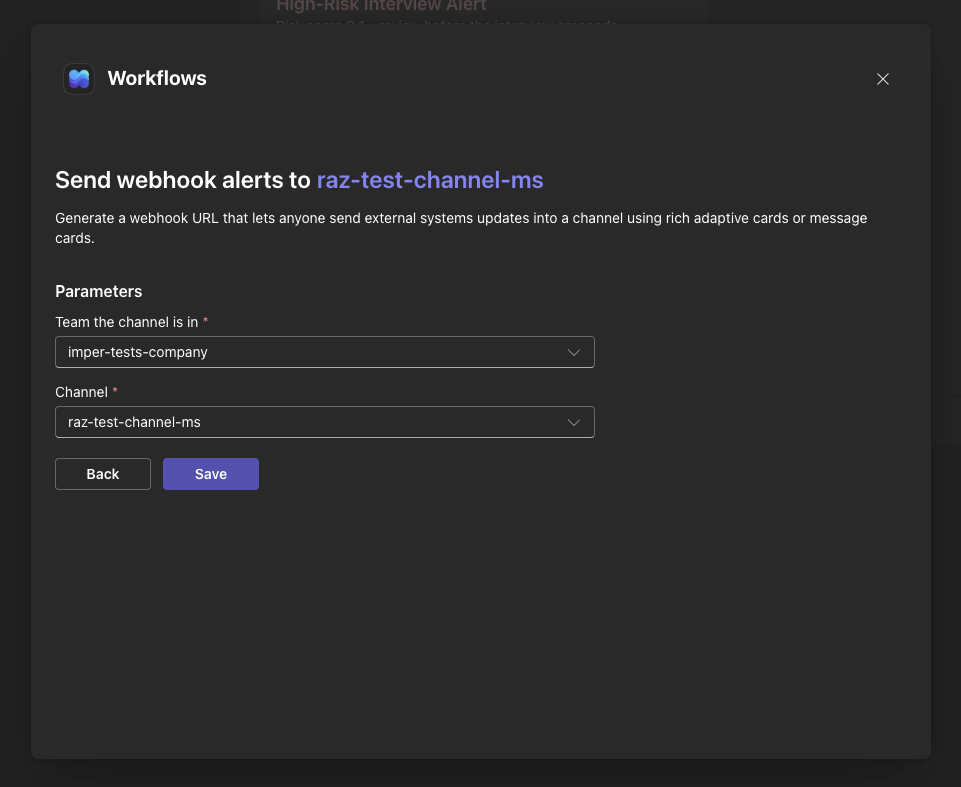
The Team the channel is in field pre-fills with the channel name, which is wrong. Saving it as-is produces a workflow that points at nothing, and the failure is not obvious afterwards.
Before - the team field repeats the channel name:
After - corrected to the parent team:
4. Copy the webhook link
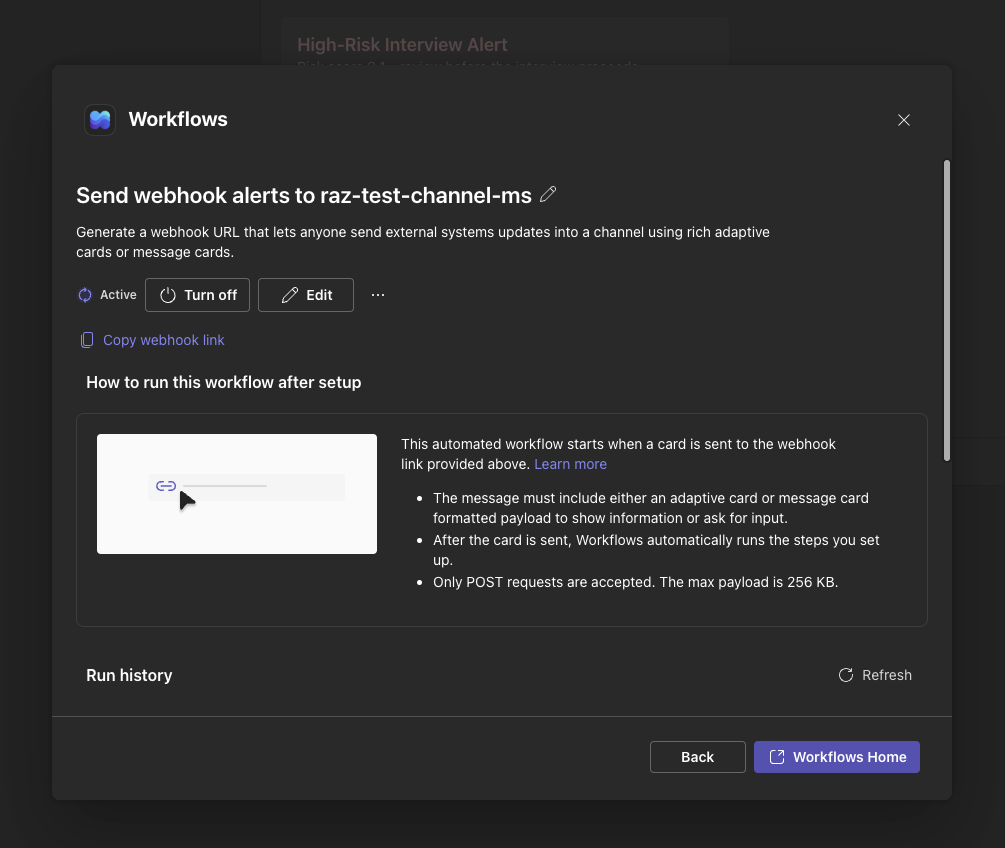
The workflow is named Send webhook alerts to <channel> automatically. This page is also where you review Run history if an alert is reported missing, and where you Turn off delivery.
CAUTION
The webhook link is the entire credential. Anyone holding it can post messages to the channel. Share it only with your imper.ai contact, and treat it like a password.
5. Provide the link to imper.ai
Send the copied link to your imper.ai representative, along with:
A short name for the channel, used in the console and in logs. The webhook URL itself is never logged.
Optionally, a minimum risk level for this channel. If you do not set one, the channel inherits your organization's Teams alert threshold. A per-channel value can only narrow what reaches the channel, never widen it.
imper.ai stores the webhook encrypted. Once configured, alerts above the applicable risk threshold are delivered to the channel automatically.
What the alerts look like
Each alert arrives as an Adaptive Card containing the risk context and any recommended next steps. Cards can include links back to the imper.ai console, but no in-card buttons or approvals - the webhook destination does not support interactive actions.
Troubleshooting
| Symptom | Cause |
|---|---|
| Alert never appears, workflow shows a failed run | Open Run history on the workflow for the error detail. |
| Workflow shows no runs at all | The wrong template variant was used (authenticated caller required), or the webhook link was regenerated. Recreate the workflow and send the new link. |
| Workflow was working, now nothing arrives | The workflow was deleted or turned off, or the account that owns it lost its Power Automate licence. Workflows run under the account that created them. |
| Some alerts arrive, others do not | The missing alerts fell below the risk threshold configured for the channel or the organization. |
| No alerts have ever arrived | Confirm with imper.ai that the webhook is configured on your organization and that Teams alerts are enabled. |
Limitations
The workflow runs on an individual's account. If that person leaves or loses their Power Automate licence, delivery stops silently. Prefer a service or shared account where your policy allows one.
Messages post as "Workflows", not as imper.ai.
No interactive cards and no activity-feed notification. Both require a bot rather than a webhook.
Power Automate DLP policies can block delivery. If your tenant prohibits the Teams connector or HTTP triggers, the workflow cannot be created.
Setup is manual, per channel. There is no bulk or programmatic provisioning.