
Appearance
Overview
Integrating OneLogin with imper.ai allows the platform to securely set a new hire's corporate password through your existing OneLogin account.
Once connected, imper.ai sets the new hire's password as part of the enrollment flow - delivering their corporate credentials once their identity is verified, before their first day, without a manual HR-to-IT handoff.
This article walks you through the required prerequisites and the steps for preparing the OneLogin API credentials, configuring permissions, and completing the integration inside imper.ai.
Prerequisites
To integrate OneLogin with imper.ai, you must have OneLogin Account Owner or Administrator permissions (or equivalent privileges to create API credentials) via the OneLogin Admin Console.
Deployment Steps
Step 1: Create OneLogin API credentials
Using a OneLogin admin user, login to your OneLogin Admin Console (
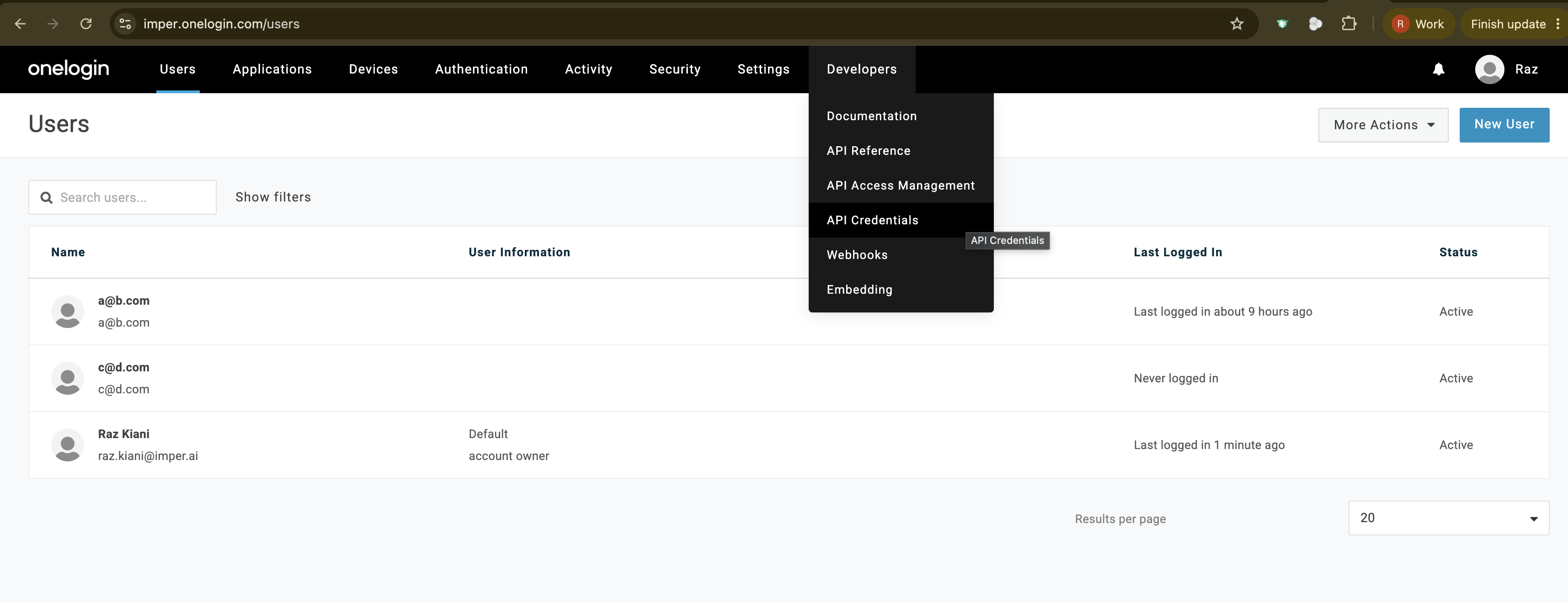
https://<your-subdomain>.onelogin.com).In the top navigation bar, open the Developers menu and click API Credentials.
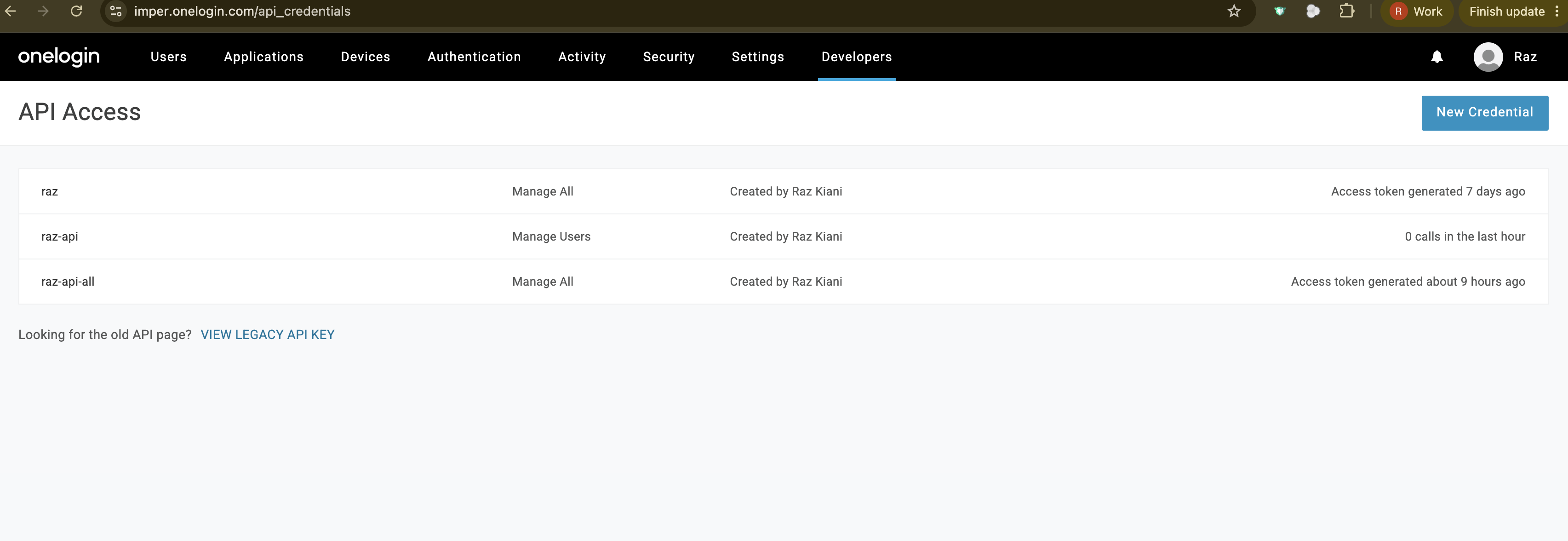
On the API Access page, click New Credential (top-right).
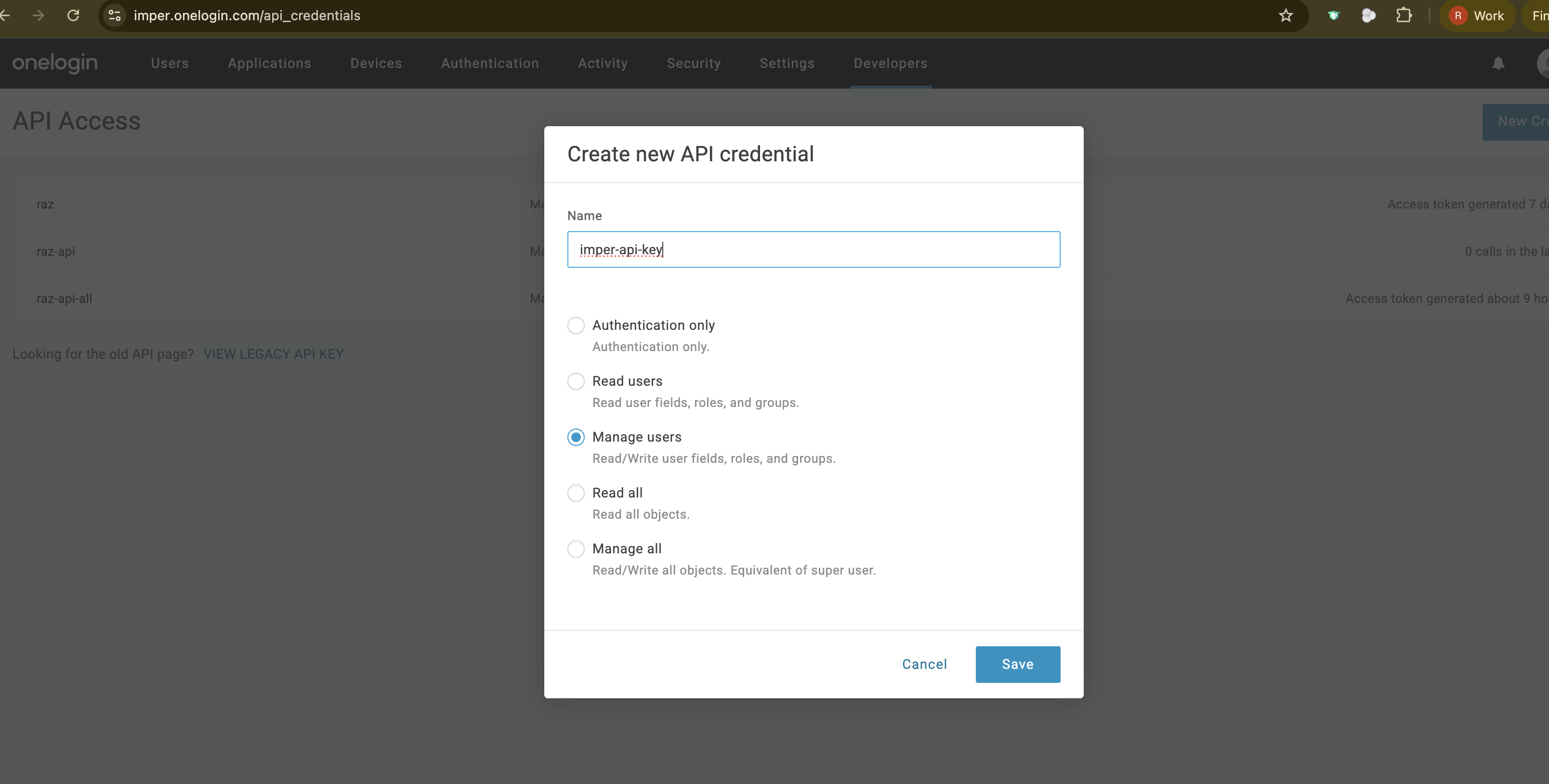
In the Create new API credential dialog:
Enter a recognizable Name for the credential (for example,
imper-api-key).Select the Manage users scope - this grants read/write access to user fields, roles, and groups, which is required for imper.ai to set the new hire's password.
Click Save.
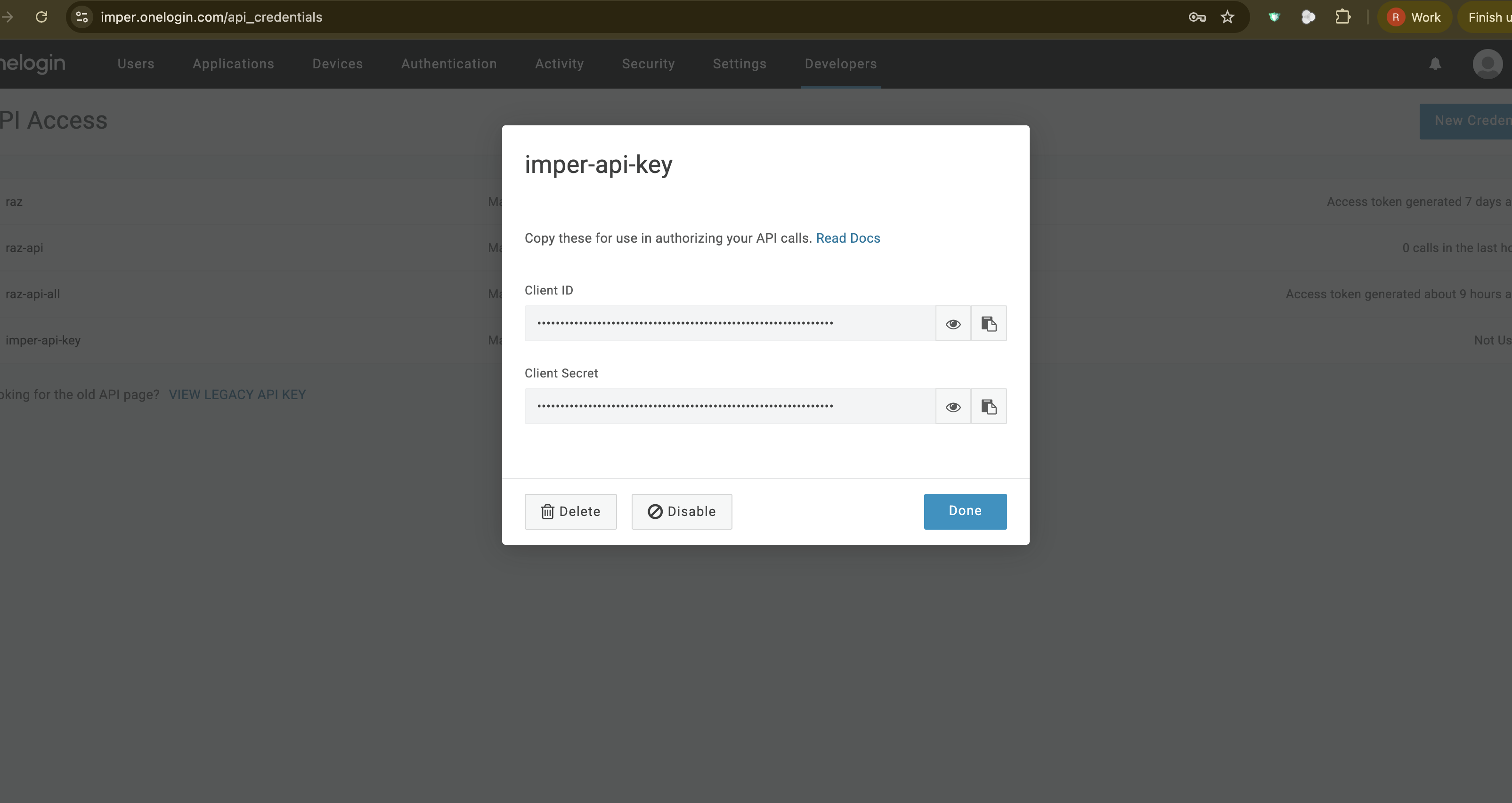
The credential is created and its Client ID and Client Secret are displayed:
Click Done to close the dialog.
WARNING
The Client Secret is sensitive and is only fully accessible at creation time. Store it securely and do not share it. If it is lost, create a new credential.
Step 2: Connect OneLogin to imper.ai
Login to the imper.ai admin integrations page.
Locate OneLogin and click Connect.
In the integration dialog, fill in your OneLogin subdomain (or organization URL) and the Client ID and Client Secret obtained in the previous step.
Click Connect , and a connection attempt will be made to verify the credentials and privileges.