
Appearance
Verify with manager confirms a user's identity through their manager by email. When enabled, it runs automatically as an extra layer whenever a verification detects some risk but can't be sure the user is an attacker and needs additional review: the user's manager is asked to approve the request by email, so the user can still prove who they are without a call.
Availability
Verify with manager applies only when a verification detects some risk but not enough to be sure the user is an attacker - a result that needs additional review. The identity is uncertain, so it warrants an extra layer of confirmation, which is where the manager's approval comes in. It is not applied when the risk is high enough to treat the user as an attacker, where the risk is too high to allow a manager to approve the action.
Whether this manager step runs is configured for the tenant - see Escalating Inconclusive Verifications.
Verifying a User with Their Manager
The flow is automatic - no agent action is required. It has two sides: the user is told that their manager will be asked to approve, and the manager approves or declines by email.
User Side
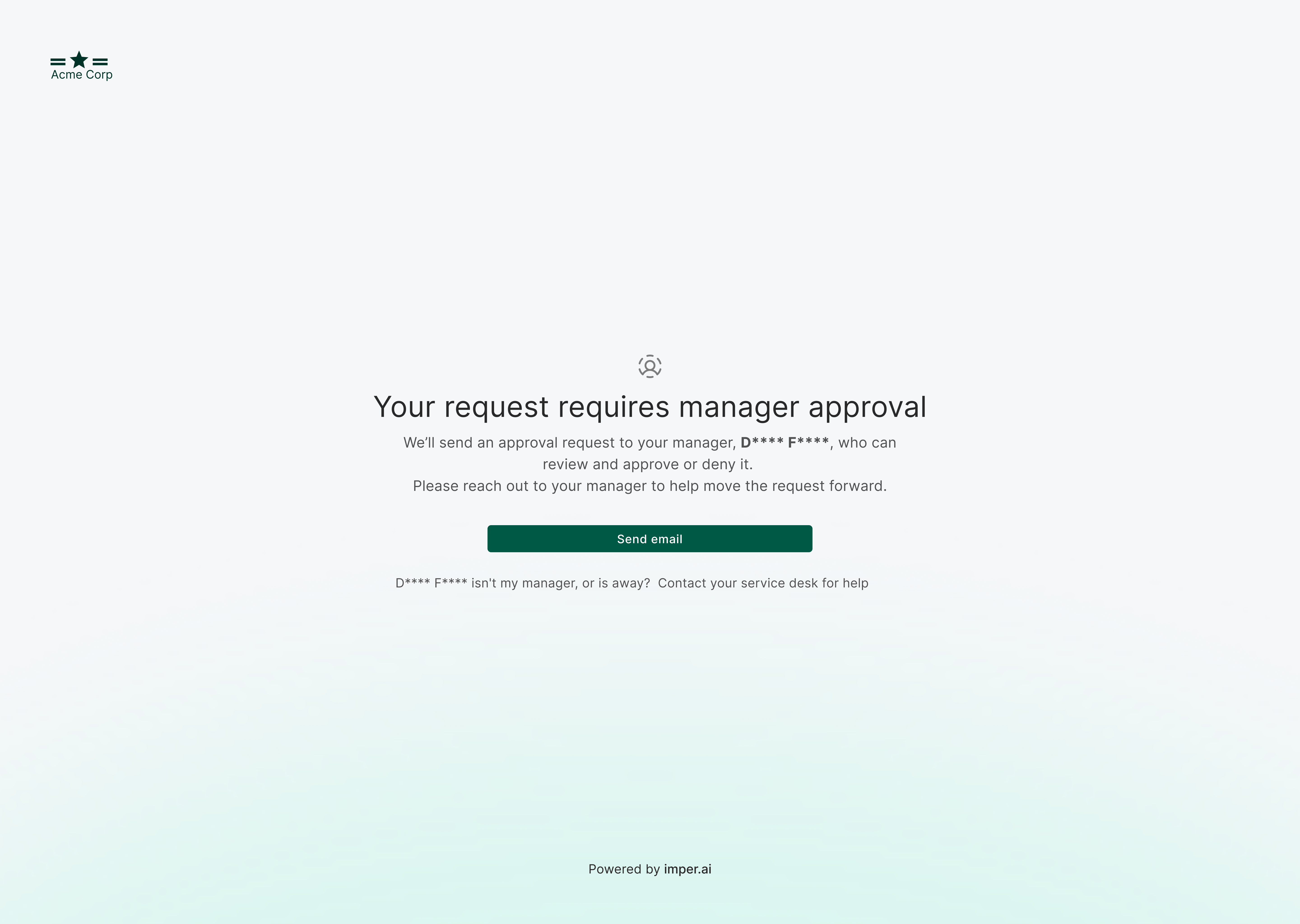
When the verification detects risk but can't be sure the user is an attacker, the user is shown a page explaining that their request requires manager approval. imper.ai resolves the user's manager from the identity provider, and the user clicks Send email to send the approval request. If the resolved manager isn't correct or is away, the page offers a Contact your service desk for help option.
Manager Side
Step 1 - Receive the request email
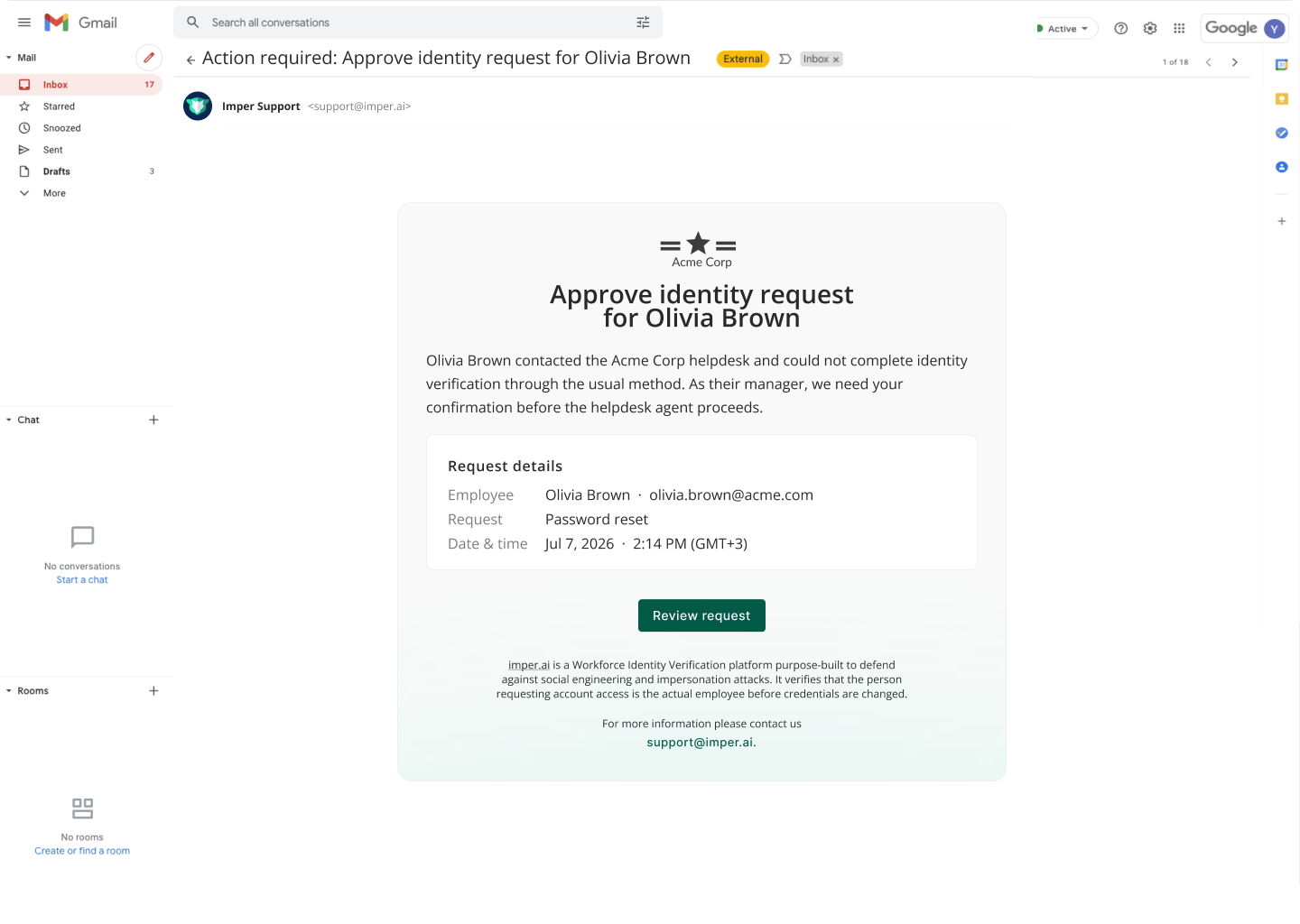
The user's manager - resolved automatically from your identity provider (IdP) - receives an email with the details of the request: the employee, the requested action, and the date, along with a Review request button.
Step 2 - Review the request and decide
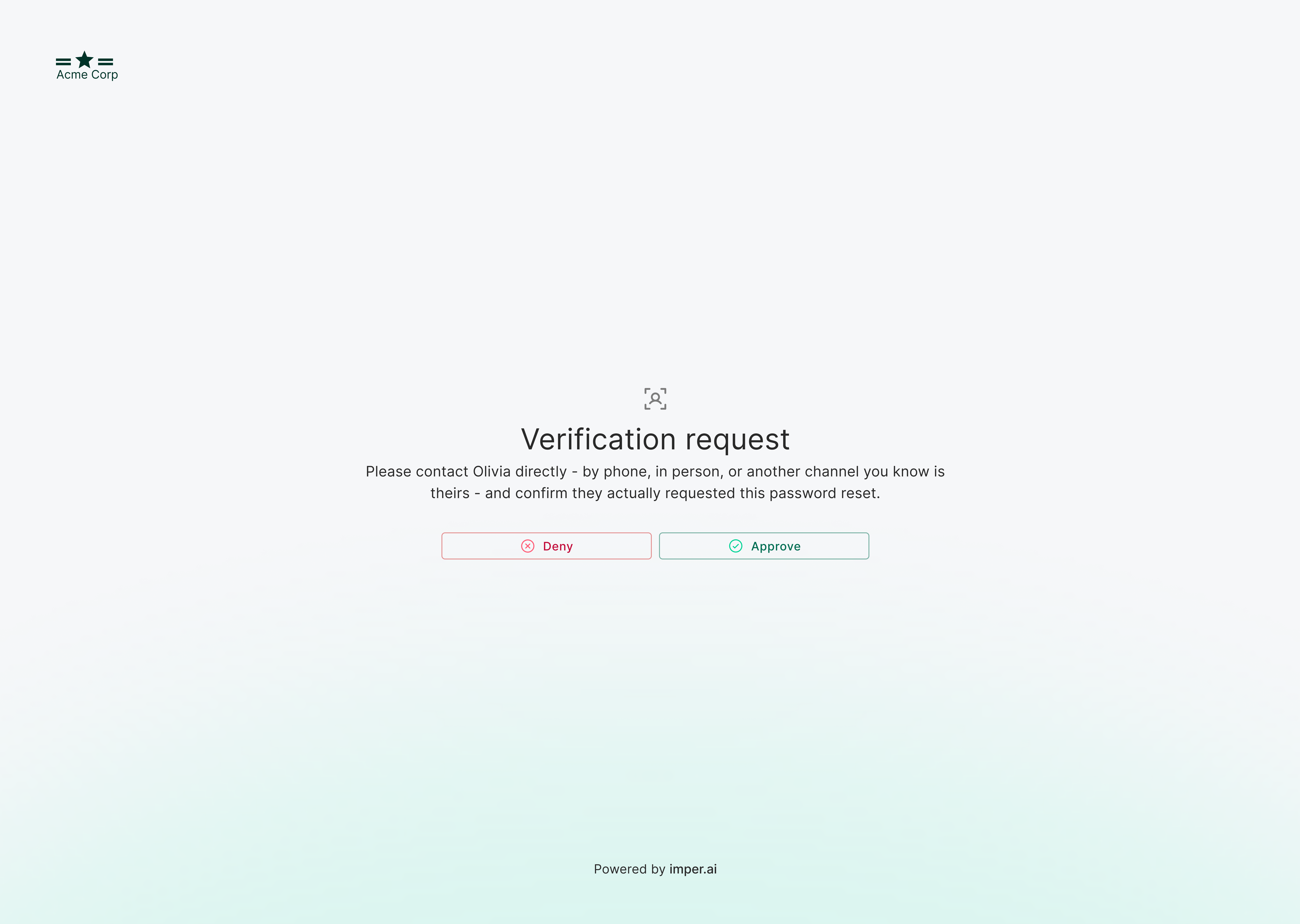
The manager clicks Review request to open a page where they can approve or decline the request. Before approving, the manager should contact the employee directly - by phone, in person, or another channel known to be theirs - to confirm that the employee actually requested this action.
If the manager approves:
- The user is automatically sent a link to perform the action without further verification, to the original destination (email or phone).
- The verification status changes to Passed, and the risk score is lowered.
- The Actions Status updates to the new outcome, and the verification drawer records the action as approved by the manager's name.
If the manager declines:
- No link is sent to the user, and the risk score is raised to high.
- The Actions Status updates to Manager denied.