Appearance
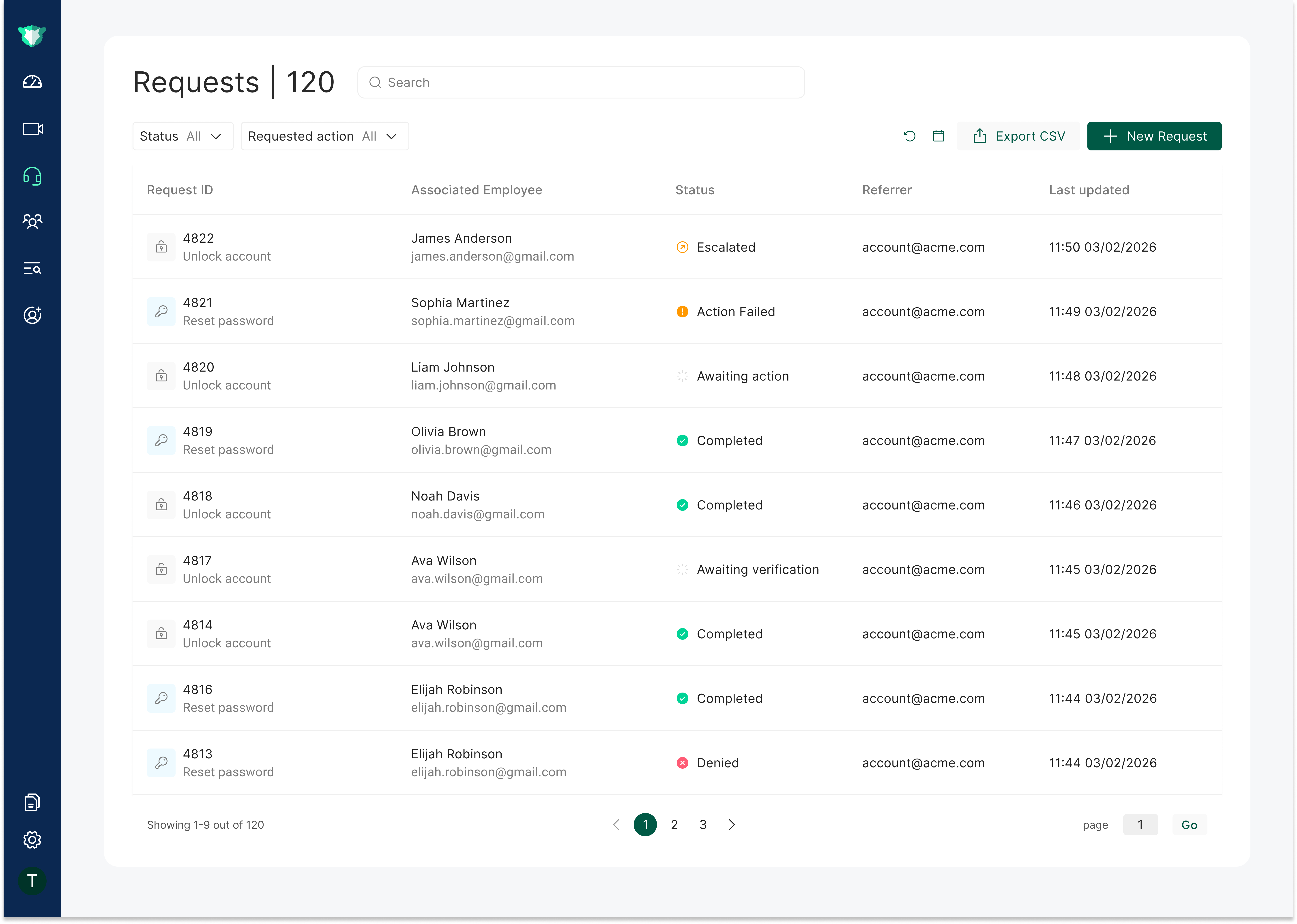
The Requests page is the central view for help desk-driven identity validation. It organizes activity around the request - an employee's ask, such as an action they want to perform - rather than around a single verification.
A request groups together everything that happened for that ask: one or more verifications, any escalation (to a manager or identity document verification), and the resulting action. Each row on the page is a request, and selecting it opens the request drawer.
Page Header and Controls
At the top of the page, the following controls appear:
| Control | Description |
|---|---|
| Request Count | The total number of requests (for example, Requests | 120). |
| Search Bar | Free-text search across requests. |
| Filters | Refine results by Status and Requested action. |
| New Request | Start a new verification request (see Sending a New Request). |
| Export CSV | Download the current requests table as a CSV file. |
The Request
Each request record includes:
| Field | Description |
|---|---|
| ID | A human-readable identifier for the request. |
| Requested action | The action the request is about (for example, a password reset). |
| Employee | The full name and work email of the employee the request is for. |
| Status | The request's overall status, derived from the verification and action states (see Request Status). |
| Referrer | The agent who answers the request. |
| Last update | When the request was last updated - a new verification, an escalation to a manager, or an action. |
| Risk score | The risk score of the request, taken from the last verification attempt (see Risk Score). |
Sending a New Request
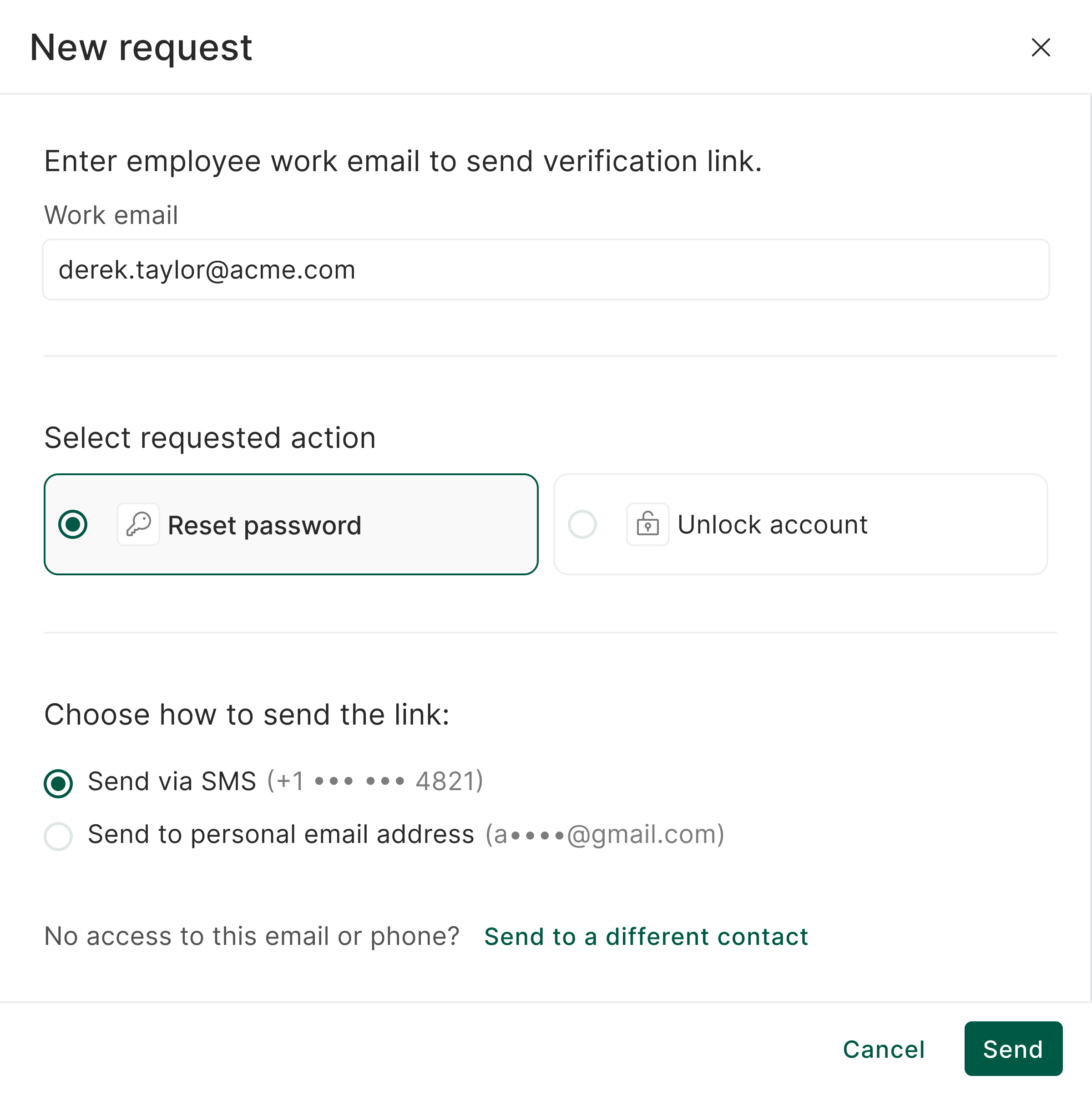
To start a new request, press New Request on the Requests page and fill in:
Work email - the work email of the employee the request is for.
Requested action - the action to perform (for example, Reset password or Unlock account). Shown only when more than one action is configured for your tenant.
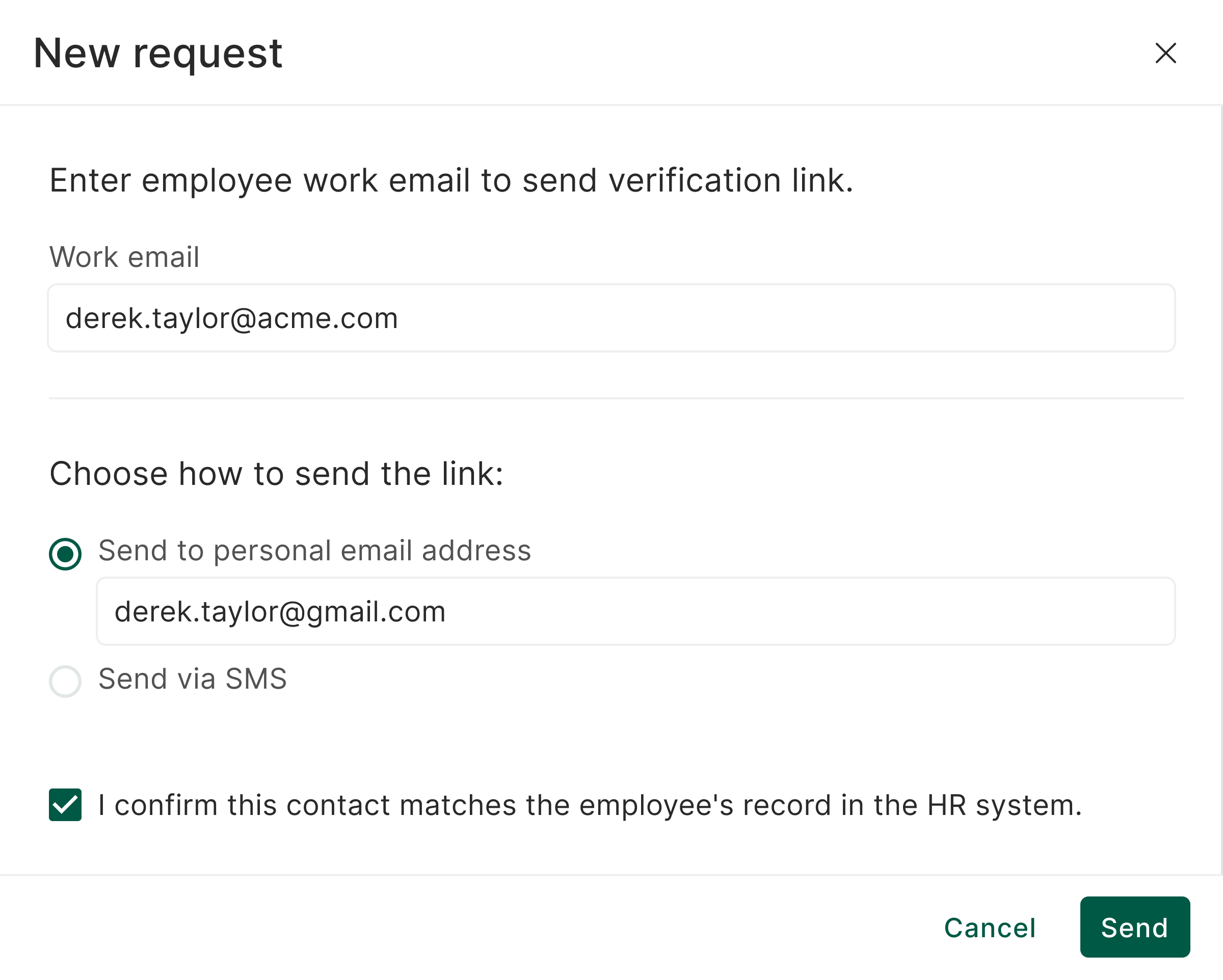
How to send the link - deliver the secure link via SMS or to a personal email address.
Then press Send.
How the personal contact is set depends on what imper.ai has on file for the employee's work email:
A personal contact is on file - if imper.ai already has a personal email or phone number linked to the work email, it is autofilled automatically (and masked). If the autofilled contact isn't correct, choose Send to a different contact to enter a different one.
No personal contact is on file - the agent enters the personal email or phone number manually and must confirm, by checking the consent checkbox, that the contact belongs to the employee before the link can be sent.
Request Status
A request's status is derived from its verification status (from the risk score - infra and security questions - or from an escalation to a manager or identity document verification) and its action status. The Final column indicates whether the status is terminal: non-final statuses are still in progress and can change once verification, an escalation, or the action concludes.
| Status | Final | Verification status | Action status | When it happens |
|---|---|---|---|---|
| Completed | Yes | Passed (directly or via escalation) | Done | Verification passed and the action was completed. Includes the medium-risk path: escalated to a manager or document verification, the escalation passed, and the action was done. |
| No action | Yes | Passed (directly or via escalation) | Not performed | The user completed verification but did not perform the action within the allowed timeframe. |
| Action failed | Yes | Passed (directly or via escalation) | Failed | Verification passed and the user reached the action, but the action failed. |
| Denied | Yes | Failed (high risk) | - | High risk - the initial verification failed with high risk, or the escalation to a manager or document verification was declined or failed. |
| Unable to verify | Yes | Not enough questions | - | The user could not complete verification because there were not enough questions to ask. |
| Awaiting verification | No | Not performed yet | - | The verification link was sent but the user hasn't completed verification yet. |
| Escalated | No | Medium risk | - | Verification came back medium risk and a re-verification was sent to the manager or document verification (automatically or manually); awaiting the escalation result. |
| Awaiting action | No | Passed (directly or via escalation) | Not done yet | Verification passed and imper.ai is waiting for the user to perform the action. |
| Expired | Yes | - | - | The request was not completed within the allowed timeframe (10 minutes). |
| Internal error | Yes | - | - | An internal error - usually during verification - stopped the request. |
Risk Score
The request's risk score is calculated from all the verification layers in the request - infra, security questions, and any escalation.
An escalation (verify with a document or verify with a manager), if enabled for your tenant, also changes the risk score based on its result.
To learn more about how risk is determined, see Incidents and Risk Signals - Overview.
Request Drawer
Selecting a request opens a drawer with the following tabs.
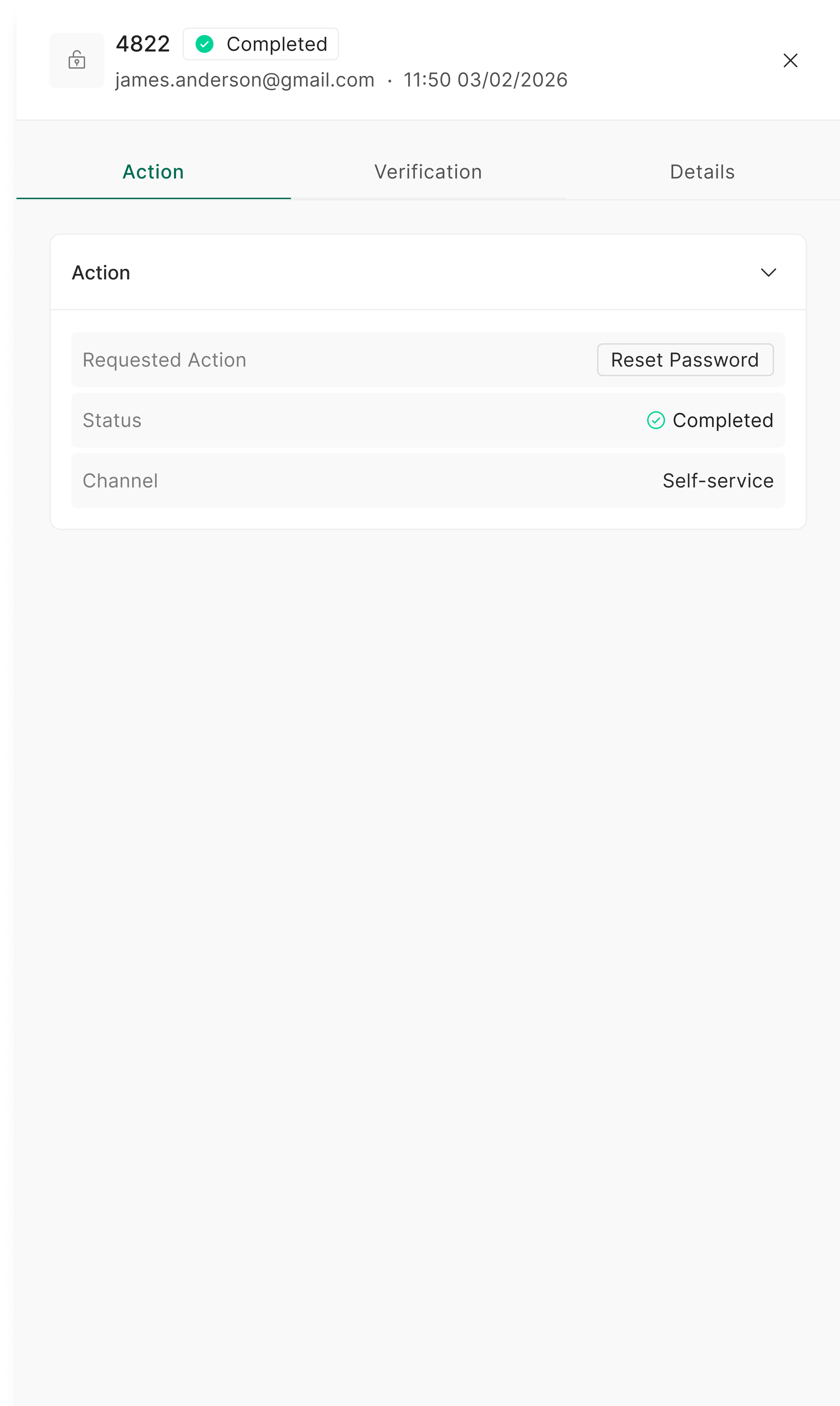
Action
Shown only when an action was performed:
Requested action - the action the user performed.
Status - the outcome of the action.
Channel - what triggered the action.
Verification
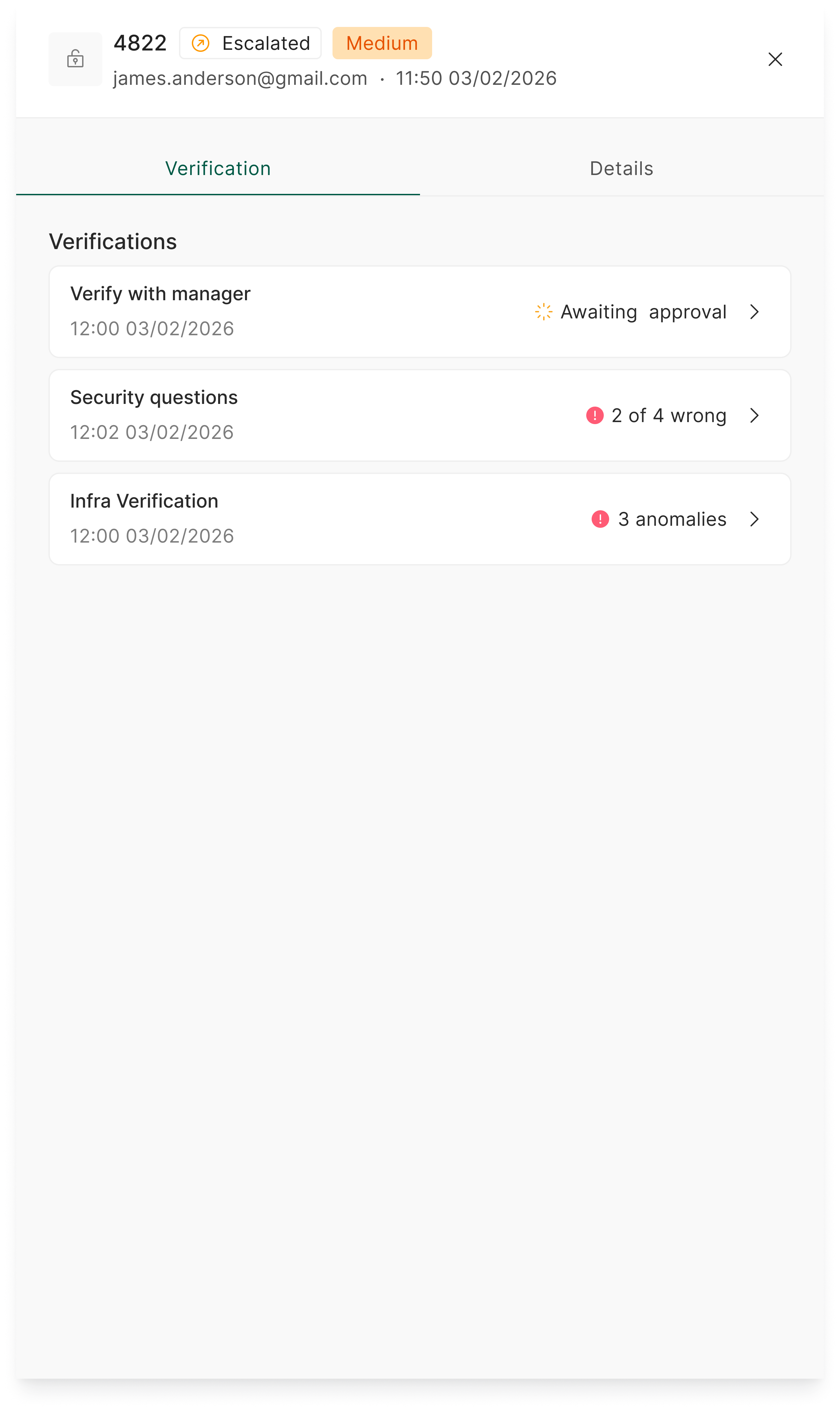
Shows every verification the user went through for the request - infra checks, security questions, verify with manager, and document verification.
A request can include more than one verification attempt - for example, when a user fails the infra check or the security questions and is allowed to try again. In that case, all of the attempts for the request are listed together, so you can see the full history in one place.
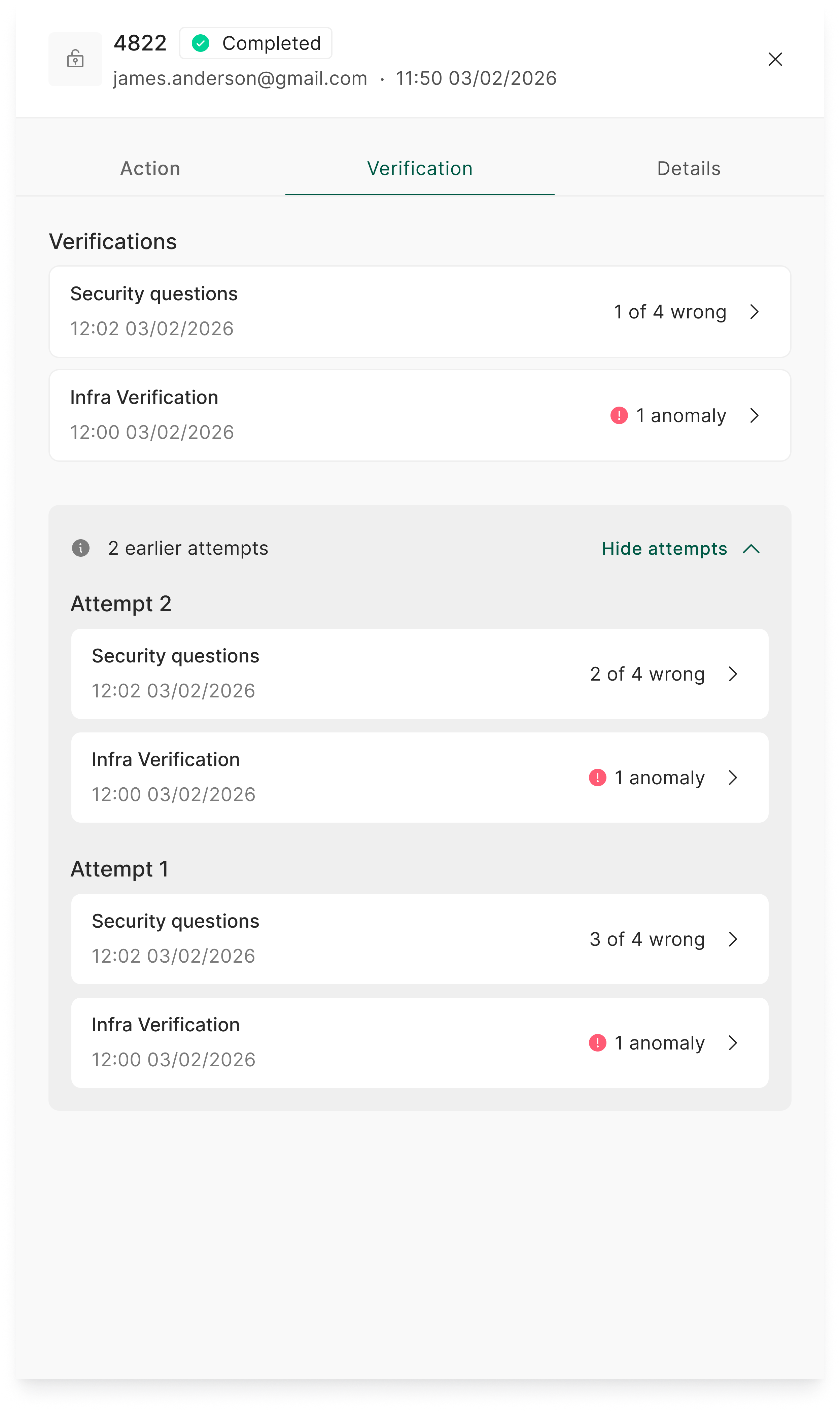
The overview lists each verification with its time and key data; opening one shows details that differ by verification type:
| Verification type | Overview | Details |
|---|---|---|
| Infra verification | Number of anomalies, if any | Status, timestamp, full analysis report |
| Security questions | Passed, "Answered X of N questions incorrectly", or "Timed out during the questions" | Transcript |
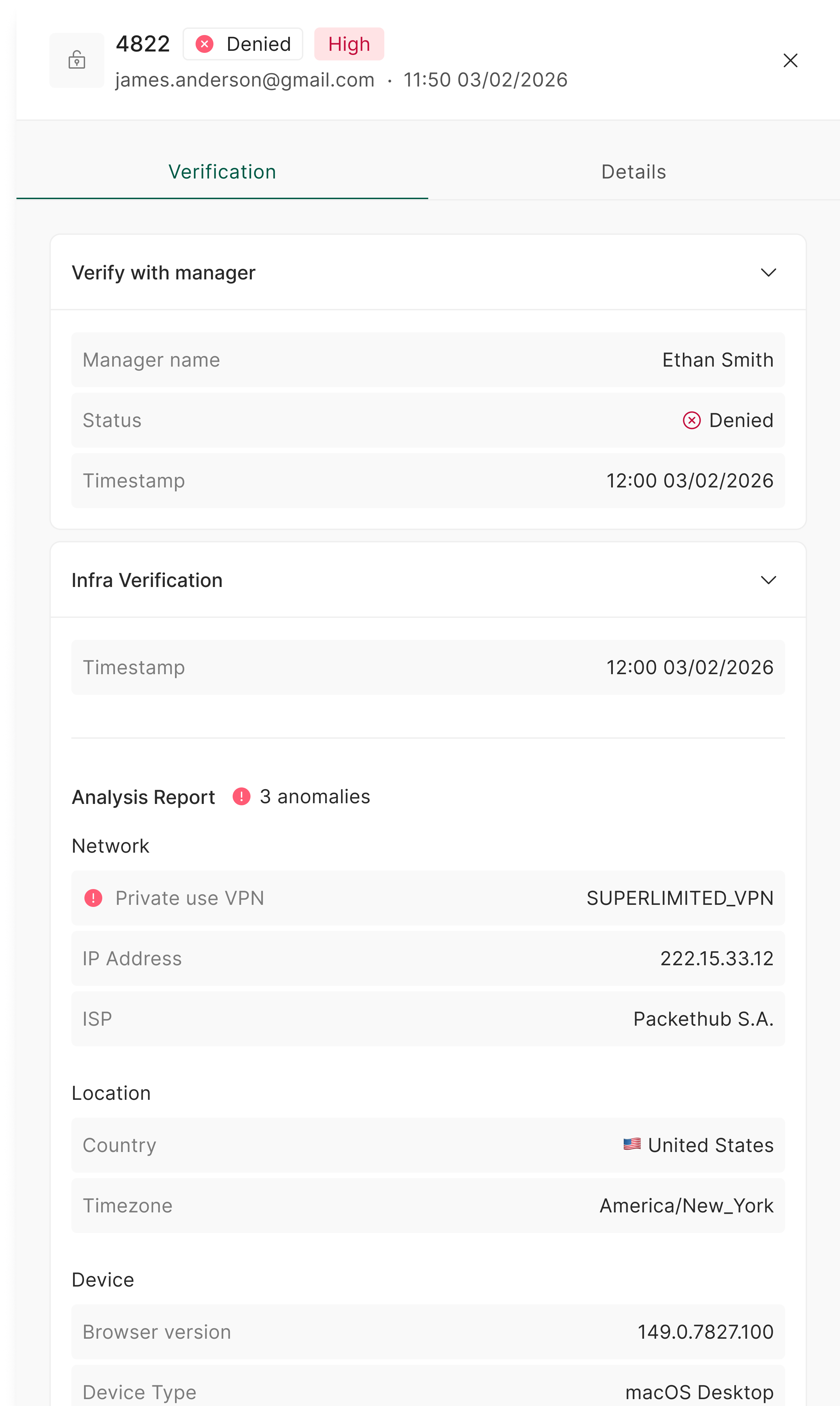
| Verify with manager | Status (Awaiting user to send request, Awaiting approval, Approved, Denied, or Expired) | Manager name, status, timestamp |
| Verify with document | Status (Approved, Denied, Mismatch found, or Pending) | Status, timestamp |
NOTE
Verify with manager and verify with document are escalation options that appear only if enabled for your tenant.
Opening a verification shows more:
Infra verification - opens the full Analysis Report, with all the data collected during the verification and the anomalies found.
Security questions - expanding it shows the transcript of the questions and answers (available to non-Agent roles).
Details
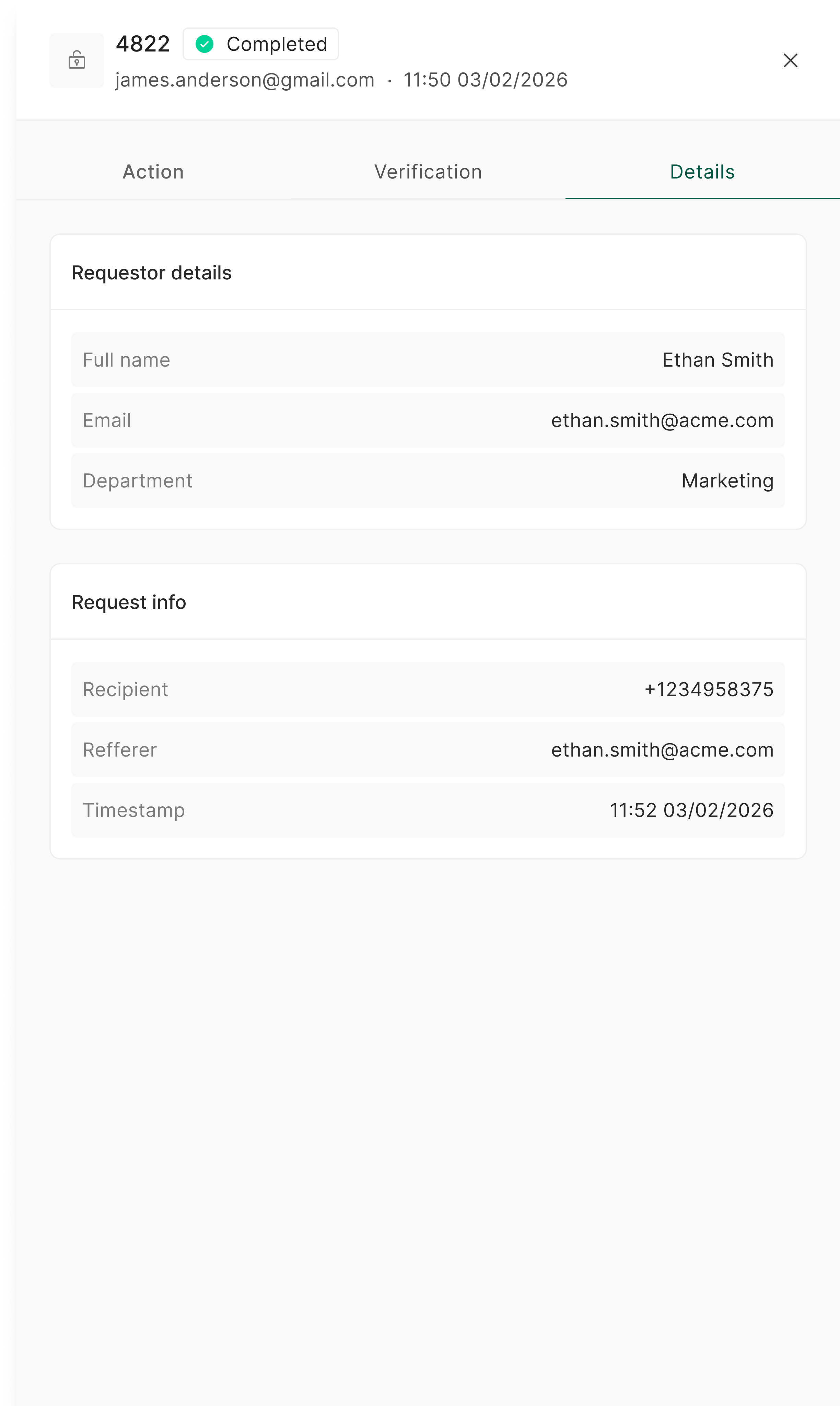
Two sections:
Requestor details - full name, email, and department.
Request info - recipient, referrer, and timestamp.