
Appearance
This article provides step-by-step instructions for deploying imper.ai with Google Workspace.
The deployment enables imper.ai to integrate with Google Workspace as an Identity Provider (IdP) and allows help desk integration for user verification, question enrichment, and password resets using Google Workspace.
The process includes:
Connecting Google Workspace as an IdP in imper.ai
Configuring Domain-Wide Delegation in the Google Admin Console
Authorizing required Google API permissions
Completing Google Workspace onboarding in imper.ai
Follow the steps in the order listed. This article assumes that all prerequisites have been met and that the deployment sequence has been reviewed.
Prerequisites
Before you begin, ensure that:
You have Google Workspace Super Admin privileges
You have Admin access to the imper.ai Admin Console
Google Workspace is selected as your Identity Provider (IdP)
You have access to the imper.ai App (Client) ID provided during onboarding
Deployment Procedure
Step 1: Connect Google Identity Provider (IdP)
Log in to the imper.ai Admin Console using administrator credentials or SSO.
Navigate to Settings > Integrations.
Open the Google Workspace connection:
If this is the first integration in your tenant , the Integrations page shows a Set up impersonation protection banner at the top. Click Start setup , then choose the workspace to connect - Google Workspace. The use case is pre-selected for you, based on what you arranged with imper.ai.
Otherwise , locate Google Workspace and click Connect.
The Google Integration pop-up opens.
NOTE
If the user logging in to the imper.ai console is not an administrator, you must provide the “Admin Email (Required for Non-Admins)” field and enter the email address of your Google Workspace Administrator.
Step 2: Copy Scopes from imper.ai
In the Google Integration pop-up window, click Copy Scopes.
Keep the scopes copied. You will paste them into the Google Admin Console in a later step.
These scopes define the Google APIs imper.ai is authorized to access.
Step 3: Open the Google Admin Console
You can access the Google Admin Console in one of the following ways:
- Click the Domain-Wide Delegation link directly from the imper.ai integration pop-up
OR
- Manually sign in to the Google Admin Console using a Super Admin account
Step 4: Navigate to Domain-Wide Delegation Settings
In the Google Admin Console:
Go to Security.
Select Access and data control.
Click API controls.
Navigate toDomain-wide delegation.
Click Manage Domain-Wide Delegation.
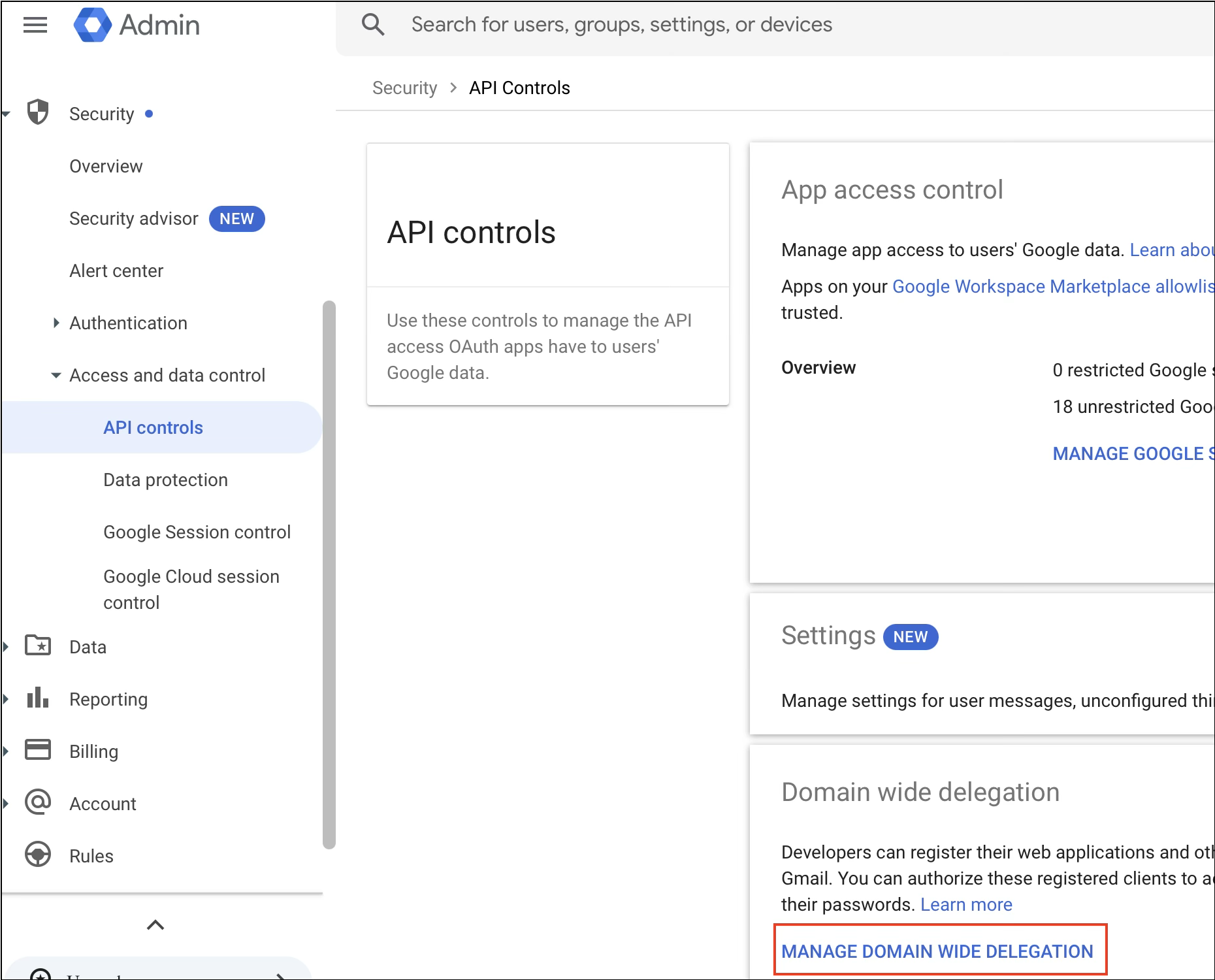
Step 5: Add a New Client ID
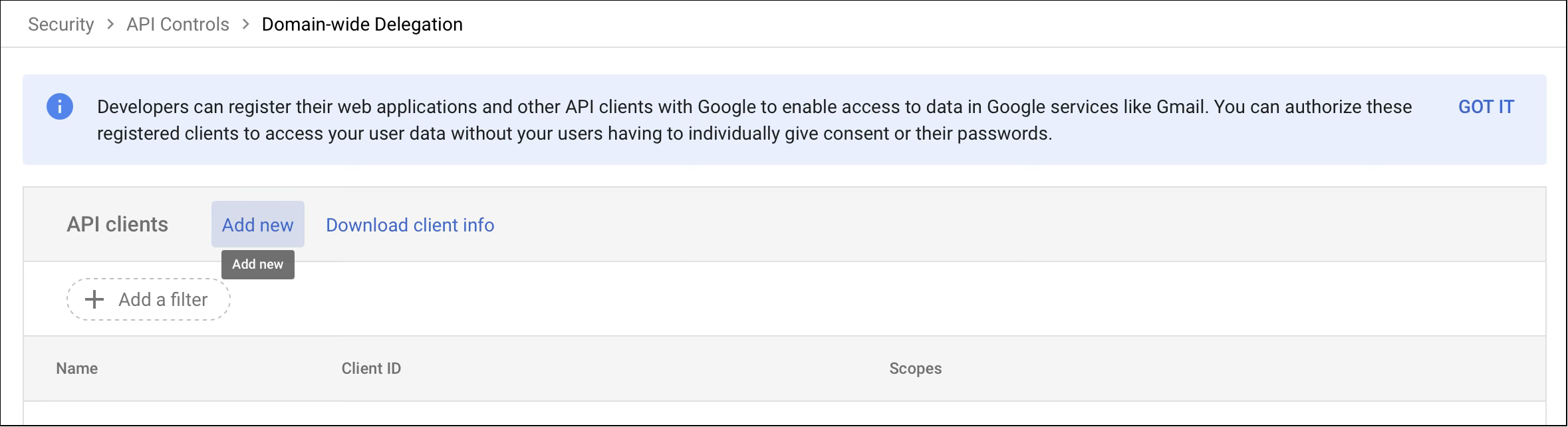
In the Domain-wide delegation page, click Add new.
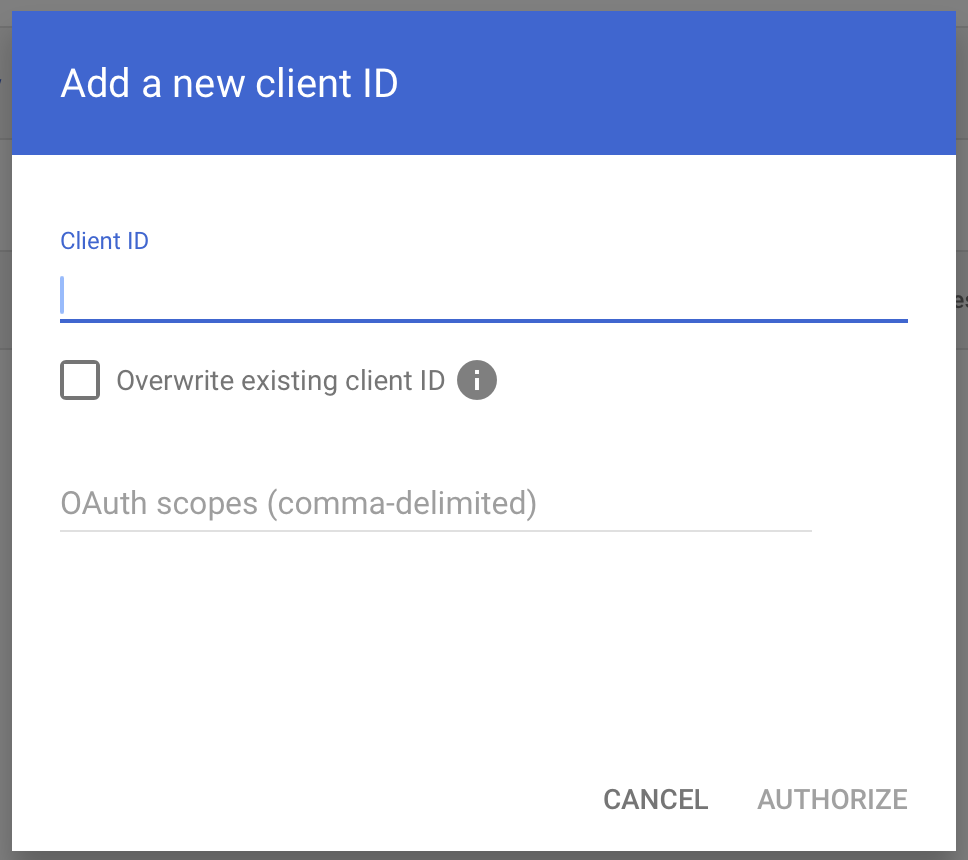
The Add a new client ID dialog opens.
Step 6: Authorize imper.ai (Domain-Wide Delegation)
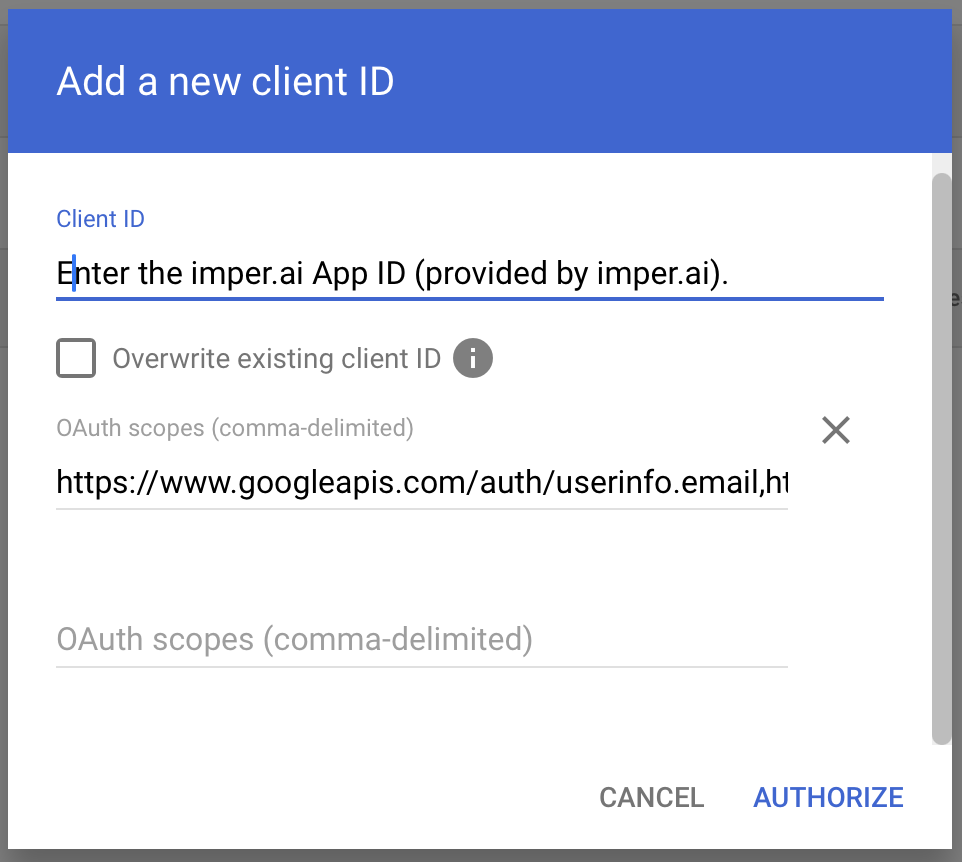
In the Client ID field, enter the imper.ai App (Client) ID provided during onboarding.
In the OAuth scopes field, paste the scopes you copied earlier from imper.ai.
Click Authorize (or Save , depending on your console version).
This completes the Domain-Wide Delegation configuration.
NOTE
This is a one-time setup performed by a Google Workspace Super Admin. It authorizes imper.ai to securely access approved Google APIs on behalf of users in your organization.
Permissions
For the permissions imper.ai requests in Google Workspace and how each one is used, see Google Workspace Permissions.