Appearance
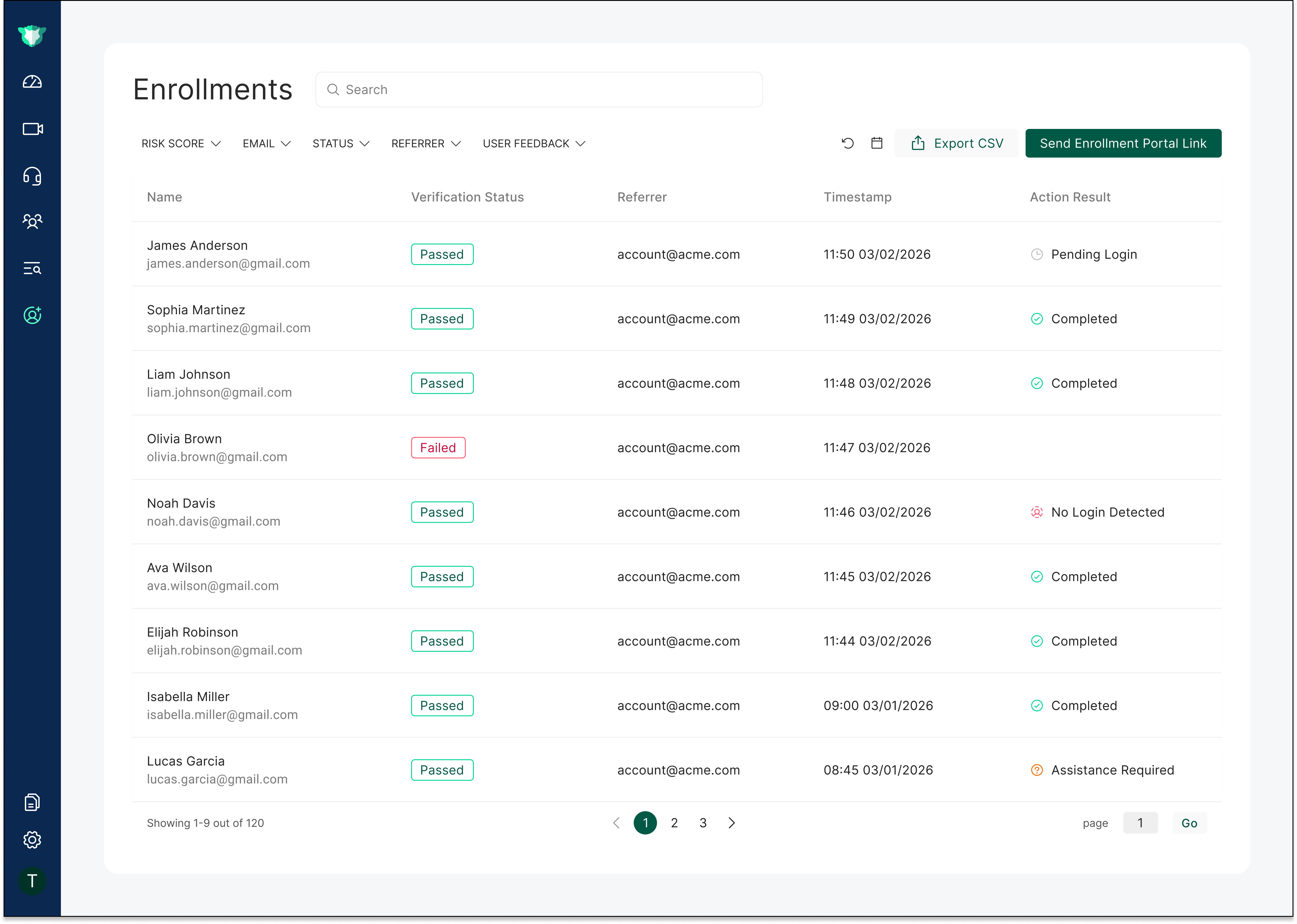
The Enrollments page gives HR teams a centralized view of the enrollment and verification progress of new employees. It presents a table HR administrators use to review verification results, identify risks, and catch issues that might prevent an employee from completing enrollment before their start date.
Enrollments Table
The table includes the following fields:
| Field | Description |
|---|---|
| Employee Name and Email | The new employee's name and email address associated with the enrollment. |
| Referrer | The source from which the employee accessed the verification process. |
| Verification Status | The outcome of the verification - such as Passed or Failed. |
| Verification Timestamp | The date and time the verification attempt was completed. |
| Action Result | The outcome of the post-enrollment login check - whether the employee signed in from a company device within the expected time window after enrollment. Shows one of the values listed below. |
Action Result Values
After enrollment, imper.ai checks whether the new hire signs in within the expected time window and shows the outcome in the Action Result column. It displays one of the following:
| Action Result | Meaning |
|---|---|
| Completed | The user signed in successfully within the expected time window after enrollment. |
| Pending | Waiting for the user to sign in; the expected login window hasn't elapsed yet. |
| No login detected | No login was detected within the expected timeframe. |
| Failed to login | A sign-in attempt failed during the expected time window after enrollment. |
| Password Setup Failed | The user hit an error while setting their password and didn't complete the set-password step. |
| Password Setup Incomplete | The user completed verification but didn't finish setting their password. |
| Assistance required | The user left feedback indicating they need assistance. |
Investigating Individual Verifications
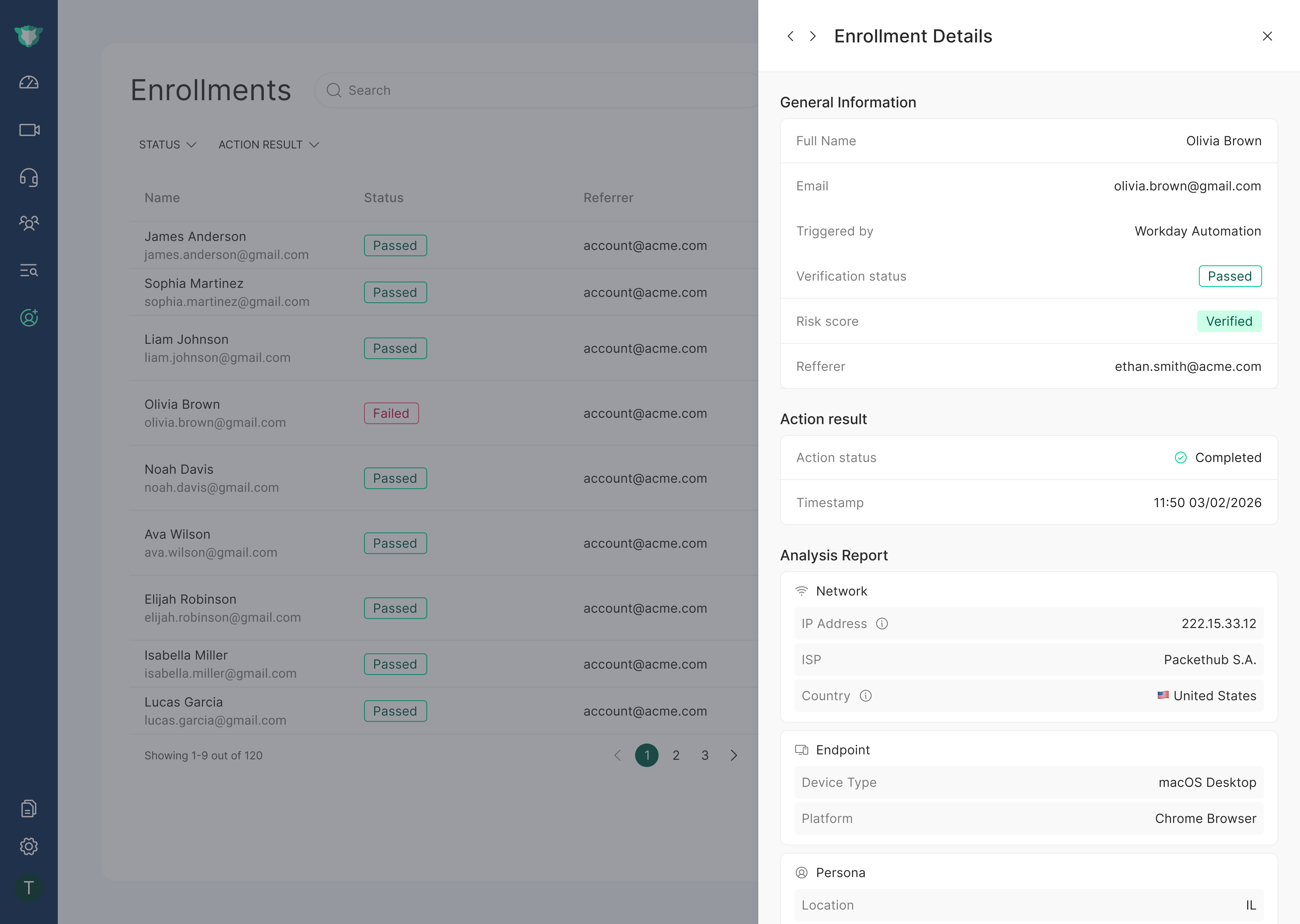
Select a verification in the table to open the Verification Summary panel, which includes:
- General information, including a Triggered By field that shows what initiated the enrollment - for example, Workday Automation (triggered automatically by the Workday integration), an email attachment, or the name of the person who sent the enrollment
- The action result and its meaning (the post-enrollment login outcome)
- Analysis Report across the Network, Device, Tools, Location, and Identity categories - see Analysis Report
The panel allows investigating issues, reviewing anomalies, and taking follow-up actions without leaving the Enrollments page.
Manually Sending the Enrollment Link
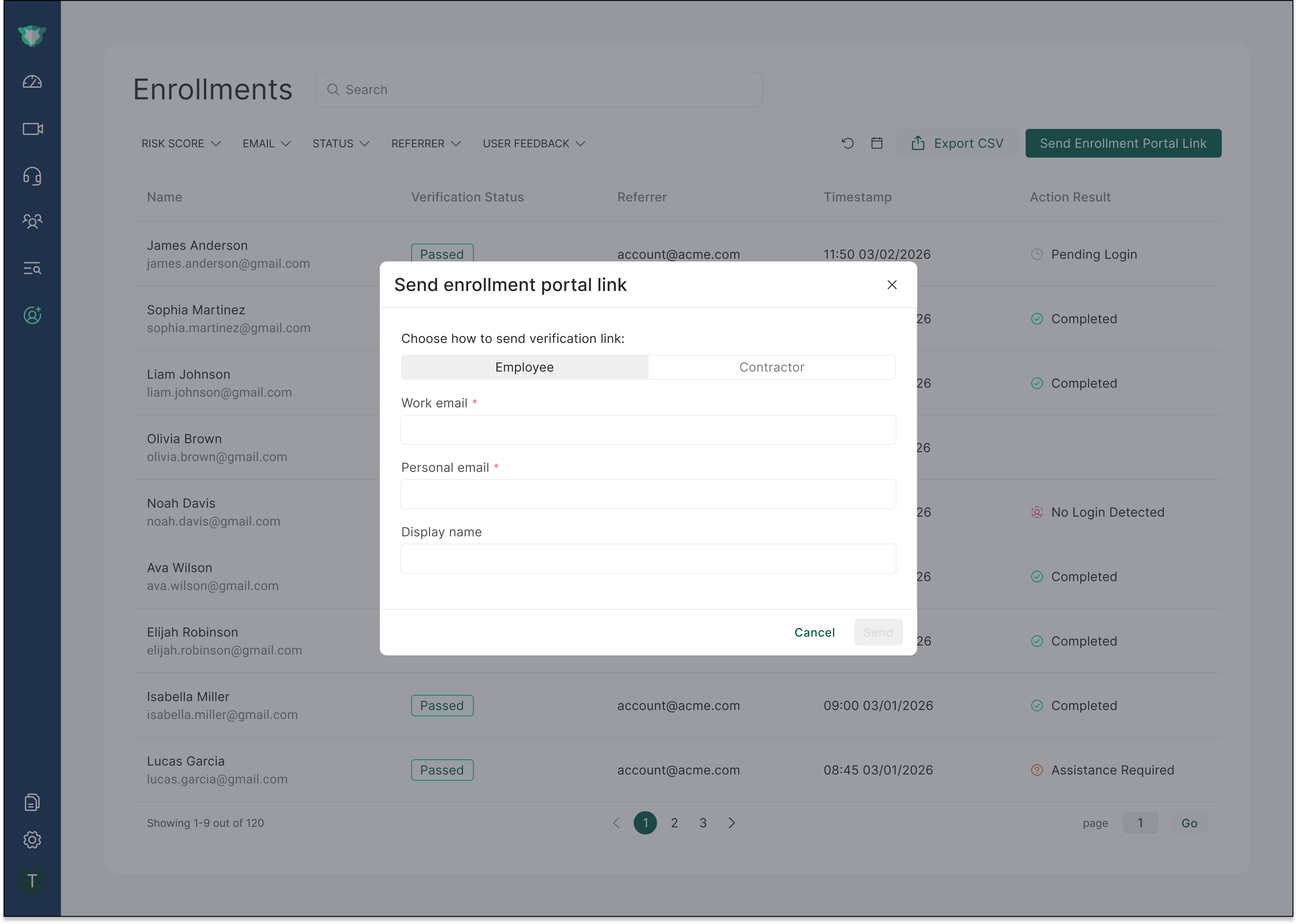
In addition to the automatic invitation sent to new employees, HR administrators can manually send the enrollment link. Select Send Enrollment Portal Link in the top-right corner of the page to resend or initiate the enrollment invitation for a specific employee.
When sending the link, you can choose the type of person being onboarded - for example, an Employee or a Contractor - so each receives the enrollment link appropriate to their type.
This is useful if the employee did not receive the original email, accidentally deleted it, or needs to restart the enrollment process.