Appearance
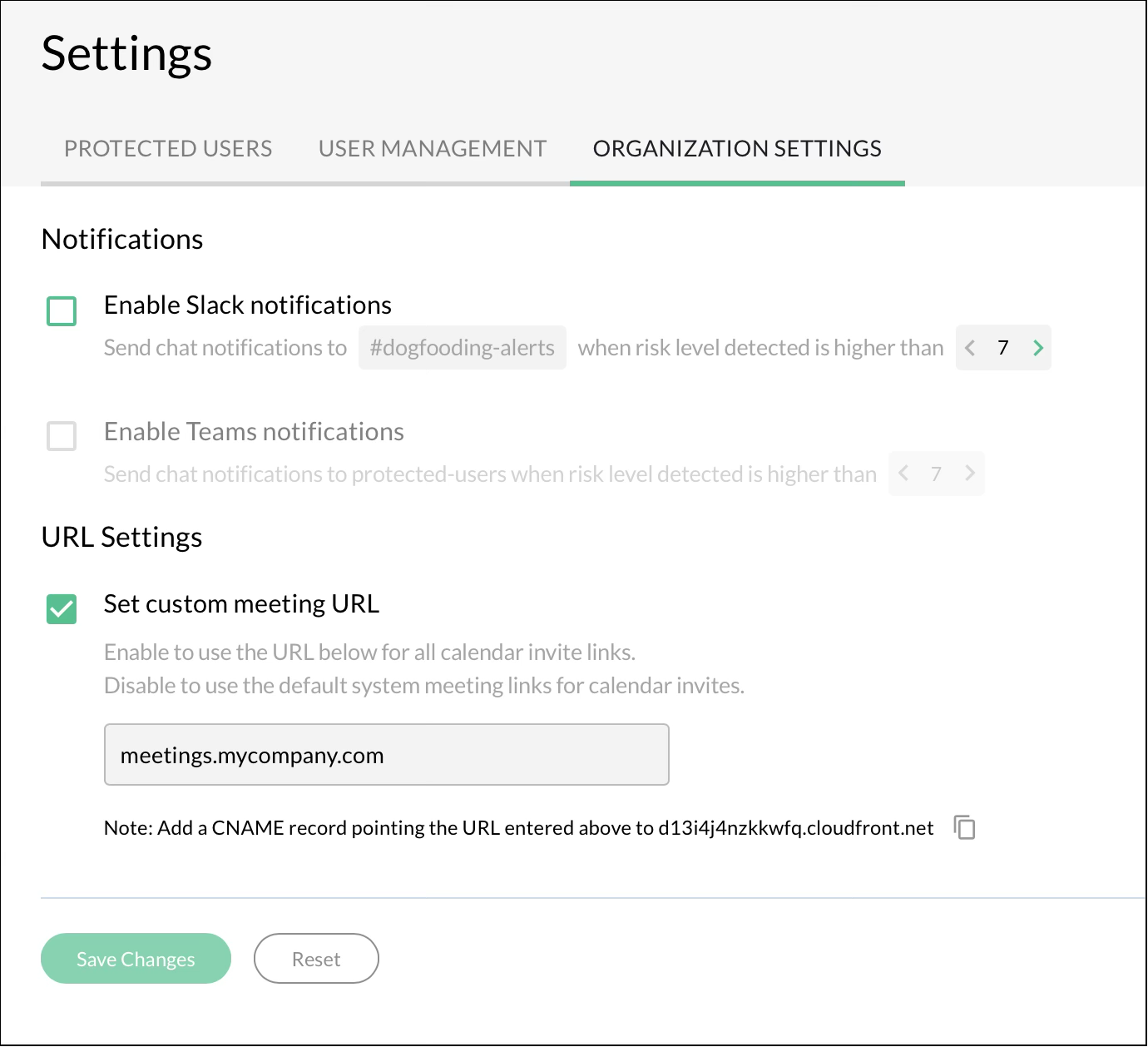
imper.ai enables administrators to define a **custom branded meeting URL **used in all meeting invitations generated by your organization. This helps ensure consistency, branding, and clear identity when communicating with external participants.
When configured, meeting links follow the structure:** https://your-domain/{meeting-ID}**
Prerequisites
Before configuration, you must add a DNS entry:
Create a CNAME record in your DNS that points your chosen subdomain to: custom-url.imper.ai
Example: If your custom meeting URL will be meetings.mycompany.com, then create:
**Type **: CNAME
**Hostname **: meetings.mycompany.com
**Points To **: custom-url.imper.ai
Save your record. CNAME record changes can take up to 72 hours to go into effect, but typically they happen much sooner.
Procedure
Log in to imper.ai using admin credentials or SSO.
Navigate to **Settings > Organization Settings **.
Enable **Set Custom URL **.
Enter the domain you configured in your DNS (for example:meetings.mycompany.com).
Click **Save Changes **.
After saving, imper.ai will generate all future meeting links using your custom domain.