
Appearance
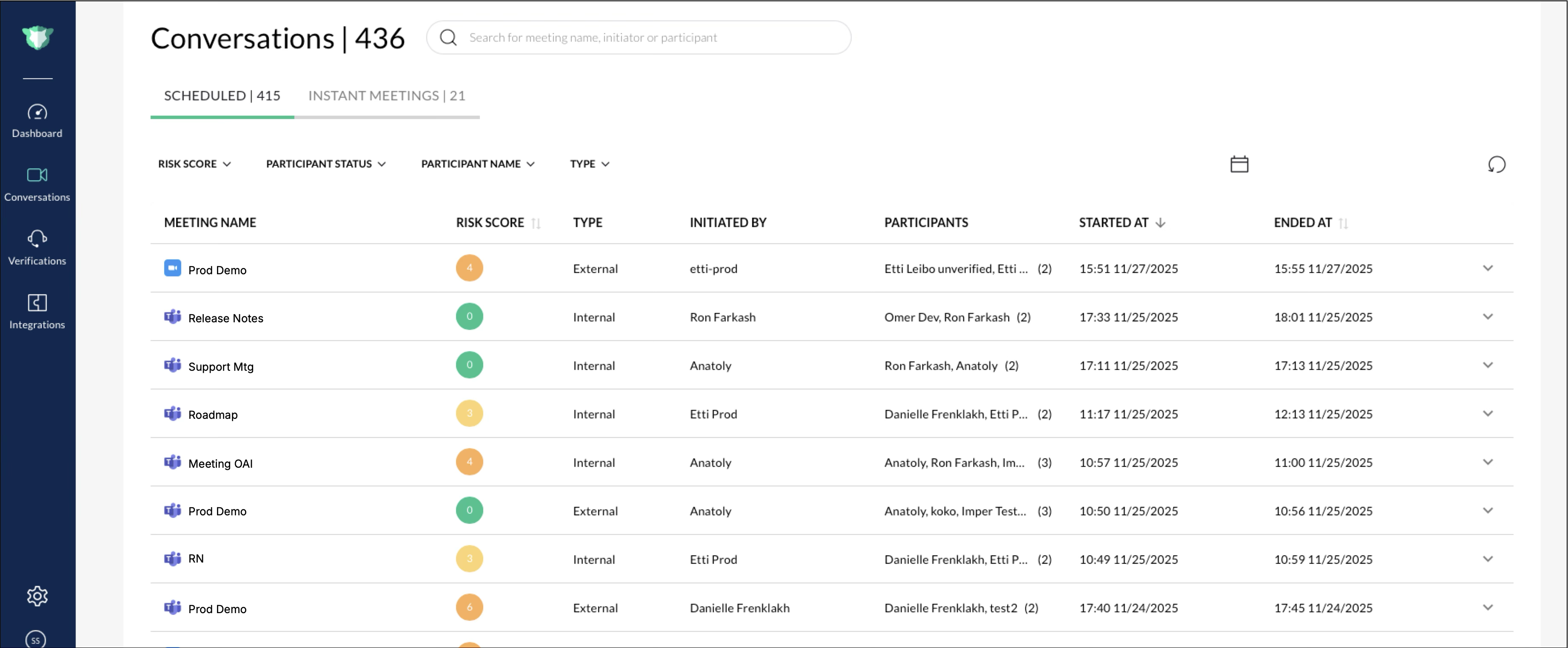
The **Conversations **page displays all meetings protected and monitored through imper.ai.
Each record represents a scheduled or instant meeting and includes its participants, meeting type, and overall risk score.
To access this page, log in to the imper.ai console and select **Conversations **from the left navigation panel.
Viewing Conversations
The number displayed next to the page title (for example, Conversations | 11) shows the total number of meetings currently listed in the table.
Conversations are organized under two tabs:
- **Scheduled **: Displays meetings that were pre-arranged through calendar integrations such as Google Meet or Zoom.
- **Instant Meetings **: Displays ad-hoc meetings initiated directly from imper.ai.
Each meeting record includes the following columns:
| Column | Description |
|---|---|
| Meeting Name | The title or subject of the meeting. |
| Risk Score | A numeric score (0–10) that indicates the overall communication risk detected during the meeting. Higher values represent increased risk. |
| Type | Identifies whether the meeting wasInternalorExternal. |
| Initiated By | The name of the meeting host or organizer. |
| Participants | Lists all participants detected in the meeting. |
| Started At / Ended At | Displays the start and end times of the meeting session. |
Use the **pagination controls **at the bottom of the table to move between pages of results.
Filtering and Searching Conversations
You can refine the displayed meetings using filters and search tools at the top of the window.
- **Search bar **: Search by meeting name, initiator, or participant.
- **Risk Score **: Use the slider to filter by risk level (for example, 0–10).
- **Participant Status **: Filter participants by status, such as Host, Verification Completed, Verification Bypassed, Verification Timed Out, or Incomplete Verification. For more information, refer to theVerification Statussection.
- **Participant Name **: Enter a specific participant name to narrow results.
- **Type **: Filter meetings byInternalorExternal.
- **Date Range **: Select a specific date range using the calendar picker. Click **Apply **to update the results or **Reset **to clear filters.
Click the **Refresh Table **icon to reload the most recent meeting data.
Expanding a Meeting Record
Click any meeting row to expand and view participant-level details.
Each expanded section displays:
| Column | Description |
|---|---|
| Participant Name | The title or subject of the meeting. |
| Participant Risk Score | The risk score calculated for that individual during the session. |
| Status | The participant’s verification result (for example,Verification Completed, Verification Bypassed, or Verification Timed Out). |
| Verification Time | The timestamp when the participant’s verification process was completed. |
You can collapse or expand meeting details as needed to review multiple sessions efficiently.
Viewing Verification Details
Expand the meeting name to display its participants, then click any participant name to open the **Verification Details **panel.
This panel provides deeper insight into the verification process for each meeting participant.
Sections include:-** General Information **: Displays the meeting name and host.
**Identification **: Lists both imper.ai and meeting-platform identification data, such as:
- Name and email address.
- Sign-in method or authentication channel (for example, Email or Google Account).
**Verification Results **: Displays the participant’s verification status and associated risk score.
**Analysis Report **: Summarizes checks across four security dimensions:
- **Network **– Evaluates network safety and anomalies, for example a location mismatch to participant’s profile
- **Endpoint **– Reviews the participant’s device integrity for a possible social engineering threat.
- **Persona **– Evaluates behavioral and environmental indicators that pose a possible social engineering threat.
Additional Information: Displays contextual device and network details for the verified participant, including device type, platform, timezone, IP address, country code, and ISP.
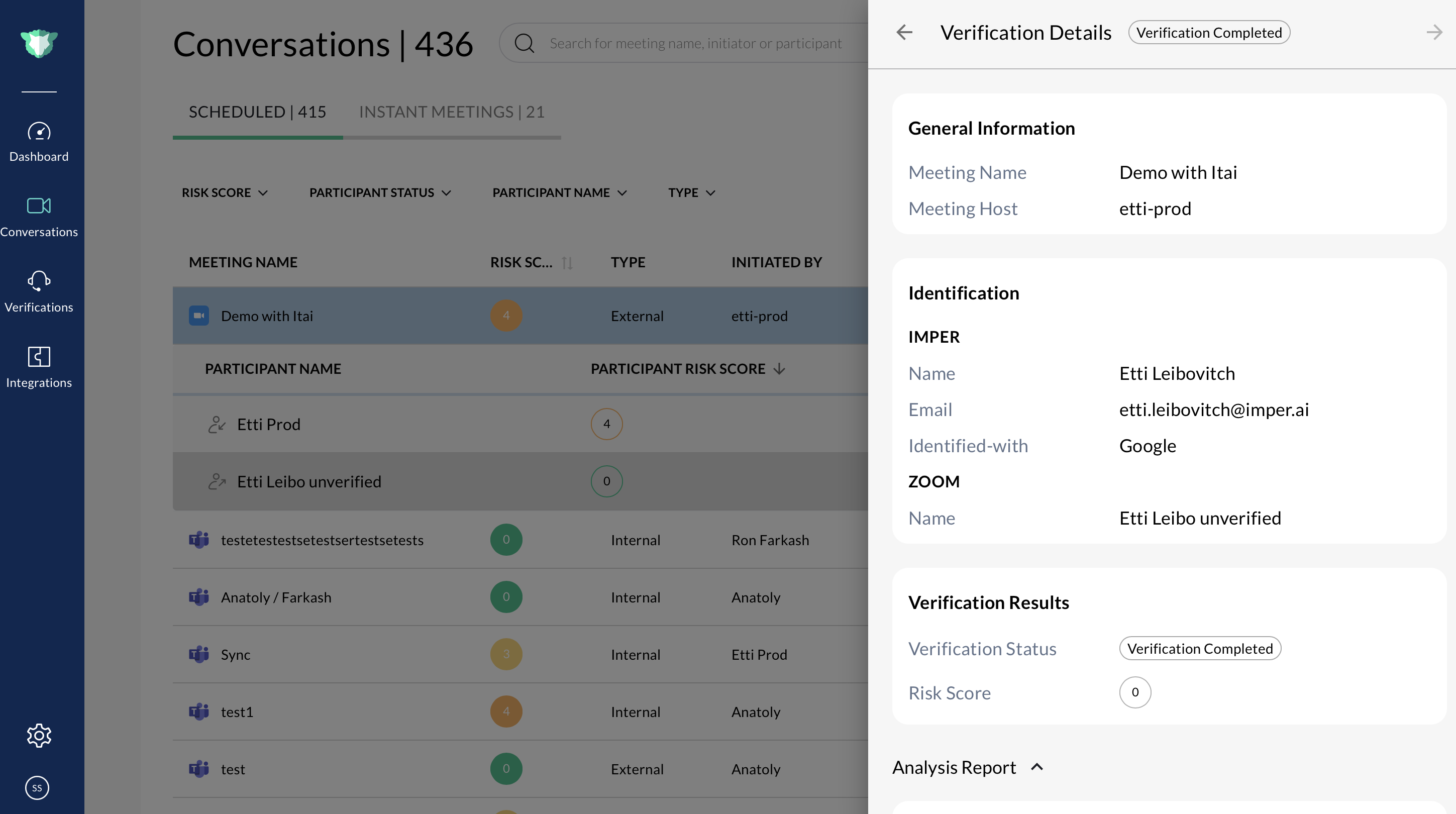
Each analysis category is markedVerified,Medium Risk (Suspicious), or*High Risk (Malicious)*based on imper.ai’s analysis.
NOTE
Notes
- Risk scores are dynamically calculated based on network, endpoint, and behavioral analysis.
- Expanded participant views show detailed verification results for every attendee in the session.
- The number beside Scheduled or Instant Meetings indicates the total meetings under each category.
Verification Status
This section describes the different statuses for communication channels and the Helpdesk.
Communication Channel Verification Statues
- **Incomplete Verification **: An issue was detected during the verification process but participant joined the meeting.
- **Unverified **: The participant joined the meeting without being verified by imper.ai.
- **Verification Completed **: Participant completed the verification process and joined the meeting.
- **Verification Interrupted **: Participant did not complete the verification process but joined the meeting.
- **Verification Not Required **: Participant is a trusted participant and joined the meeting. A trusted participant is a participant within the host’s organization.
- **Verification Timed Out **: Participant did not complete the verification process within the expected time period, but joined the meeting.
Helpdesk Verification Statuses
- **Insufficient Questions **: The participant did not answer a sufficient amount of questions but joined the meeting.
- **Verification Completed **: Participant completed the verification process and joined the meeting.