
Appearance
Connect your Bullhorn account so imper.ai can read the interviews scheduled in Bullhorn and secure them with candidate identity verification.
Bullhorn issues REST API credentials only through a Bullhorn Support ticket, so connecting imper.ai takes one Support ticket, plus a password and one system setting that your Bullhorn admin sets.
NOTE
Bullhorn API credentials are not self-service. They cannot be created in the Bullhorn UI - see Bullhorn's knowledge base.
Prerequisites
To connect Bullhorn to imper.ai, you must:
Have admin permissions in Bullhorn.
Be able to open a support case in the Bullhorn Customer Hub.
imper.ai needs four values. Bullhorn Support issues three of them, and your Bullhorn admin sets the fourth.
| Value | Issued by | What it is |
|---|---|---|
| Client ID | Bullhorn Support | Identifies the OAuth app Bullhorn registers for the imper.ai connection |
| Client Secret | Bullhorn Support | The app's password; keep it private |
| API username | Bullhorn Support | A dedicated Bullhorn user that only the integration logs in as |
| API password | Your Bullhorn admin | Set by you once Support has created the API user (Step 2) |
NOTE
Use a dedicated API user for imper.ai. Bullhorn expects each connected application to have its own API user, client ID and secret, so do not reuse credentials another vendor already has.
Step 1: Open a Bullhorn Support Ticket
A Bullhorn admin on your account opens the ticket.
Sign in to the Bullhorn Customer Hub at help.bullhorn.com (also called the Bullhorn Resource Center).
Open a new support case.
Paste the request below, filling in the bracketed parts.
Open a separate ticket for each environment you want connected, for example Sandbox and Production. Each environment gets its own Client ID and Secret.
markdown
Subject: Request for REST API OAuth credentials for a third-party integration (imper.ai)

Hello Bullhorn Support,

We would like to connect imper.ai to our Bullhorn account through the Bullhorn REST API.
Please provision the following for our [Production / Sandbox] environment:

1. OAuth 2.0 REST API credentials: a Client ID and Client Secret
2. A dedicated API user for this integration, with read access to Appointments,
   Candidates, Client Contacts and Job Orders, and access to the Event Subscription API

Owner / contact for these credentials: [name], [email]
Purpose: interview scheduling integration with imper.ai

Thank you,
[name, title]
Bullhorn sends the credentials to the owner email on the request.
Step 2: Set the API User's Password
Do this once Support confirms the API user exists.
In Bullhorn, open Menu > Admin > Users. On older accounts this is Menu > Tools > Users.
Find the API user Support created and generate a new password for it.
Accept Bullhorn's REST API Terms of Service for that user. Bullhorn requires this once before the first API login, and shows the page during the first OAuth sign-in.
Step 3: Send the Credentials to imper.ai
Share the four values from the table above through the secure channel your imper.ai contact gives you - never in plain email or chat. Tell us which environment they belong to.
imper.ai finds your Bullhorn data center automatically from the API username, so nothing else is needed.
Step 4: Turn Off Appointment Notification Emails
Set appointmentNotifyAttendees to No, so that interviews scheduled in Bullhorn do not email their attendees by default. Out of the box it is Yes. A Bullhorn admin can change this without Support.
- Open Menu > Admin > System Settings.
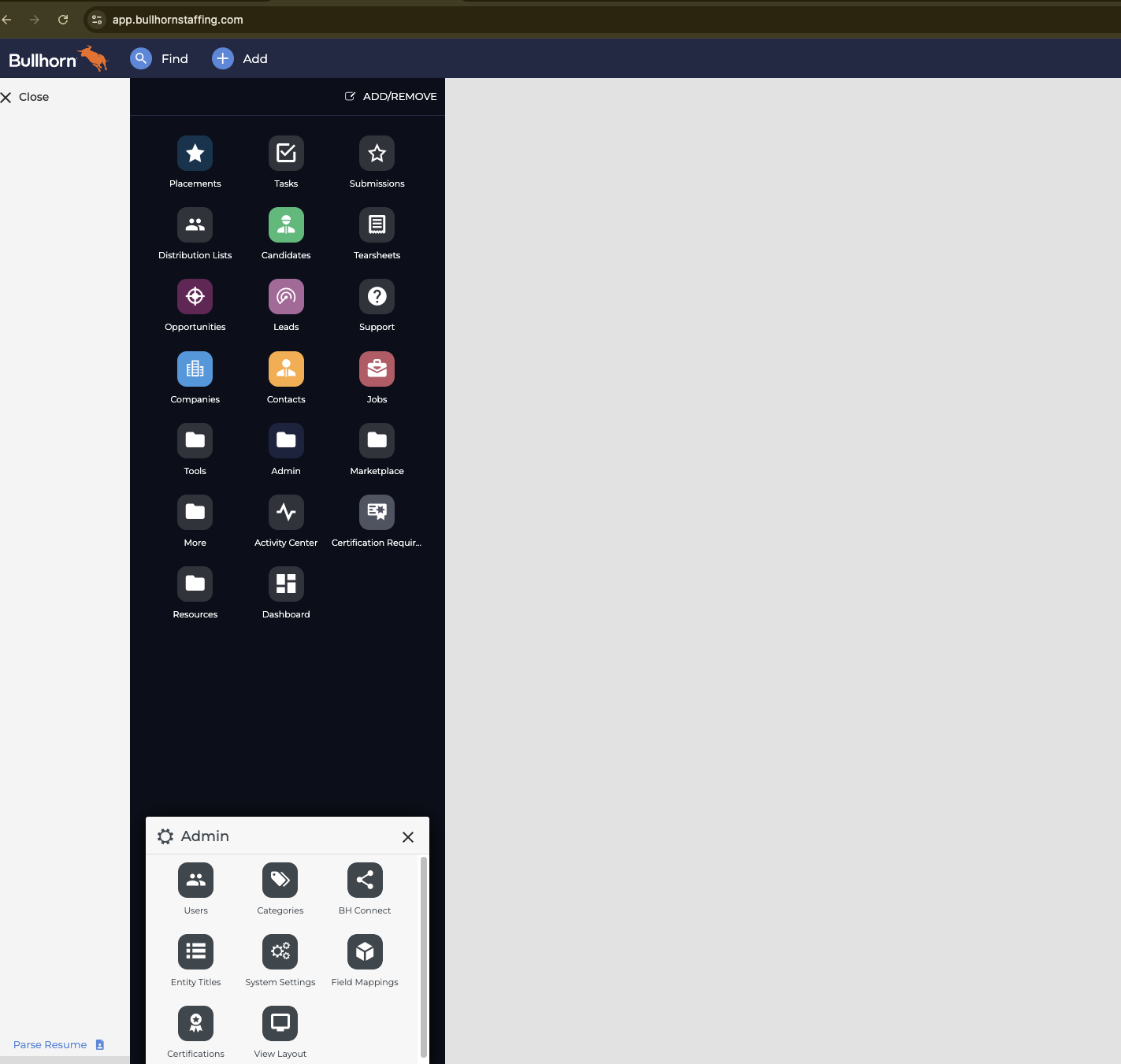
Pick your Private Label - your Bullhorn account or environment - and click Submit.
Type
appointmentNotifyAttendeesin the filter box and click Filter.Expand the row titled Default Notify Attendees, change Value from
YestoNo, and save.
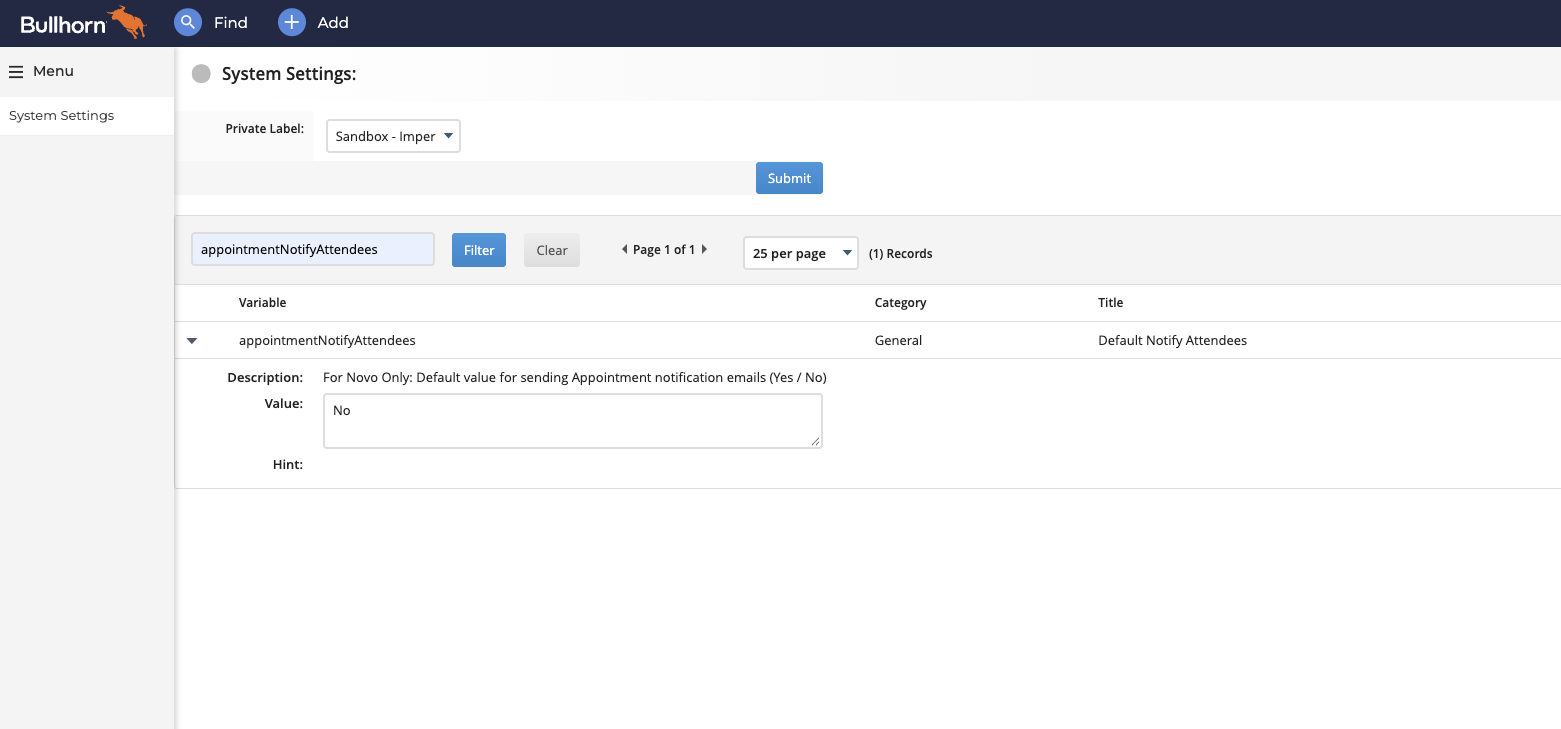
The setting applies to the current Bullhorn UI ("Novo"), as its description says, and only sets the default.
What Happens Next
- Securing Your Hiring Process - Bullhorn - how interviews scheduled in Bullhorn are protected once the integration is connected.