
Appearance
The Export button downloads the full result of a single finished verification as a JSON file. Use it to attach a verification to an investigation or case, keep it as compliance evidence, or load it into your own tooling.
The file has the same structure as the verification result imper.ai sends to your SIEM, so anything you build for one works with the other.
Where to find Export
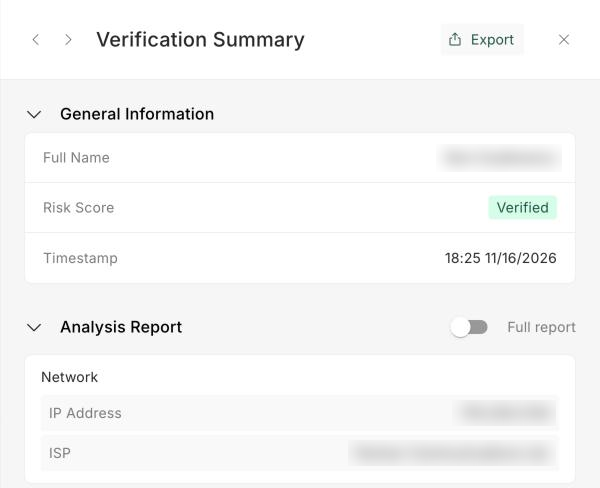
Export appears at the top of a verification's detail panel, next to the panel's other actions:
| Page | Panel |
|---|---|
| Helpdesk Verifications | The Verification Summary panel. See Verifications Page Overview. |
| Enrollments | The verification panel opened from the Enrollments table. See Enrollments Page Overview. |
| On-Demand Verifications | The verification panel opened from the On-Demand Verifications table. |
| Candidates | An interview opened from the candidate panel. The candidate overview itself has no Export. See Candidates Page Overview. |
The Export button on a panel is different from Export CSV on a page, which downloads the rows of the table rather than one verification's full result.
Exporting a verification
Open the verification's detail panel from the table.
Click Export at the top of the panel.
Your browser downloads a file named
verification-<verification ID>.json.
NOTE
You can export a verification only once it has finished and has a verdict. If it is still running, or an escalation (such as a document check or manager approval) is still open, imper.ai shows "This verification isn't finished yet, so it can't be exported." Try again once the verification is complete.
On the Candidates page, Export is unavailable for an interview that has no verification.
Who can export
| Role | Can export |
|---|---|
| Admin | Yes |
| Member | Yes |
| Agent | Yes |
| Viewer | No. The button is shown but disabled, because the file carries the full verification record. |
| HR | No. HR is not shown verification risk details, so it can't export them either. On the Candidates page the button is hidden, and HR can't open verification panels on the Enrollments page. |
Export is also disabled for every user while your organization's account is in read-only mode (for example, after a trial has ended).
See Roles for what each role can do.
What the file contains
The file is the verification's result in the imper.ai Verification Result format, schema version 1.1. It is the same structure that imper.ai sends to your SIEM inside every event, described field by field in unmapped.verification_result.
It includes:
The verification ID, your organization ID, and the use case (helpdesk, enrollment, hiring, or post-hire)
When the verification was requested, started, and finished
The person verified and the session they verified from
The verdict, with the risk score and the reasons behind it
Every detection that contributed risk, with its evidence
The Analysis Report, section by section
For helpdesk and enrollment verifications, the challenge outcome and the action that followed, when there was one
Fields without a value are left out of the file rather than included as empty values. For example, a verification with no follow-up action has no action field.
Export in the Audit Log
Every successful export is recorded in the Audit Log as Export Verification Result, with the exporting user and the exported verification's ID. To see who exported a verification and when, filter the Audit Log by that action and search for the verification ID.