
Appearance
Overview
You can evaluate Post-Hire Verification without connecting any system to imper.ai. Download the imper.ai collector script from the imper.ai console and push it once, through your MDM, to a group of Mac or Windows devices. imper.ai analyzes the results, matches them to each device by its serial number, and either adds them to the Devices page after a delay or sends them to you as a report, whichever you choose.
Use this to see what imper.ai finds on your devices before you connect your MDM to imper.ai.
What the collector script does
The collector script:
- Reads device, software, network and security information. Every read is read-only.
- Sends the result to imper.ai in a single HTTPS request.
- Does not install software, create services or scheduled tasks, or change system settings.
Each script states what it reads, what it never reads, and every network call it makes in its header. Review it before you deploy it.
Prerequisites
- Access to the imper.ai console.
- An MDM that manages the test devices: Microsoft Intune for Windows, Iru for Mac.
- A device group (Intune) or Blueprint (Iru) that contains the devices you want to test.
Step 1: Download the collector script
- Log in to the imper.ai console.
- Download the collector script for each platform you want to test: macOS or Windows.
Step 2: Push the script to your test devices
Push the script once to the group of test devices from your MDM.
Windows (Microsoft Intune)
Deploy the script as a platform script. Intune runs a platform script once on each device in the group.
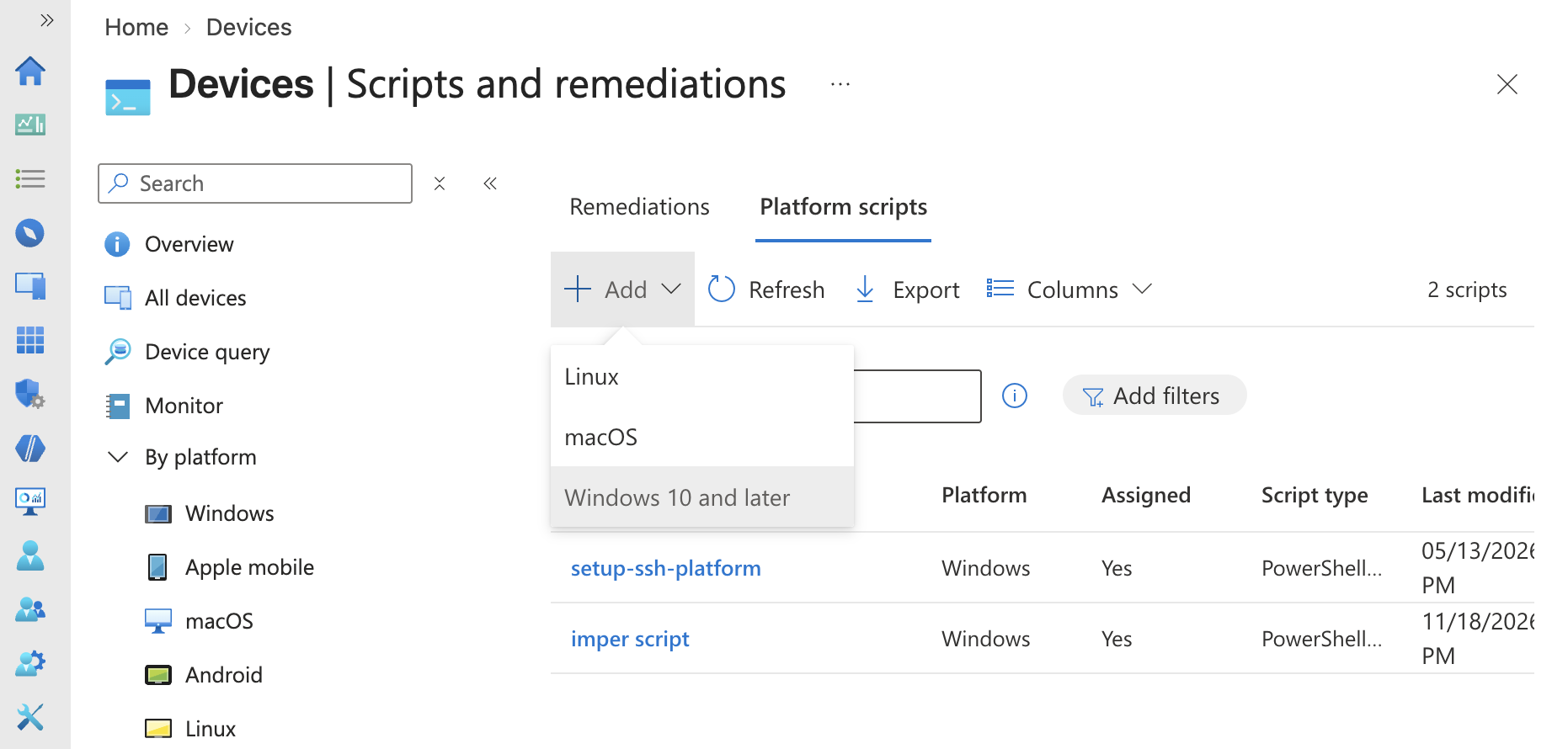
In the Microsoft Intune admin center, go to Devices > Scripts and remediations, select the Platform scripts tab, then click Add > Windows 10 and later.
Under Basics, enter a Name (for example,
imper.ai POV) and an optional Description, then click Next.Under Script settings:
- Script location - upload the Windows collector script (
.ps1). - Run this script using the logged on credentials - No, so the script runs in the system context.
- Enforce script signature check - No.
- Run script in 64 bit PowerShell Host - Yes.
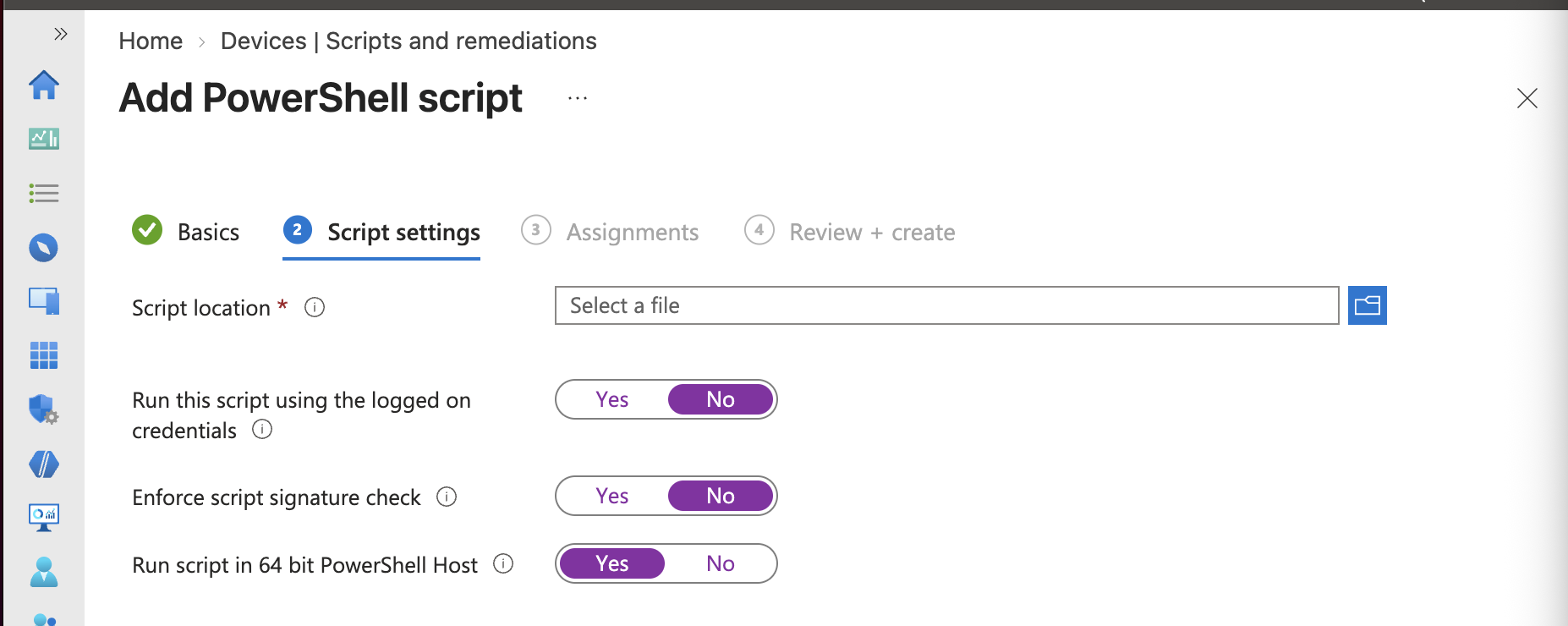
- Script location - upload the Windows collector script (
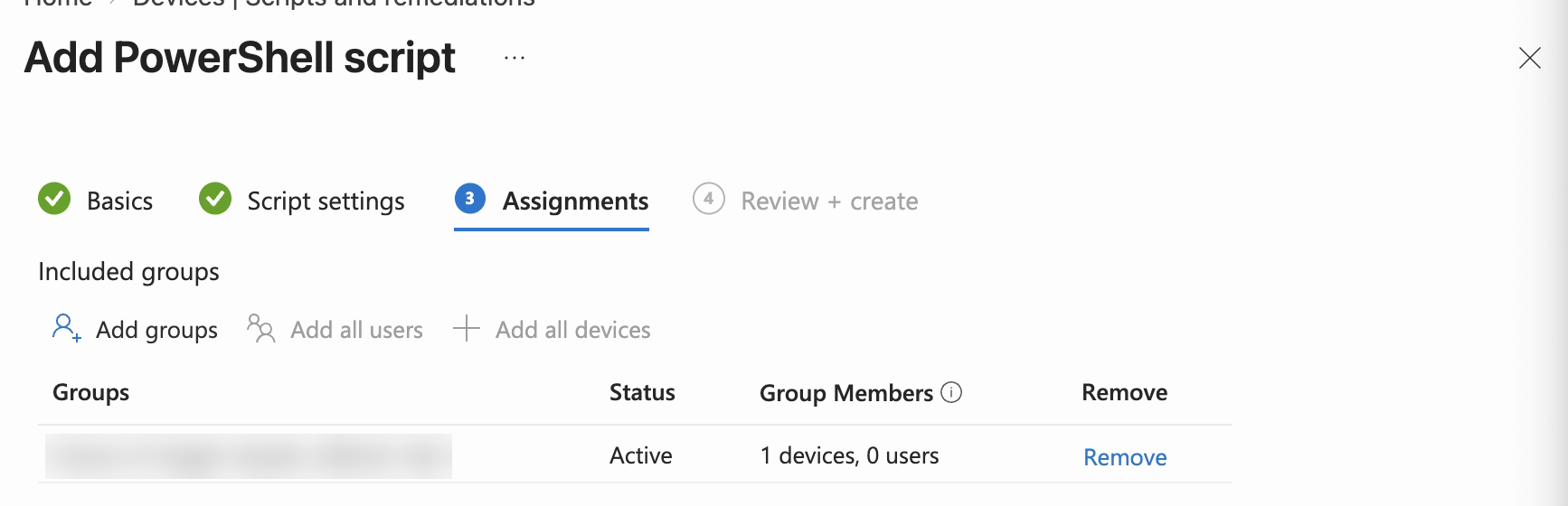
Click Next. Under Assignments, click Add groups, select your test device group, then click Next.
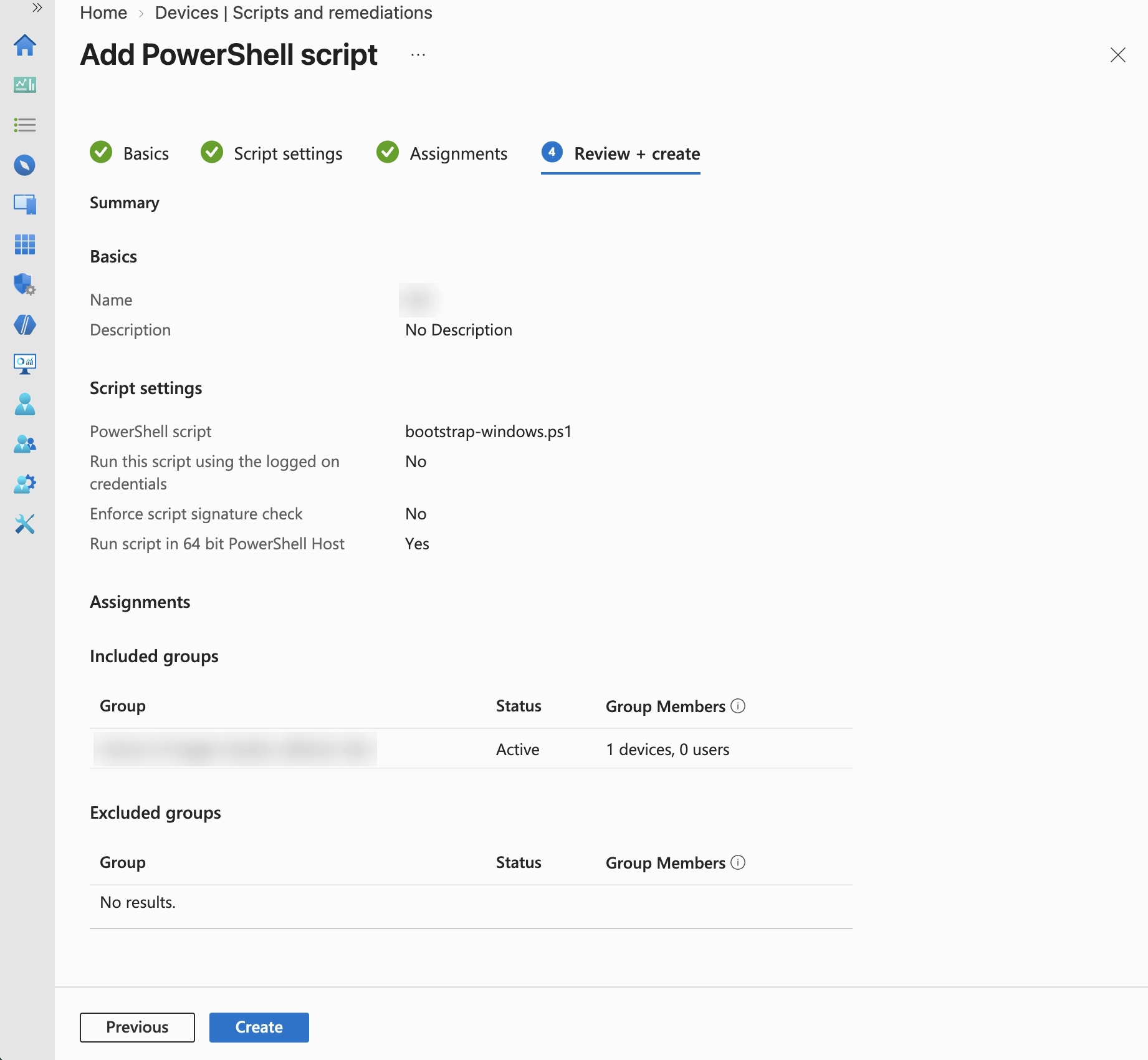
Review the summary and click Create.
Run the script sooner
Intune runs the script the next time the device checks in, which can take several hours. To run it sooner:
In the Intune admin center, go to Devices > All devices, open a test device, and click Sync.

To run the script right away, restart the Microsoft Intune Management Extension service on the device, or restart the device. From an elevated PowerShell prompt:
powershellRestart-Service -Name IntuneManagementExtension
Check whether the script ran
The Microsoft Intune Management Extension on the device runs the script and writes its logs to C:\ProgramData\Microsoft\IntuneManagementExtension\Logs. The logs show each run within seconds. Intune's own status appears later, and can be misleading.
Show how to check the script's runs
Find the script's ID. In the Intune admin center, open the script and select Properties. The ID is the value after
policyId/in the browser's address bar.On the device, open PowerShell as an administrator and run:
powershell$logFolder = "$env:ProgramData\Microsoft\IntuneManagementExtension\Logs" $logFiles = Get-ChildItem -Path "$logFolder\AgentExecutor*.log" -ErrorAction SilentlyContinue | Sort-Object LastWriteTime $runs = @( if ($logFiles) { ($logFiles | ForEach-Object { Get-Content -Path $_.FullName -Raw }) -split 'ExecutorLog AgentExecutor gets invoked' | Where-Object { $_ -match 'exit code is' } | Select-Object -Last 5 } ) if (-not $runs) { "No script runs found in $logFolder\AgentExecutor*.log" } foreach ($run in $runs) { $dateParts = [regex]::Match($run, 'date="(\d\d)-(\d\d)-(\d{4})"').Groups $time = [regex]::Match($run, 'time="(\d\d:\d\d:\d\d)').Groups[1].Value $scriptId = [regex]::Match($run, '([0-9a-f]{8}-[0-9a-f-]{27})(?:\.ps1|_\d+\\)').Groups[1].Value $exitCode = [regex]::Match($run, 'exit code is (\d+)').Groups[1].Value $streams = [regex]::Match($run, '(?s)output = (.*?), error = (.*?)\]LOG').Groups $output = $streams[1].Value.Trim() $errors = $streams[2].Value.Trim() if (-not $output) { $output = '(none)' } if (-not $errors) { $errors = '(none)' } $outcome = if ($exitCode -eq '0') { 'succeeded' } else { 'failed' } '' "Run on $($dateParts[3].Value)-$($dateParts[1].Value)-$($dateParts[2].Value) at $time" " Script ID : $scriptId" " Exit code : $exitCode ($outcome)" " Output : " + ($output -replace "`r?`n", "`n ") " Errors : " + ($errors -replace "`r?`n", "`n ") }It shows the last five script runs in the logs, newest last. Find the run with your script's ID. To see more runs, change
-Last 5to a larger number.Look up the run's Output and Errors in this table:
What the run shows What it means What to do Exit code 0, Output imper bootstrap: result delivered (run <id>)The script ran and imper.ai received the result. Nothing. Exit code 0, Output imper bootstrap: nothing to collect now (the device is not due yet)The device reported recently, so this run collected nothing. Contact imper.ai if you expected a new collection. Exit code 1, Output starts with imper bootstrap FAILED: the service address must start with https://The script is the template, not the copy downloaded from the imper.ai console. Download the script from the imper.ai console and upload that copy to Intune. Exit code 1, Output ends with The remote name could not be resolved: '<host>'The device could not resolve the imper.ai address. Check DNS for the address in the script's $BaseUrlline.Exit code 1, Output ends with Unable to connect to the remote serverThe device could not open a connection to imper.ai, for example because a firewall or proxy blocked it. Allow outbound HTTPS from the device to the address in $BaseUrl.Exit code 1, Output ends with Could not establish trust relationship for the SSL/TLS secure channel.The device did not trust the certificate it received, for example because TLS inspection replaced imper.ai's certificate. Exclude the address in $BaseUrlfrom TLS inspection.Exit code 1, Output ends with The remote server returned an error: (401) Unauthorized.imper.ai did not accept the script's key. Download a new copy from the imper.ai console. Exit code 1, Errors include You cannot run this script on the current system.Enforce script signature check is set to Yes, so the script did not start. Set it to No. Errors show No User exists for *Nobody was signed in to the device. The message comes from a Windows command the collector runs. The collection still runs. Read the Output line.
If the first snippet prints No script runs found, or your script's ID is not in the list even with more runs shown, the device has not run the script yet:
- Check that the device is in the group the script is assigned to.
- Sync the device or restart the Microsoft Intune Management Extension service, then wait a few minutes. A newly created group can take a few minutes to reach the device.
Intune does not run a script again after it reports Success. To run it again, upload a new copy of the script, for example one downloaded again from the imper.ai console.
Intune's Success or Failed
Intune's status for this script does not tell you whether the collection worked. Use the exit code and the output from the first snippet instead.
- Intune decides Success or Failed from the script's error output, not from its exit code.
- A run that could not reach imper.ai can show as Success.
- A run that worked can show as Failed, for example because of
No User exists for *.
- When Intune reports Failed, it runs the script again at its next few check-ins.
To see what Intune recorded on the device, run:
powershell
$logFolder    = "$env:ProgramData\Microsoft\IntuneManagementExtension\Logs"
$verdictLines = @(
    Get-ChildItem -Path "$logFolder\IntuneManagementExtension*.log" -ErrorAction SilentlyContinue |
        Sort-Object LastWriteTime |
        Select-String -Pattern ', policy result =' -SimpleMatch |
        Select-Object -Last 5
)
if (-not $verdictLines) { "No Intune script results found in $logFolder\IntuneManagementExtension*.log" }

foreach ($verdictLine in $verdictLines) {
    $verdictFields = [regex]::Match($verdictLine.Line, 'Policy id = ([0-9a-f-]+), policy result = (\w+).*time="(\d\d:\d\d:\d\d)[^"]*" date="(\d\d)-(\d\d)-(\d{4})"').Groups
    $scriptId = $verdictFields[1].Value
    $verdict  = $verdictFields[2].Value
    $time     = $verdictFields[3].Value
    $date     = "$($verdictFields[6].Value)-$($verdictFields[4].Value)-$($verdictFields[5].Value)"
    "$date $time   Script ID $scriptId   Intune result: $verdict"
}
Mac (Iru)
Deploy the script as a Custom Script Library Item:
- In the Iru web app, add a Custom Script Library Item.
- Paste the macOS collector script as the script.
- Set the Execution Frequency to run once per device.
- Assign the item to the Blueprint that contains your test devices.
Step 3: Review the results
imper.ai delivers the results the way you chose: added to the Devices page after a delay, or sent to you as a report. See Devices Page Overview.
Next steps
When you are ready to monitor devices continuously, connect your MDM to imper.ai. See Quickstart.
Need help or have a question? support@imper.ai