
Appearance
The setup check is a short camera and microphone check that runs right after the infrastructure verification. It looks for virtual cameras and microphones, which are often used to fake a video feed or a voice, and adds what it finds to the verification.
How It Works
- The user completes the infrastructure verification as usual.
- If a risk was detected in the verification, a page titled Just a few more checks asks them to continue. Their browser then asks for permission to use the camera and microphone.
- imper.ai checks which camera and microphone the browser opens, and which others are connected to the device.
- The user continues.
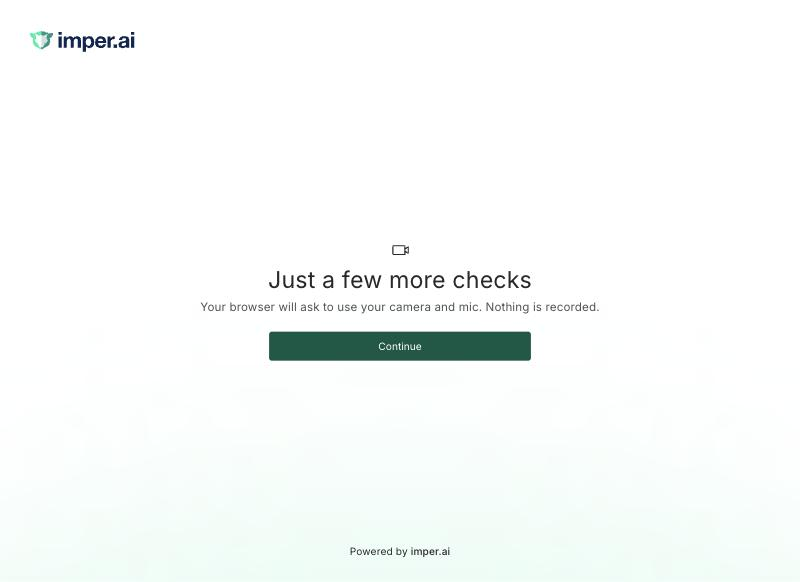
Nothing is recorded. imper.ai reads only the names of the devices and the video settings, never the video or audio itself.
If no camera or microphone is found, or another app is using them, the user is asked to fix it and can select Try again.
What It Finds
The verification result waits for the setup check and is updated with its findings. They appear in the verification's Analysis Report:
- Virtual camera or microphone - a virtual camera or microphone was used or connected, with the device name
- User denied setup check - the user refused camera and microphone access
- User skipped setup check - the user never started the check