
Appearance
Overview
Integrating Okta with imper.ai connects imper.ai to your Okta organization through a single API Services app. Once connected, imper.ai can:
- Reset passwords - set a new password for a verified user as part of a help desk flow.
- Verify users with Okta Verify - send an Okta Verify push to the user's phone instead of asking verification questions. See Verify with Okta Verify.
- Read your directory - list users and groups for enrollment and verification.
One connection covers all of these. You don't need a separate app for password reset and Okta Verify.
This article walks you through the prerequisites and the steps for creating the app, configuring its permissions, and connecting it in imper.ai.
Prerequisites
An Okta admin user with permission to create app integrations and assign admin roles in the Okta Admin Console.
For Okta Verify verification only: Okta Verify must allow push notifications. In the Okta Admin Console, go to Security → Authenticators, click Actions → Edit next to Okta Verify, and make sure Push notification is checked under Verification options.
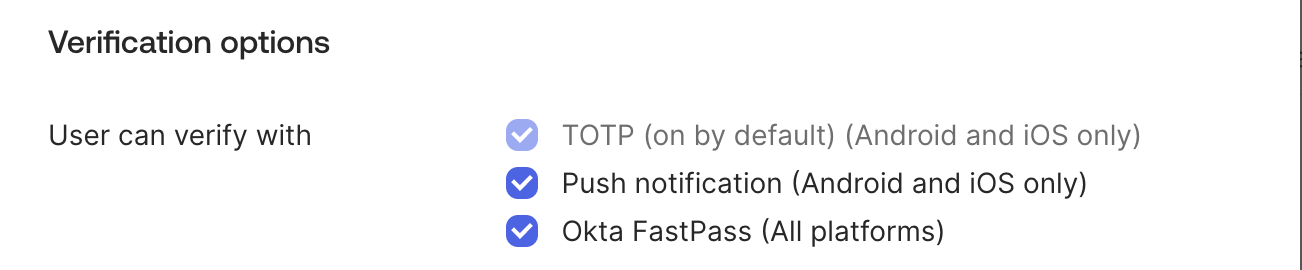
imper.ai always asks for a number challenge on its pushes, so your org's Push notification: number challenge setting doesn't need to change.
Users must have Okta Verify set up on their phone. A standard Okta Verify enrollment includes push. Users enrolled with Okta FastPass only can't receive a push from imper.ai and fall back to the other verification methods in their policy.
Setup
Step 1: Create an Okta App Integration and Credentials
Using an Okta admin user, login to your Okta Admin Console (click the Admin button on the top-right bar).
In the left navigation panel, navigate to Applications → Applications , click Create App Integration.

Select API Services and click Next.

Type a name in App integration name and click Save.
In the General tab (opened by default), navigate to the Public keys section:
Click Edit , and then click Add key.

In the opened Add a public key pop-up, click Generate new key.

In the Private key section, click Copy to clipboard - this key needs to be entered later in imper.ai’s integrations interface.

Click Done to close the pop-up, and then click Save to activate the newly created key.

Still in the General tab, navigate to the Client Credentials section:
Click Edit , select Public key / Private key and click Save.

A message titled “Existing client secrets will no longer be used” will be displayed - click Save again.

Next to the Client ID textbox, click Copy to clipboard - this ID needs to be entered later in imper.ai’s integration interface.

Navigate to the Okta API Scopes tab.

Search for okta.users.manage and click Grant. This one scope covers password reset, Okta Verify push and reading users.

A message titled “Grant Okta API Scope ” will be displayed - click Grant Access.

Navigate to the Admin roles tab.

Click Edit assignments and choose Group Administrator for Role. Groups shows Entire organization by default; click Edit next to it only if you want to limit the role to specific groups. See Choosing the admin role below.
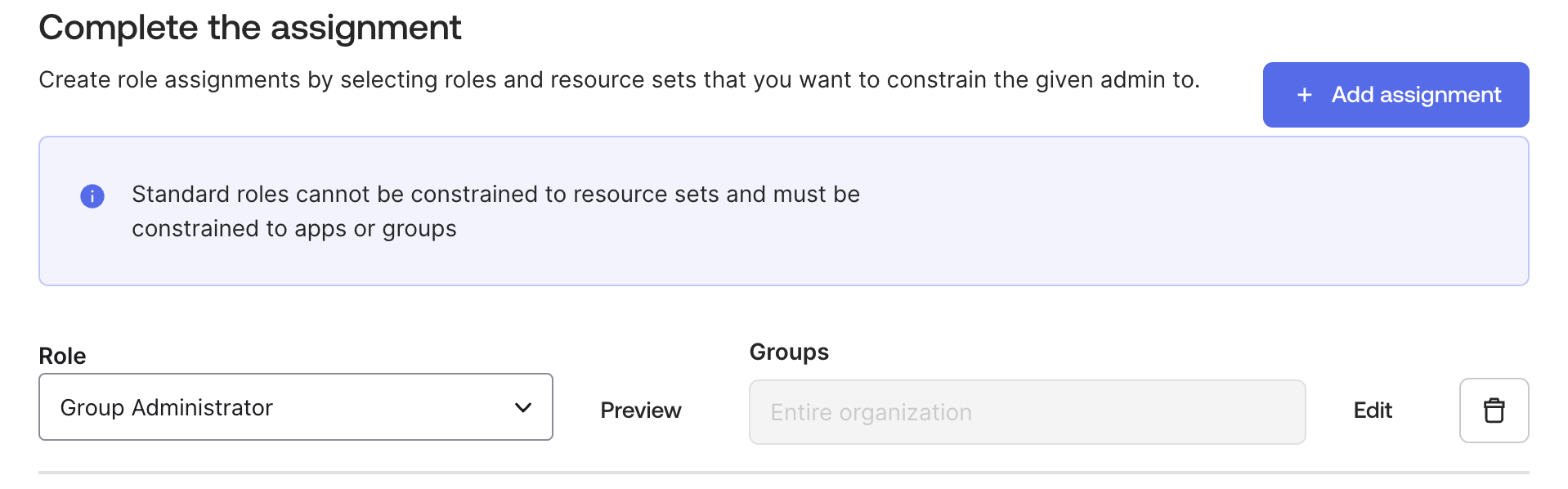
Click Save Changes. Okta asks you to re-verify (for example, with Okta Verify) before it saves the role. Complete it.
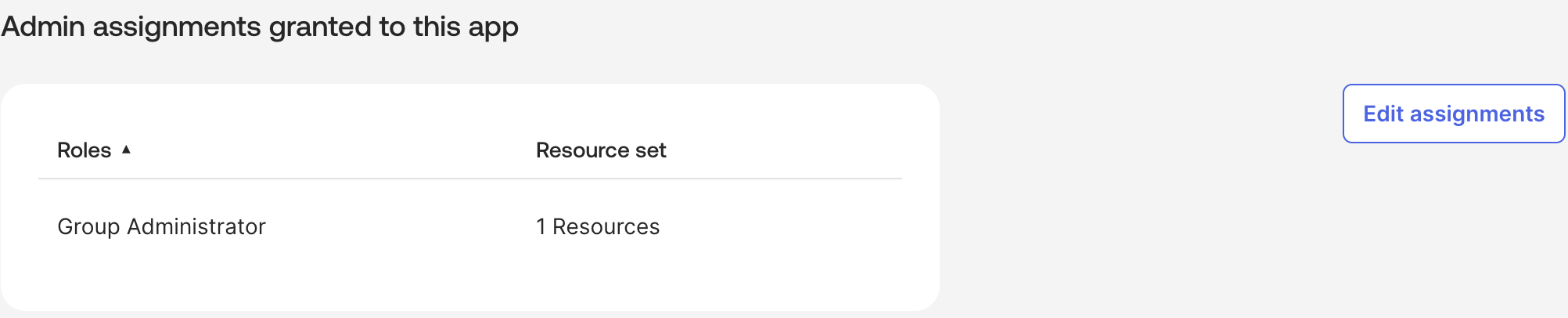
The Admin roles tab now lists Group Administrator.
Step 2: Connect Okta in imper.ai
Login to the imper.ai admin integrations page.
Locate Okta and click Connect.
In the integration dialog, fill in your Okta’s organization URL, and the client ID and private key obtained in the previous step.

Click Connect , and a connection attempt will be made to verify the credentials and privileges.
Choosing the Admin Role
imper.ai uses Group Administrator to read users, reset passwords and send Okta Verify pushes. It doesn't need full admin access, so we don't ask for Organization Administrator: Group Administrator can't change org settings or manage apps, and it can be limited to the groups you choose.
IMPORTANT
imper.ai only sees and acts on users inside the groups the role covers. That includes listing users, so anyone outside them can't be enrolled, verified with Okta Verify, or have their password reset. Assign the role to one broad group that covers almost everyone (or leave it unrestricted), and leave out only the accounts you specifically don't want imper.ai to have permissions for, such as highly privileged admins.