
Appearance
Overview
The imper.ai sign-in check verifies the device while a user signs in to Okta. It plugs into Okta as an extra sign-in step (an IdP Authenticator in an authentication method chain), so nothing is installed on the user's device.
imper.ai's check runs after the user's own MFA. It is added to your MFA, never in place of it, so your existing security is not weakened.
The check applies only to the users in an imper.ai group that you choose. Users outside the group see no change.
How a sign-in works
The user opens an app or the Okta Dashboard and signs in with their password.
The user completes their own MFA, such as an Okta Verify push.
The user is a member of the imper.ai group, so Okta asks them to verify with imper.ai and redirects the browser to imper.ai.
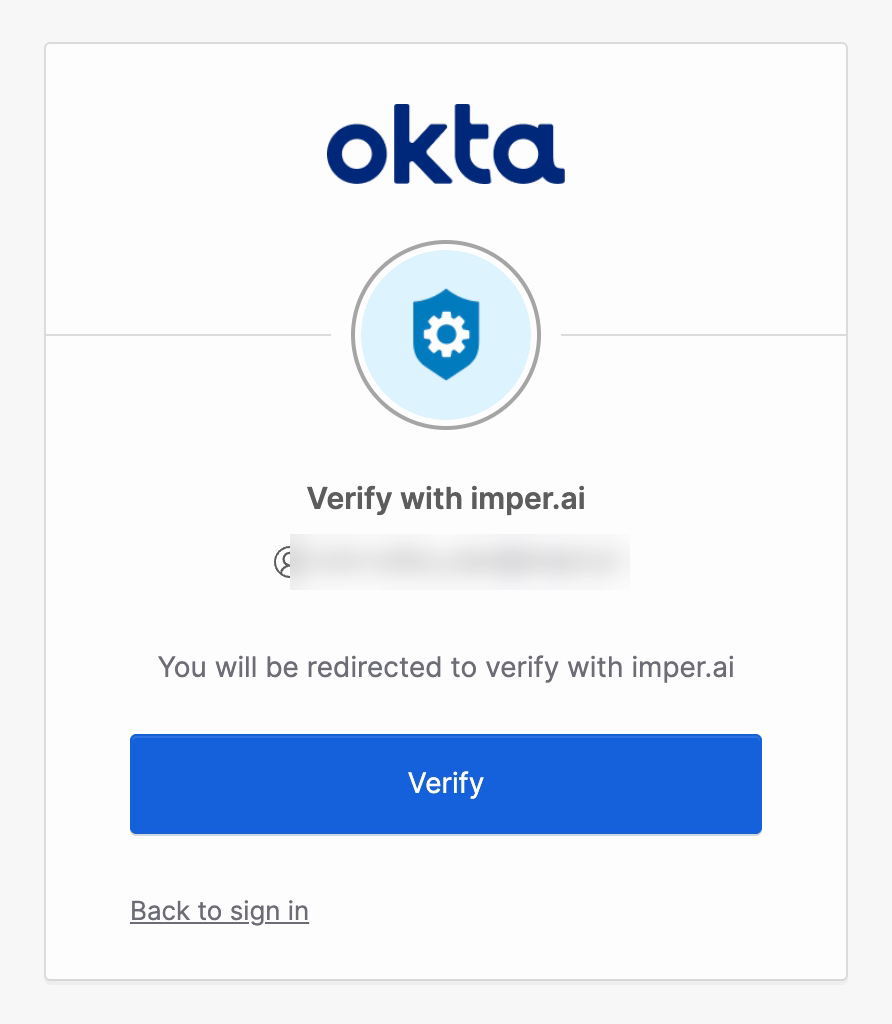
If your org turns on Okta's Skip the verify screen and redirect to the IdP authenticator setting, Okta skips this screen and redirects the user to imper.ai straight away.
imper.ai's check collects device signals and records a result. If the device is risky, imper.ai can block the sign-in.
imper.ai sends the user back to Okta, and the sign-in completes.
How often imper.ai runs is set by the re-authentication frequency of the sign-in rules.
How imper.ai is added to Okta
imper.ai is added with three Okta objects. imper.ai guides your administrators through creating each of them.
- An identity provider and authenticator. imper.ai is added as an OpenID Connect identity provider used as a factor only, and that identity provider is turned into an IdP Authenticator.
- The imper.ai group. Only members of this group get the imper.ai step. To roll out to more users, or to roll back, change the group's membership.
- Additional sign-in rules, scoped to the group. Your existing sign-in rules are never edited. For each rule that allows access, an additional rule named
[imper] <rule name>is added directly above it:- It matches only members of the imper.ai group.
- It keeps the original rule's conditions, such as network zones, device and risk, and requires the original rule's authentication followed by imper.ai.
- Rules that deny access get no additional rule, so they still apply to members of the group.
- The Okta Admin Console policy is never changed.
Before any rule is added, you see the full list of rules for review. Removing all [imper] rules undoes the change, and the Okta System Log records every rule change.
Adding the sign-in rules
imper.ai provides a tool that creates the [imper] rules from your existing ones. You choose who runs it:
| Option | How it works | When your policies change |
|---|---|---|
| You run the tool | Your administrator previews the rules, applies them with their own Okta credentials, and can remove them all with one command. imper.ai never gets access to change your policies. | Your administrator runs the tool again. |
| imper.ai runs the tool | You create an API service app in Okta that gives imper.ai access to your authentication policies. imper.ai sends you the list of rules for approval, then applies them. | imper.ai keeps the [imper] rules in sync with your policies. |
Requirements
- Okta Identity Engine. IdP Authenticators are not available in Okta Classic Engine.
- Authentication method chains in your Okta org. They are part of the Okta MFA or Adaptive MFA license. If Authentication method chain is missing from a sign-in rule's User must authenticate with list, your org doesn't have it.
- An MFA method enrolled for every covered user, such as Okta Verify.
Who needs to be involved in installation
An Okta administrator who can manage the following:
| Area | Needed for |
|---|---|
| Identity Providers | Adding imper.ai as an OpenID Connect identity provider, used as a factor only |
| Authenticators | Turning the identity provider into an authenticator and limiting its enrollment to the imper.ai group |
| Authentication policies | Adding the [imper] sign-in rules, or creating the API service app if imper.ai runs the tool |
| Groups | Creating the imper.ai group and adding users |
Limitations
- Some rules can't be converted automatically, for example rules that allow any of several sets of constraints, or that use a knowledge factor other than a password. The tool lists these for manual review.
Setup
To set up the sign-in check, contact imper.ai. imper.ai provides an onboarding guide that walks your administrators through adding the identity provider, the authenticator, the group and the sign-in rules.
Need help or have a question? support@imper.ai